Follow Playback keeps the document in step with the audio, and 1Key Mode turns single letters into editing commands. Both buttons sit in the Top Controls bar on the Playback & Edit screen in Loom Analytics Web, to the right of the Q, A, Q/A, and C buttons.
| Button | What It Does | Shortcut |
|---|---|---|
| Follow Playback (two arrows) | Scrolls the document to the word currently being played | — |
| 1Key Mode (numeral 1) | Switches to single-key shortcuts for fast editing | Alt+F |
Important: Follow Playback should always be off while you’re editing.
Follow Playback
When Follow Playback is on, the document scrolls automatically to the word currently being played. The current word is highlighted so you can follow along with the audio.

This is useful when you want to read along or review a transcript against the recording without touching the keyboard.
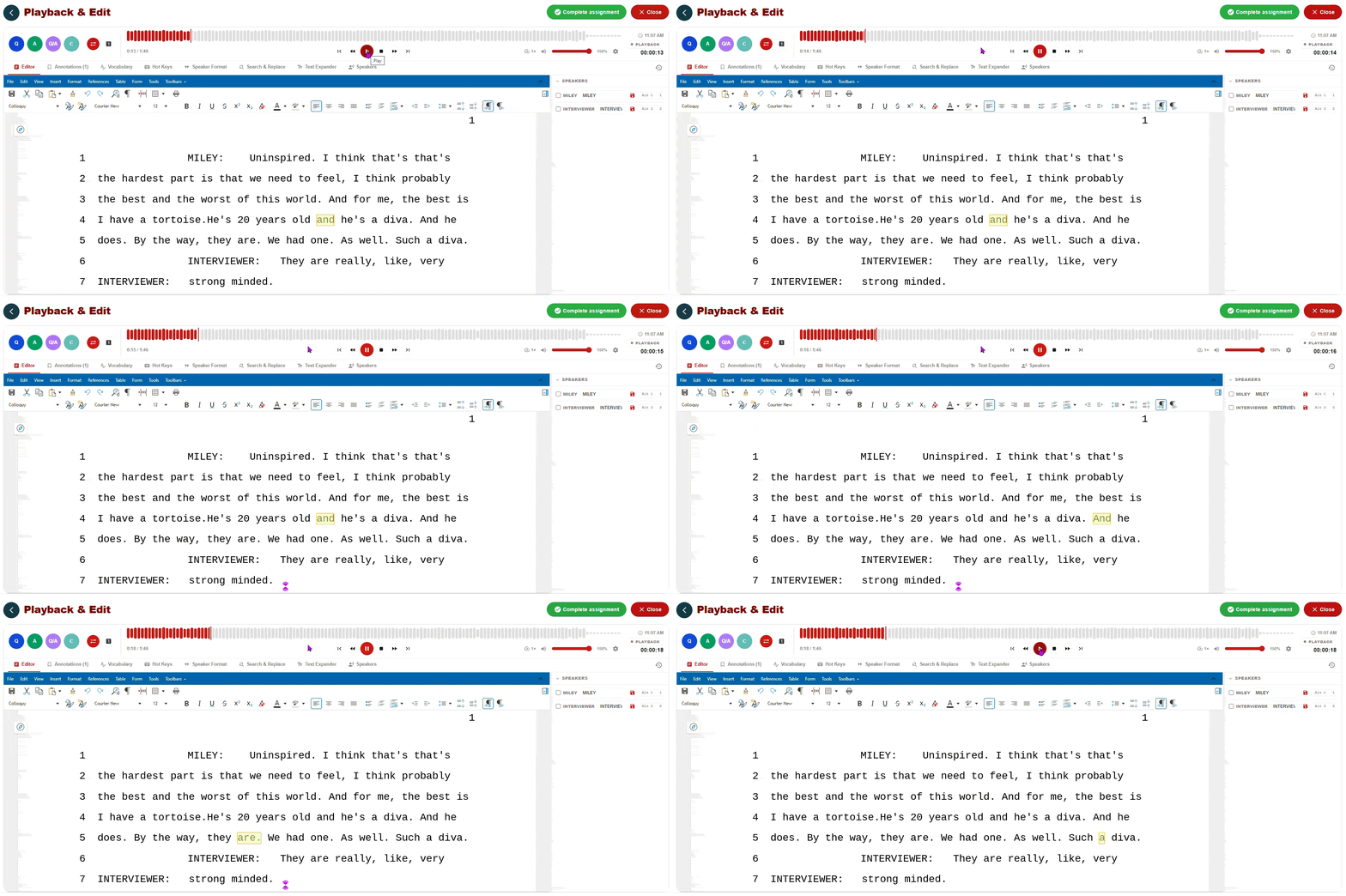
Always turn Follow Playback off while editing. With it on, the document keeps scrolling to wherever the audio is, which can pull you away from the spot you’re working on. Turn it on only when you’re reviewing, and switch it off before you start making changes.
To turn Follow Playback on or off, click the Follow Playback button (two arrows) in the Top Controls bar. The button is red when Follow Playback is on and white when it’s off.
1Key Mode
1Key Mode switches the editor to single-key shortcuts for fast editing. While it’s on, single letters become commands instead of typing text, so you can label, split, and fix paragraphs with one keystroke.

To turn 1Key Mode on or off, either:
- Click the 1Key Mode button (numeral 1) in the Top Controls bar, or
- Press Alt+F.
The button is red when 1Key Mode is on and white when it’s off. Turn 1Key Mode off before typing words into the transcript. Otherwise, your keystrokes will run commands.
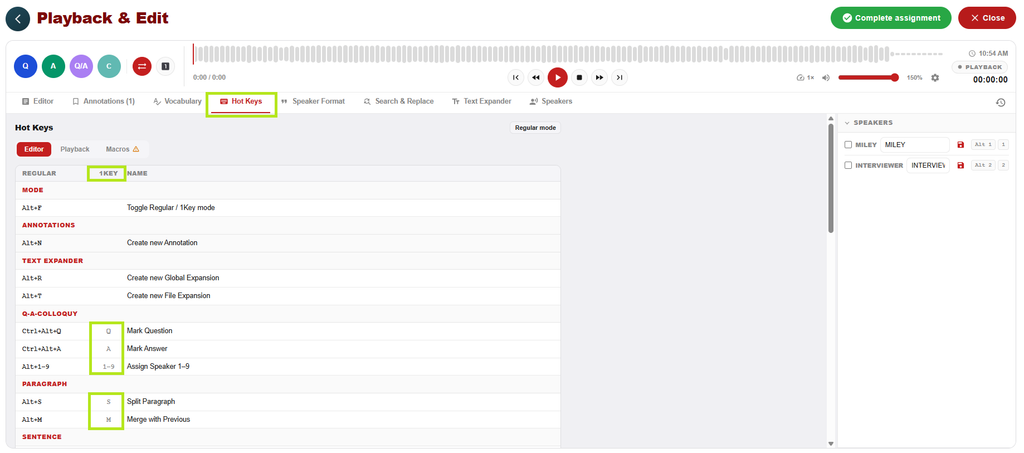
You can see every 1Key shortcut on the Hot Keys tab. The 1KEY column lists the single key for each command, beside its regular shortcut.
1Key Mode Commands
With 1Key Mode on, place your cursor in the text and press a single key to run its command.
| 1Key | Regular shortcut | Command |
|---|---|---|
| C | Shift+F3 | Cycles the capitalization of a word: ALL CAPS → First letter capitalized → all lower case |
| P | Alt+P | Switches the end punctuation between a period (.) and a question mark (?) |
| Q | Ctrl+Alt+Q | Marks the paragraph as a Question |
| A | Ctrl+Alt+A | Marks the paragraph as an Answer |
| 1–9 | Alt+1…Alt+9 | Assigns speaker 1-9 |
| S | Alt+S | Splits the paragraph |
| M | Alt+M | Merges the paragraph with the previous one |
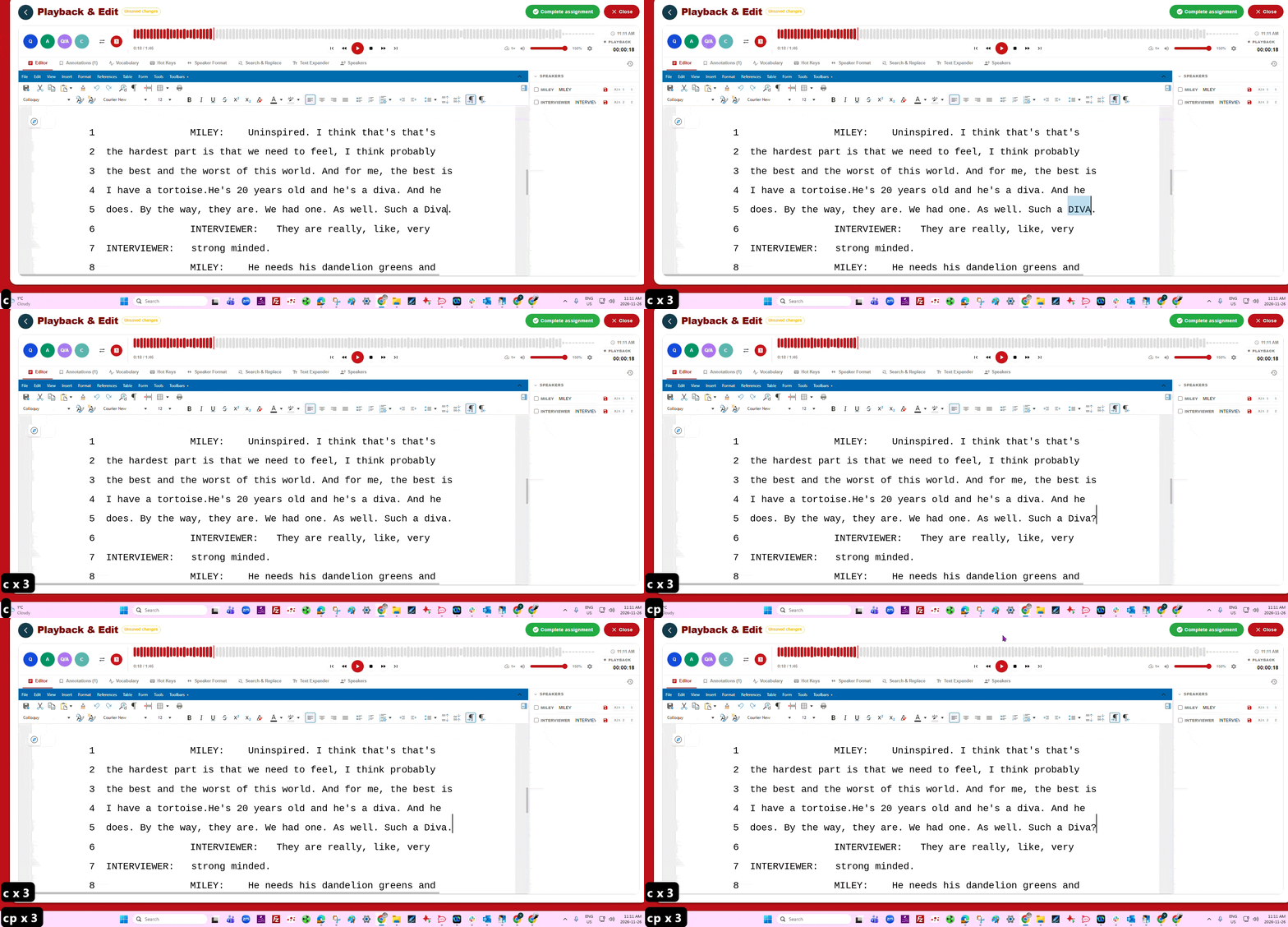
The example below shows 1Key Mode turned on (the button is red) with the cursor at the end of “Such a Diva.” Pressing C cycles the capitalization of “Diva,” and pressing P switches the period to a question mark.