-
Claudio: Getting Started
-
Claudio: Desktop
-
Claudio: Live
-
Claudio: Mobile
-
Claudio: Processing Jobs
- File Submission
- Editing Transcripts
- File Types & Sizes
- Ontario ACT Legal Transcripts
- General Transcripts
- Business Transcripts
- Legal Transcripts
- Insurance Transcripts
- Medical Transcripts
- Medico-Legal Transcription
- Security
- Usage
- Nova Scotia Courts
- Quickstart - Multilingual Transcription & Translation
- Translate and Transcribe from non-English media
- How can I delete job data for multiple jobs?
- How to convert .dcr media file to wav, avi, wma or wmv on Liberty Player?
- How can I export only a specific channel(s) from a multichannel DCR file?
- How can I have timestamps on every speaker change?
- TimeSync Playback on Claudio
-
Claudio: Profiles & Workflows
-
Claudio: Mac Users
-
Microsoft Word Support
-
A/V Support
- Converting Video to Text
- Converting Audio to Text
- Audio Transcription Playback Software: Liberty Player
- Audio Transcription Playback Software: FTR (For The Record)
- Audio Transcription Playback Software: VIQ Player
- Audio Transcription Playback Software: VLC Media Player
- Audio Transcription Playback Software: Express Scribe
- How do I assign global hotkeys in Liberty Player?
-
Computer Configuration
-
Resource Centre
-
Loom Analytics Academy
-
Claudio Developer Documentation
-
Claudio Product Updates
-
FAQ
Speaker Identification
This profile flag describes what Speaker Identification is in the Smart Formatting menu.
Imagine trying to transcribe a lively group discussion or a multi-person interview. You’ve recorded the conversation perfectly, the audio quality is pristine, and you're ready to start transcribing the file bright and early in the morning.
Morning arrives, you get your headset settled, and start playing the recording. Then you realize, this is a 4-person conversation. Cue the crosstalk, similar-sounding voices, and manually typing out your placeholder labels every time a different person starts speaking.
Moreover, there's no point running it through your standard speech-to-text software because it will just spit out the transcript in one long block of text.
This is where Claudio steps in.
Claudio is equipped with a Speaker Identification feature that, when enabled, will automatically tag and differentiate between speakers in the transcript rather than spitting out a long block of text for you to separate.
Activating Speaker Labels
To enable Speaker Labels in Claudio, follow these steps:
Via the Smart Format Form:
Enable the feature before submitting audio for transcription.
Through Profile Settings (Team Administrators):
- Click the gear icon in the top-right corner of the dashboard.
- Select Profile from the dropdown menu.
- Choose the desired profile from your enterprise’s list.
- Scroll down to the Smart Format section.
- Under Speaker Identification, select Add Speaker Labels.
- Click Update in the top-right corner.
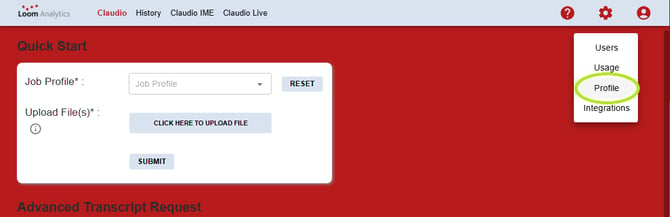
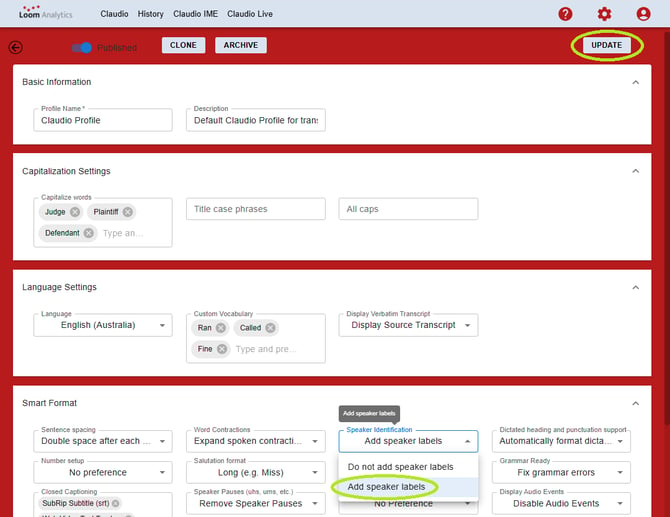
Once configured, any audio submitted with the updated profile will automatically apply speaker labeling.
Having issues with the improper speaker identification? Click here.
To learn how to search and replace speaker label placeholders, read our article here.