---
title: How Can I Search & Replace Speaker Labels Once I'm Done Editing My Court Transcript?
description: In this article we will look at how you can use Microsoft Word to efficiently look for and replace the speaker labels that are generated in your Court Transcript.
---
[Skip to content](https://support.loomanalytics.com/search-and-replace-speaker-labels#main-content)
English
Show submenu for translations
![Loom\_Analytics\_Logo\_Transparent.png\]](https://support.loomanalytics.com/hs-fs/hubfs/Loom_Analytics_Logo_Transparent.png?height=40&name=Loom_Analytics_Logo_Transparent.png)
Open main navigation
Close main navigation
- English
Show submenu for translations
- Loom Analytics
Loom Analytics
Let's Get Started. What Can I Help You With?
- There are no suggestions because the search field is empty.
1. [Loom Analytics Knowledge Base](https://support.loomanalytics.com/?hsLang=en)
2. [MS Word Support](https://support.loomanalytics.com/ms-word-support?hsLang=en)
3. [MS Word Basics: Searching & Viewing](https://support.loomanalytics.com/ms-word-support?hsLang=en#ms-word-basics-searching-viewing)
# How Can I Search & Replace Speaker Labels Once I'm Done Editing My Court Transcript?
## In this article we will look at how you can use MS Word to efficiently Search & Replace the speaker labels that are generated in your court transcript
### Table of Contents
```
1.Access the Search & Replace Menu2.Look at Additional Options3.Enable Match Case4.Define What Needs to be Replaced5.Define What it Needs to be Replaced With6.Replace All Instances
```
In Loom Analytics you have the option to choose several profiles for your specific needs. One of those profiles is fine-tuned for Court Transcription. When using a Court Transcription profile, you can expect to receive a non-speaker-identified transcript with embedded hotkeys for common notations, such as:
**Speaker labels, exhibits, witness oaths, breaks, etc...**
**TIP:** You can get a complete overview of which transcription profiles are offered by Loom Analytics [here](https://support.loomanalytics.com/claudio_profiles?hsLang=en).
While editing the transcript, you should use hotkeys to denote different events throughout the proceeding.
Once you have finished editing your transcript, you will need to replace the speaker labels with the names of the speakers, as they need to be identified by name.
This article will serve as a guide on how you can utilize MS Word to find generic labels and replace them with content that fits your needs.
**NOTE:** You can get better acquainted with the Search & Replace function in MS Word [here](https://support.loomanalytics.com/how-do-i-use-search-and-replace?hsLang=en).
### Press Ctrl+H to bring up the Search & Replace menu 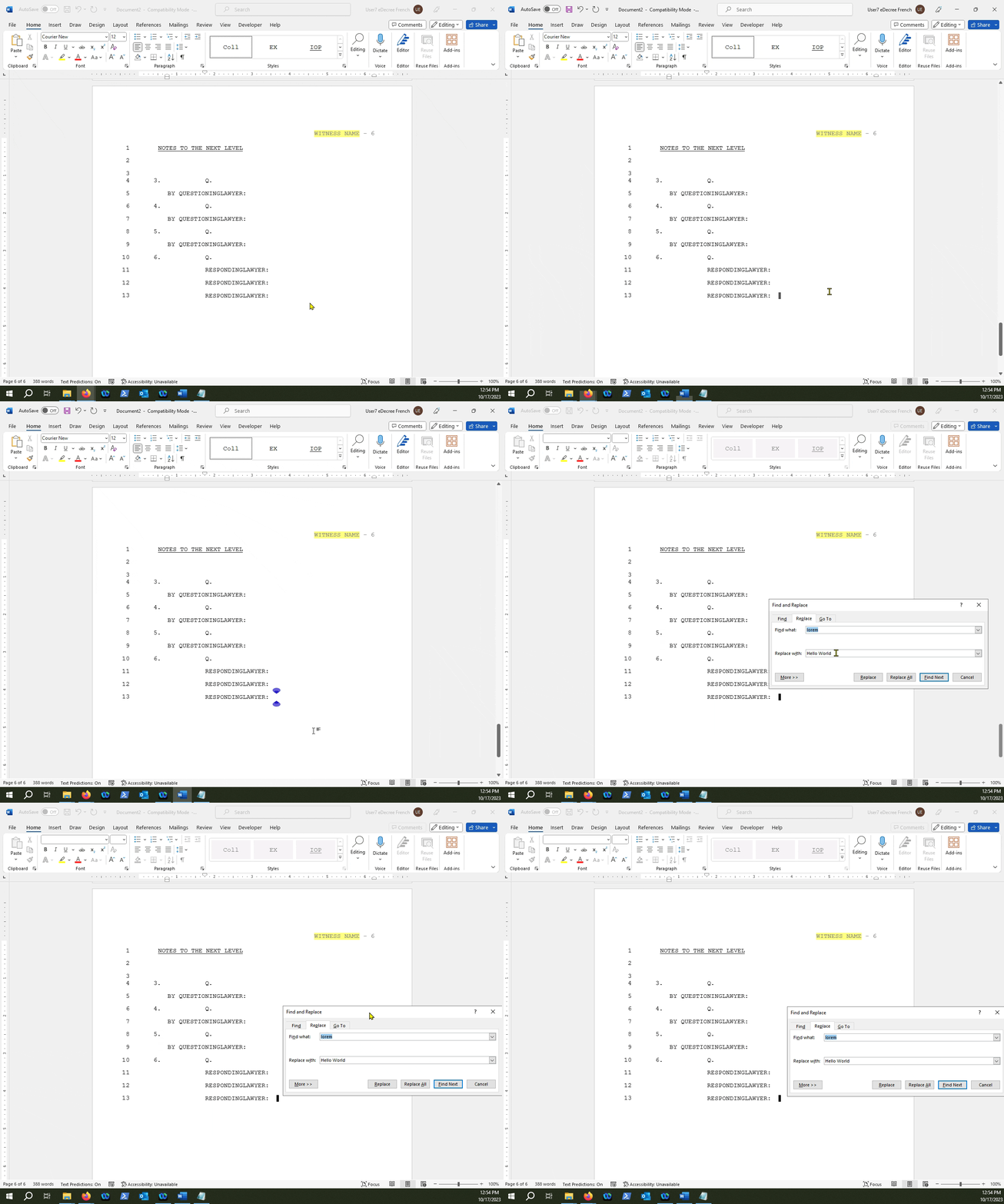 Press the "More\>\>" button 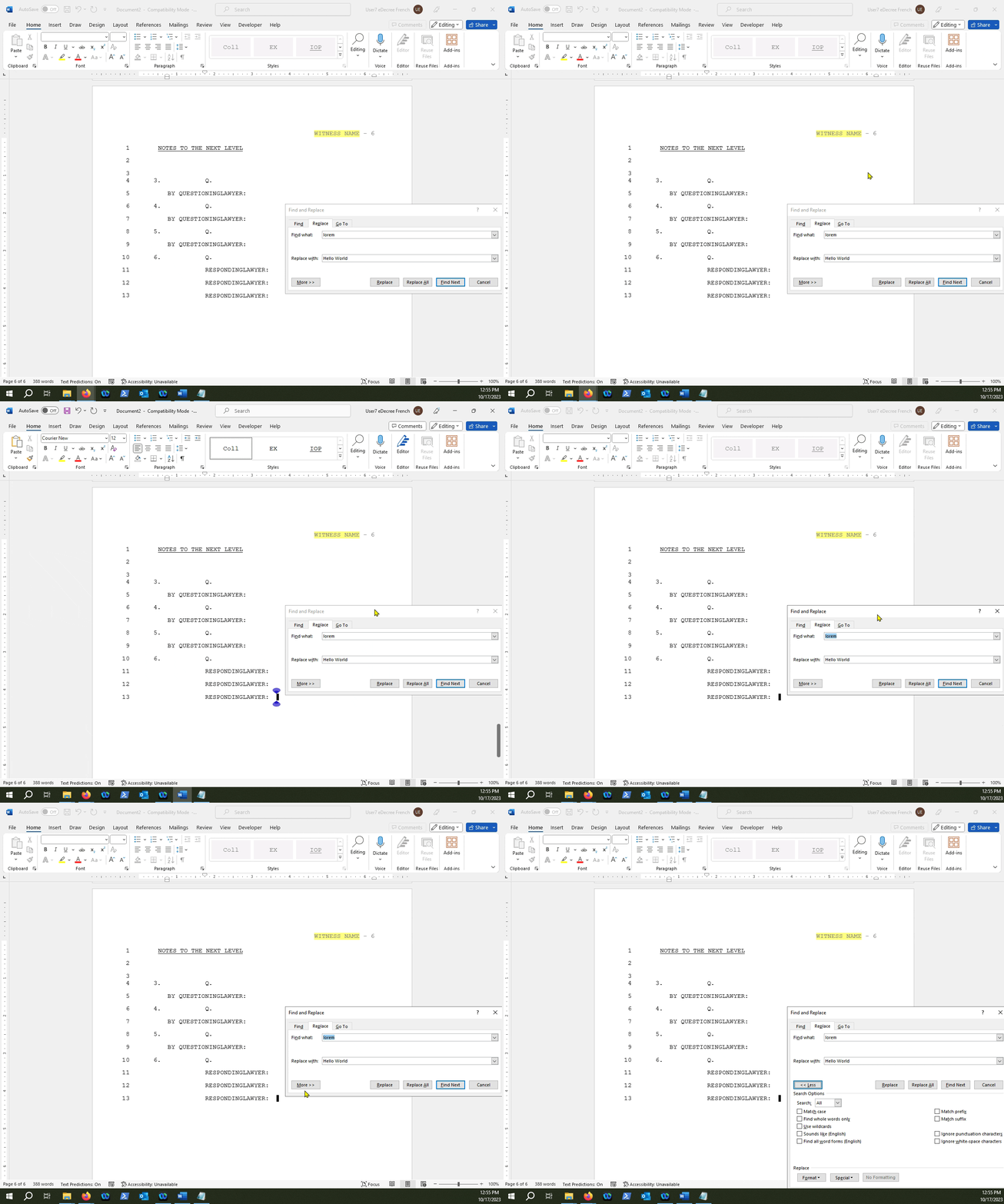 Enable the "Match case" search option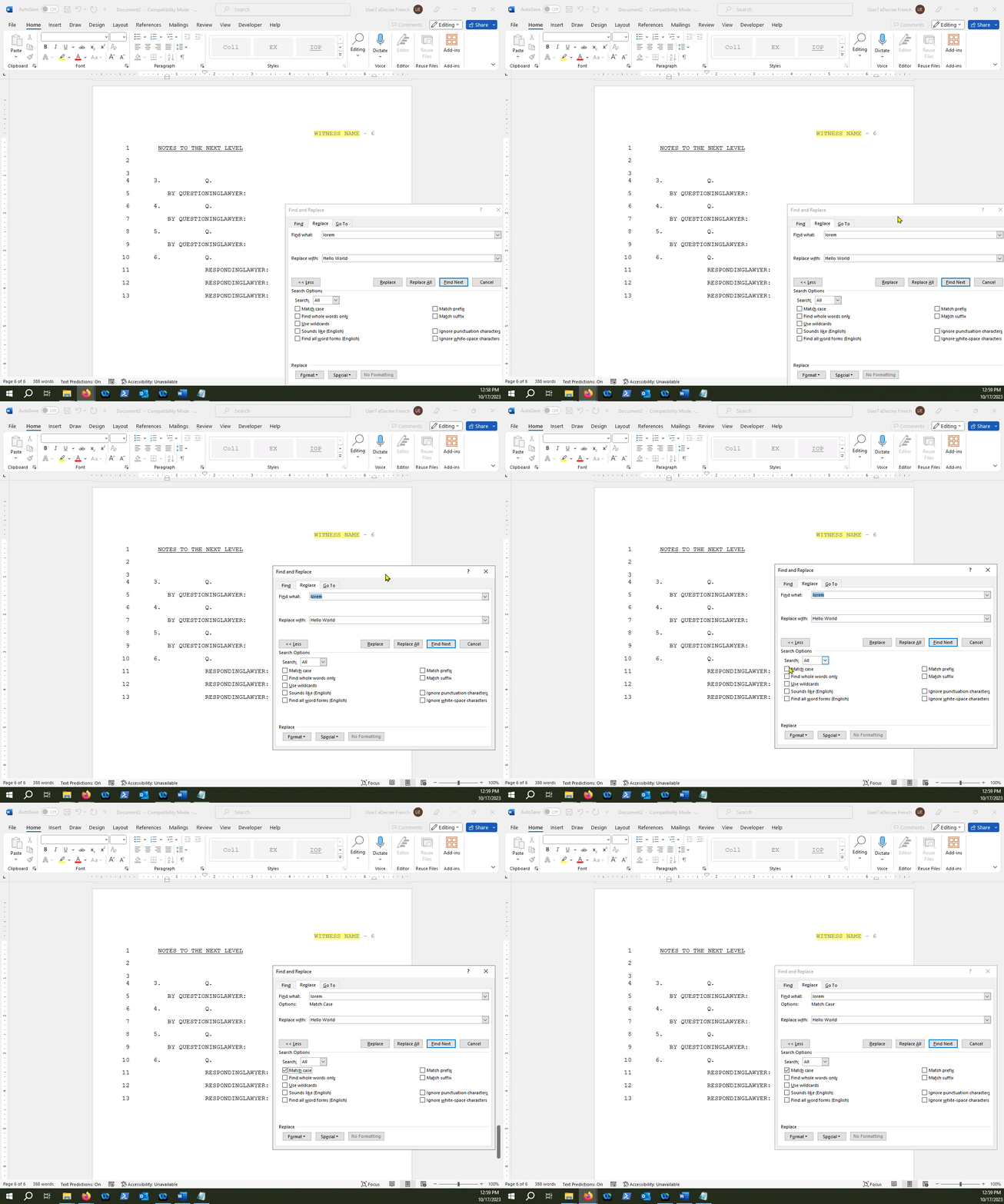
### In the "Find what:" section, type the speaker label you want to replace 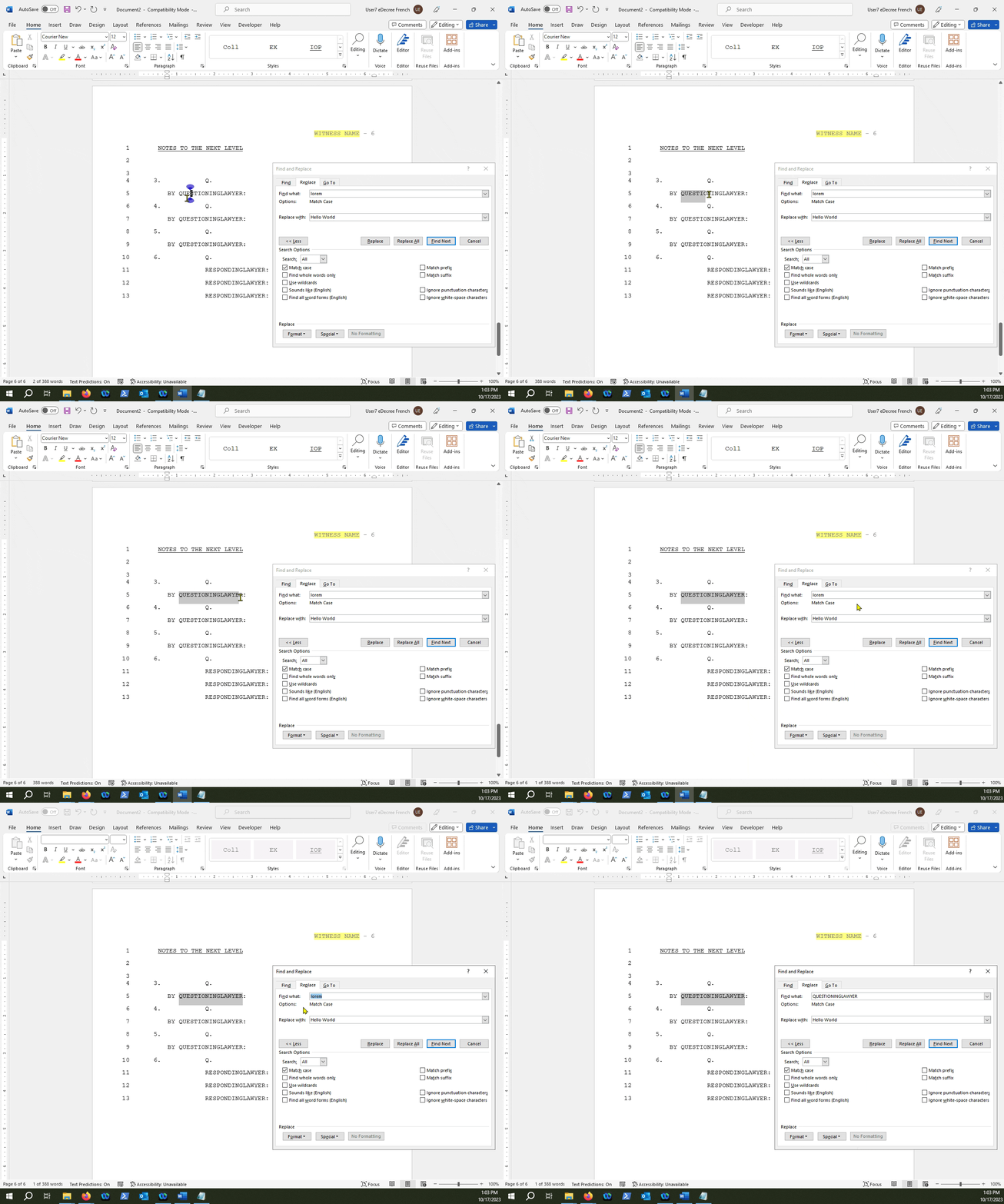
**TIP:** You can also copy and paste the text you want to replace into the "Find what:" text box.
### Next, type out what you want the label to be replaced with in the "Replace with:" text box 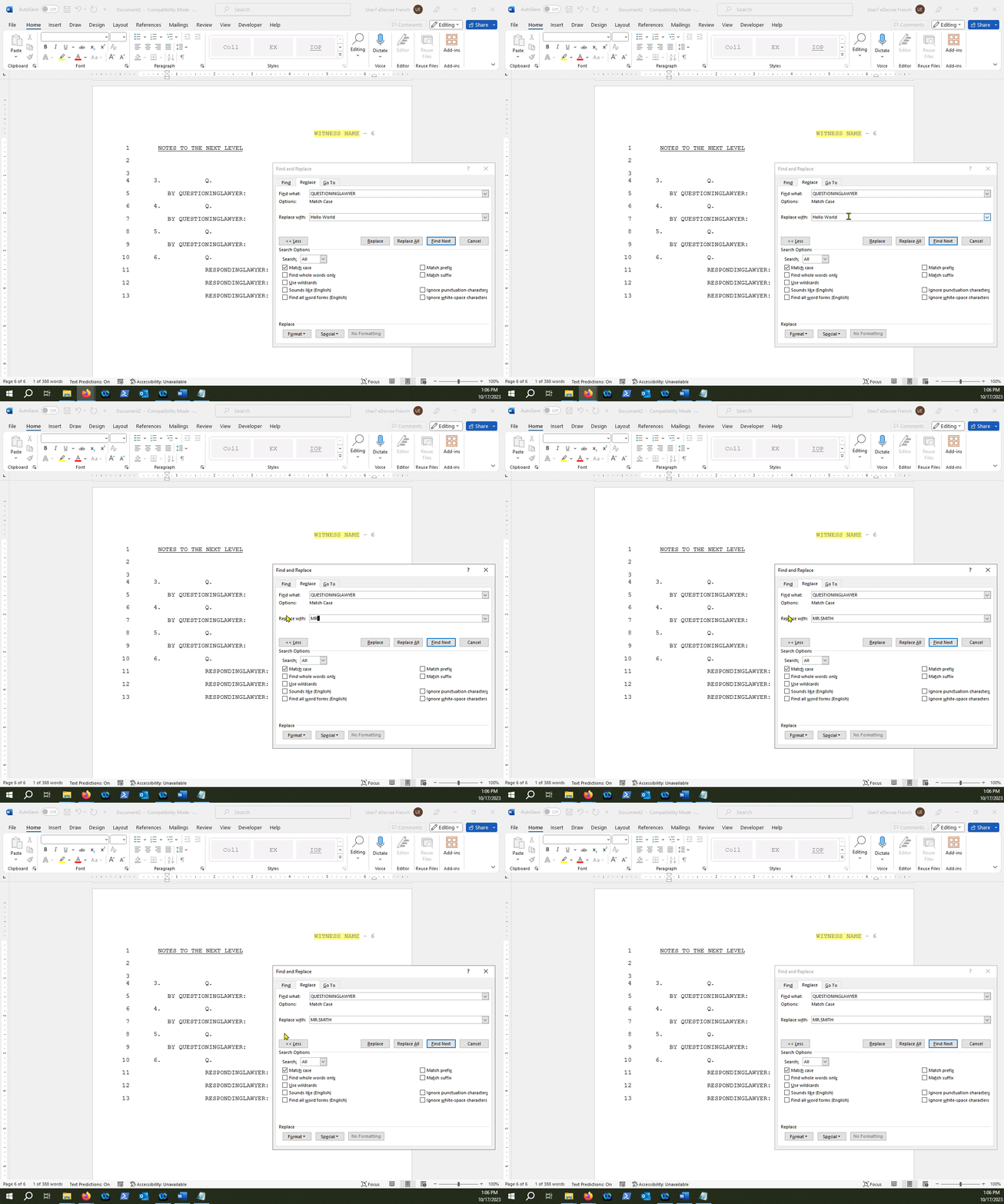
### Click "Replace All"... 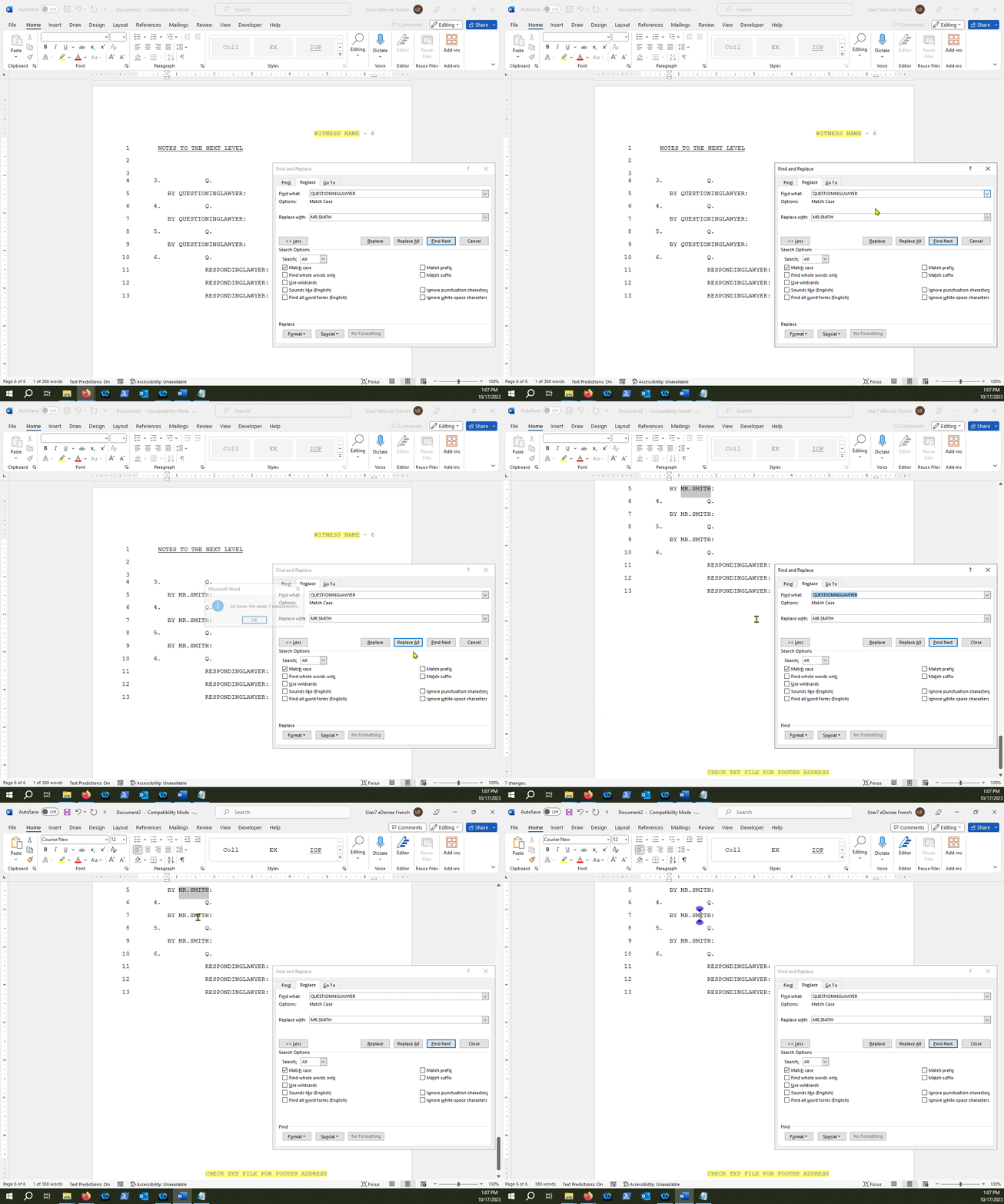
**CAUTION:** Do make sure when you are replacing text that you are doing so accurately, because if you are off even by one character, the replacements could take place in sections of the document where you may not want them.
### Repeat with all other speaker labels 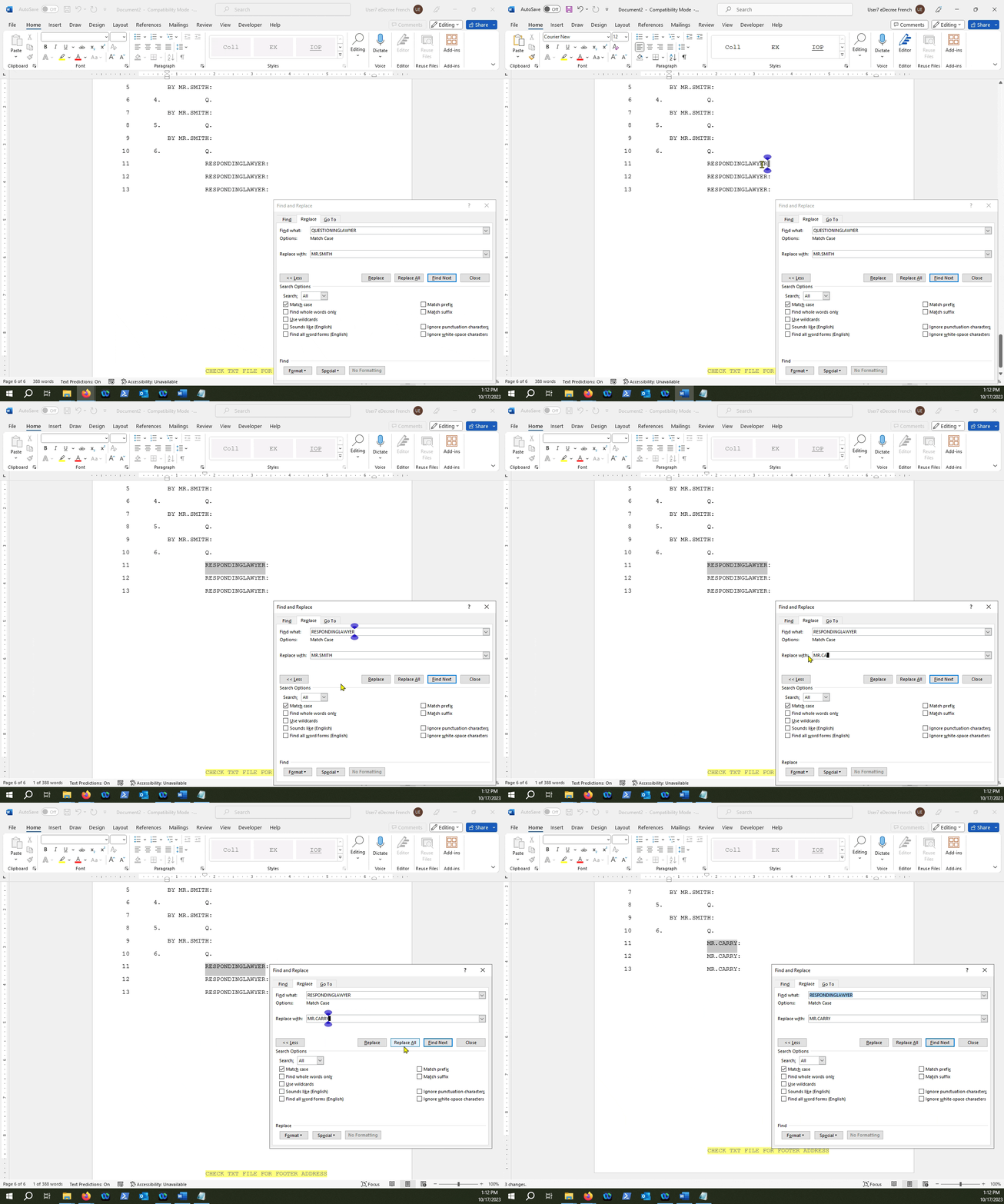
**TIP:** You can also take a look at the below video of the process we outlined above, as well as a transcript of the video for additional review.
**VIDEO TRANSCRIPT**
So, because there are speaker labels such as questioning lawyer and responding lawyer and third party lawyer, you're not going to want to leave that once you're finished your transcript for your OP. You're going to have to replace their names.
In order to do that, you press Ctrl+G and you go to replace. The first thing that you're always going to want to do is go to "More" and make sure that match case is always selected. Once match case is selected, you go under the find what section and you would type in **QUESTIONINGLAWYER** if that is the first speaker label that you want to change.
Let's say the questioning lawyer’s name is Mr. Smith. You would type in Mr. Smith and press "Replace All." And in this case, it only replaced one. But there you go. Mr. Smith is now inserted under questioning lawyer.
You're going to want to do that for the responding lawyer as well. So, Ctrl+G, "Replace," responding lawyer and the responding lawyer’s name, Mr. Terry. And you'll replace it. Then for the third party lawyer as well. So, Ctrl+G, "Replace," third party lawyer, Ms. Huckleberry. Replace it all. And there we go. There's Ms. Huckleberry.
You can also do this for the witness if you have a witness in your file. And the judge for their Rulings and their Reasons for Judgment and their Reasons for Sentence. You would just Ctrl+G, "Replace," find judge, and replace it with what the judge’s name is.
So, once you’re done your transcript, always make sure to Search & Replace for speaker labels, and that is how you do it.
- [Loom Analytics Web](https://support.loomanalytics.com/loom-analytics-web?hsLang=en#main-content)
- [Introduction](https://support.loomanalytics.com/loom-analytics-web?hsLang=en#introduction)
- [Getting Started](https://support.loomanalytics.com/loom-analytics-web?hsLang=en#getting-started)
- [Processing Transcripts](https://support.loomanalytics.com/loom-analytics-web?hsLang=en#processing-transcripts)
- [Loom Analytics Desktop](https://support.loomanalytics.com/loom-analytics-desktop?hsLang=en#main-content)
- [Getting Started](https://support.loomanalytics.com/loom-analytics-desktop?hsLang=en#getting-started)
- [Live Recording](https://support.loomanalytics.com/loom-analytics-desktop?hsLang=en#live-recording)
- [Uploading Pre-Recorded Audio](https://support.loomanalytics.com/loom-analytics-desktop?hsLang=en#uploading-pre-recorded-audio)
- [Editing Transcripts](https://support.loomanalytics.com/loom-analytics-desktop?hsLang=en#editing-transcripts)
- [Managing Recordings & Cases](https://support.loomanalytics.com/loom-analytics-desktop?hsLang=en#managing-recordings-cases)
- [Uninstalling Loom Analytics Desktop](https://support.loomanalytics.com/loom-analytics-desktop?hsLang=en#uninstalling-loom-analytics-desktop)
- [Troubleshooting](https://support.loomanalytics.com/loom-analytics-desktop?hsLang=en#troubleshooting)
- [Loom Analytics Desktop - Hermit](https://support.loomanalytics.com/loom-analytics-desktop-hermit?hsLang=en#main-content)
- [Introduction](https://support.loomanalytics.com/loom-analytics-desktop-hermit?hsLang=en#introduction)
- [Getting Started](https://support.loomanalytics.com/loom-analytics-desktop-hermit?hsLang=en#getting-started)
- [Editing Transcripts](https://support.loomanalytics.com/loom-analytics-desktop-hermit?hsLang=en#editing-transcripts)
- [Loom Analytics Desktop - Hermit - App Expired](https://support.loomanalytics.com/loom-analytics-desktop-hermit?hsLang=en#loom-analytics-desktop-hermit-app-expired)
- [How to Download & Install Loom Analytics Desktop - Hermit](https://support.loomanalytics.com/loom-analytics-desktop-hermit?hsLang=en#how-to-download-install-loom-analytics-desktop-hermit)
- [How Do I Add Funds to Loom Analytics Desktop - Hermit?](https://support.loomanalytics.com/loom-analytics-desktop-hermit?hsLang=en#how-do-i-add-funds-to-loom-analytics-desktop-hermit)
- [Limitations of Loom Analytics Desktop - Hermit](https://support.loomanalytics.com/loom-analytics-desktop-hermit?hsLang=en#limitations-of-loom-analytics-desktop-hermit)
- [How Do I Get Loom Analytics Web Profiles on Loom Analytics Desktop - Hermit?](https://support.loomanalytics.com/loom-analytics-desktop-hermit?hsLang=en#how-do-i-get-loom-analytics-web-profiles-on-loom-analytics-desktop-hermit)
- [Loom Analytics: Mobile](https://support.loomanalytics.com/loom-analytics-mobile?hsLang=en#main-content)
- [Introduction](https://support.loomanalytics.com/loom-analytics-mobile?hsLang=en#introduction)
- [Loom Analytics Mobile: How It Works](https://support.loomanalytics.com/loom-analytics-mobile?hsLang=en#loom-analytics-mobile-how-it-works)
- [Loom Analytics Web: Processing Jobs](https://support.loomanalytics.com/loom-analytics-web-processing-jobs?hsLang=en#main-content)
- [File Submission](https://support.loomanalytics.com/loom-analytics-web-processing-jobs?hsLang=en#file-submission)
- [Editing Transcripts](https://support.loomanalytics.com/loom-analytics-web-processing-jobs?hsLang=en#editing-transcripts)
- [File Types & Sizes](https://support.loomanalytics.com/loom-analytics-web-processing-jobs?hsLang=en#file-types-sizes)
- [Ontario ACT Legal Transcripts](https://support.loomanalytics.com/loom-analytics-web-processing-jobs?hsLang=en#ontario-act-legal-transcripts)
- [General Transcripts](https://support.loomanalytics.com/loom-analytics-web-processing-jobs?hsLang=en#general-transcripts)
- [Business Transcripts](https://support.loomanalytics.com/loom-analytics-web-processing-jobs?hsLang=en#business-transcripts)
- [Legal Transcripts](https://support.loomanalytics.com/loom-analytics-web-processing-jobs?hsLang=en#legal-transcripts)
- [Insurance Transcripts](https://support.loomanalytics.com/loom-analytics-web-processing-jobs?hsLang=en#insurance-transcripts)
- [Medical Transcripts](https://support.loomanalytics.com/loom-analytics-web-processing-jobs?hsLang=en#medical-transcripts)
- [Medico-Legal Transcription](https://support.loomanalytics.com/loom-analytics-web-processing-jobs?hsLang=en#medico-legal-transcription)
- [Security](https://support.loomanalytics.com/loom-analytics-web-processing-jobs?hsLang=en#security)
- [Usage](https://support.loomanalytics.com/loom-analytics-web-processing-jobs?hsLang=en#usage)
- [Nova Scotia Courts](https://support.loomanalytics.com/loom-analytics-web-processing-jobs?hsLang=en#nova-scotia-courts)
- [Quickstart - Multilingual Transcription & Translation](https://support.loomanalytics.com/loom-analytics-web-processing-jobs?hsLang=en#quickstart-multilingual-transcription-translation)
- [Translate and Transcribe From Non-English Media](https://support.loomanalytics.com/loom-analytics-web-processing-jobs?hsLang=en#translate-and-transcribe-from-non-english-media)
- [How Can I Delete Job Data for Multiple Jobs?](https://support.loomanalytics.com/loom-analytics-web-processing-jobs?hsLang=en#how-can-i-delete-job-data-for-multiple-jobs)
- [How to Convert a .dcr Media File to .wav, .avi, .wma, or .wmv on Liberty Player](https://support.loomanalytics.com/loom-analytics-web-processing-jobs?hsLang=en#how-to-convert-a-dcr-media-file-to-wav-avi-wma-or-wmv-on-liberty-player)
- [How Can I Export Only a Specific Channel From a Multichannel .dcr File?](https://support.loomanalytics.com/loom-analytics-web-processing-jobs?hsLang=en#how-can-i-export-only-a-specific-channel-from-a-multichannel-dcr-file)
- [How Can I Have Timestamps on Every Speaker Change?](https://support.loomanalytics.com/loom-analytics-web-processing-jobs?hsLang=en#how-can-i-have-timestamps-on-every-speaker-change)
- [TimeSync Playback on Loom Analytics Web](https://support.loomanalytics.com/loom-analytics-web-processing-jobs?hsLang=en#timesync-playback-on-loom-analytics-web)
- [Unified Flow](https://support.loomanalytics.com/loom-analytics-web-processing-jobs?hsLang=en#unified-flow)
- [Loom Analytics Web: Profiles & Workflows](https://support.loomanalytics.com/loom-analytics-web-profiles-workflows?hsLang=en#main-content)
- [Smart Formatting](https://support.loomanalytics.com/loom-analytics-web-profiles-workflows?hsLang=en#smart-formatting)
- [Creating & Managing Your Profiles](https://support.loomanalytics.com/loom-analytics-web-profiles-workflows?hsLang=en#creating-managing-your-profiles)
- [How Can I Create a Template for my Loom Analytics Web Profile?](https://support.loomanalytics.com/loom-analytics-web-profiles-workflows?hsLang=en#how-can-i-create-a-template-for-my-loom-analytics-web-profile)
- [Loom Analytics Web: Mac Users](https://support.loomanalytics.com/loom-analytics-web-mac-users?hsLang=en)
- [MS Word Support](https://support.loomanalytics.com/ms-word-support?hsLang=en#main-content)
- [MS Word Templates & Macros: Setup](https://support.loomanalytics.com/ms-word-support?hsLang=en#ms-word-templates-macros-setup)
- [MS Word Templates & Macros: Macros](https://support.loomanalytics.com/ms-word-support?hsLang=en#ms-word-templates-macros-macros)
- [MS Word Basics: Searching & Viewing](https://support.loomanalytics.com/ms-word-support?hsLang=en#ms-word-basics-searching-viewing)
- [MS Word Basics: MS Word Hotkeys](https://support.loomanalytics.com/ms-word-support?hsLang=en#ms-word-basics-ms-word-hotkeys)
- [MS Word Basics: Saving & Proofing](https://support.loomanalytics.com/ms-word-support?hsLang=en#ms-word-basics-saving-proofing)
- [MS Word Basics: Formatting](https://support.loomanalytics.com/ms-word-support?hsLang=en#ms-word-basics-formatting)
- [MS Word Basics: General](https://support.loomanalytics.com/ms-word-support?hsLang=en#ms-word-basics-general)
- [A/V Support](https://support.loomanalytics.com/a-v-support?hsLang=en#main-content)
- [Converting Video to Text](https://support.loomanalytics.com/a-v-support?hsLang=en#converting-video-to-text)
- [Converting Audio to Text](https://support.loomanalytics.com/a-v-support?hsLang=en#converting-audio-to-text)
- [Audio Transcription Playback Software: Liberty Player](https://support.loomanalytics.com/a-v-support?hsLang=en#audio-transcription-playback-software-liberty-player)
- [Audio Transcription Playback Software: FTR (For The Record)](https://support.loomanalytics.com/a-v-support?hsLang=en#audio-transcription-playback-software-ftr-for-the-record)
- [Audio Transcription Playback Software: VIQ Player](https://support.loomanalytics.com/a-v-support?hsLang=en#audio-transcription-playback-software-viq-player)
- [Audio Transcription Playback Software: VLC Media Player](https://support.loomanalytics.com/a-v-support?hsLang=en#audio-transcription-playback-software-vlc-media-player)
- [Audio Transcription Playback Software: Express Scribe](https://support.loomanalytics.com/a-v-support?hsLang=en#audio-transcription-playback-software-express-scribe)
- [Computer Configuration](https://support.loomanalytics.com/computer-configuration?hsLang=en#main-content)
- [Hardware](https://support.loomanalytics.com/computer-configuration?hsLang=en#hardware)
- [Software](https://support.loomanalytics.com/computer-configuration?hsLang=en#software)
- [Windows Settings](https://support.loomanalytics.com/computer-configuration?hsLang=en#windows-settings)
- [Resource Centre](https://support.loomanalytics.com/resource-centre?hsLang=en#main-content)
- [Team Admin - User Invitation Process](https://support.loomanalytics.com/resource-centre?hsLang=en#team-admin-user-invitation-process)
- [Loom Analytics: Reports](https://support.loomanalytics.com/resource-centre?hsLang=en#loom-analytics-reports)
- [Illoominate Academy](https://support.loomanalytics.com/illoominate-academy?hsLang=en#main-content)
- [How to Edit Using Loom Analytics Web Within MS Word](https://support.loomanalytics.com/illoominate-academy?hsLang=en#how-to-edit-using-loom-analytics-web-within-ms-word)
- [Loom Analytics Developer Documentation](https://support.loomanalytics.com/loom-analytics-developer-documentation?hsLang=en#main-content)
- [Postman](https://support.loomanalytics.com/loom-analytics-developer-documentation?hsLang=en#postman)
- [API Account Specific Setup](https://support.loomanalytics.com/loom-analytics-developer-documentation?hsLang=en#api-account-specific-setup)
- [API Calls](https://support.loomanalytics.com/loom-analytics-developer-documentation?hsLang=en#api-calls)
- [Webhook](https://support.loomanalytics.com/loom-analytics-developer-documentation?hsLang=en#webhook)
- [Loom Analytics Product Updates](https://support.loomanalytics.com/loom-analytics-product-updates?hsLang=en#main-content)
- [August 2024](https://support.loomanalytics.com/loom-analytics-product-updates?hsLang=en#august-2024)
- [July 2024](https://support.loomanalytics.com/loom-analytics-product-updates?hsLang=en#july-2024)
- [March 2024](https://support.loomanalytics.com/loom-analytics-product-updates?hsLang=en#march-2024)
- [FAQ](https://support.loomanalytics.com/faq?hsLang=en)
[](https://www.loomanalytics.com)
Loom Analytics Knowledge Base
Copyright © 2026, Loom Analytics