![Loom_Analytics_Logo_Transparent.png]](https://support.loomanalytics.com/hs-fs/hubfs/Loom_Analytics_Logo_Transparent.png?height=40&name=Loom_Analytics_Logo_Transparent.png)
Step 1. Add Your Device in Loom Analytics Web
Before activating Loom Analytics Desktop - Hermit:
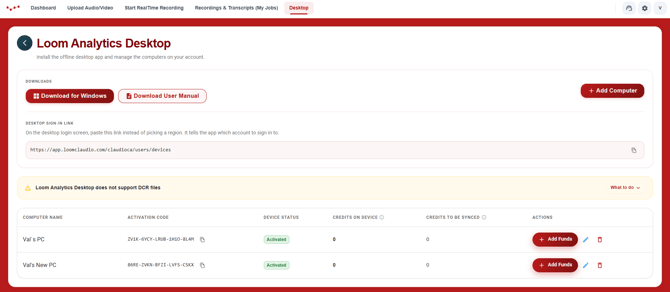
- Log in to your Loom Analytics Web account.
- Navigate to the Loom Analytics Desktop - Hermit section.
- Click Add Computer and provide the necessary details for the new device.
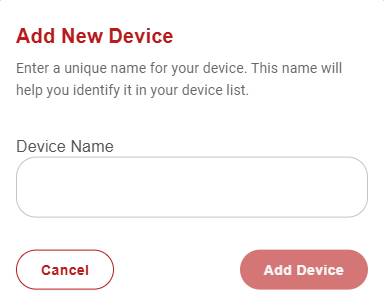
Step 2. Download and Install Loom Analytics Desktop - Hermit
- Visit the Loom Analytics Desktop - Hermit download page in the Web platform.
- Download the setup file to your computer.
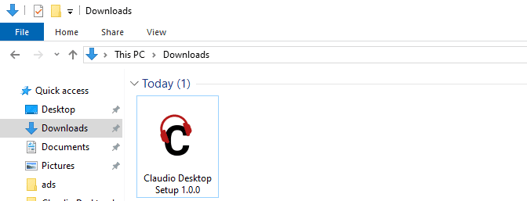
- Install the application by following the on-screen instructions:
- Accept the License Agreement.
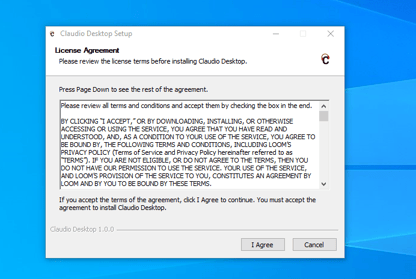
- Choose installation preferences (e.g., for all users or a single user).
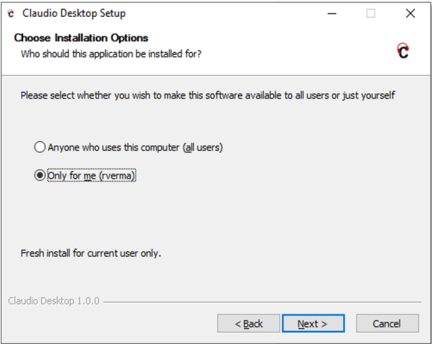
- Click Install and wait for the process to complete.

- Accept the License Agreement.
Step 3. Activate Loom Analytics Desktop - Hermit
- Open the Loom Analytics Desktop - Hermit application on your computer.
- Log in using your Loom Analytics Web credentials.
- When prompted, enter the activation code provided during the device setup process in Loom Analytics Web.
Step 4. Add Funds to Loom Analytics Desktop - Hermit
To use Loom Analytics Desktop - Hermit, ensure your account has sufficient funds. You can add funds through online or offline options:
1. Add Funds via Loom Analytics Online Account
Option 1.1: Using a Browser

a. Open a browser and log in to your Loom Analytics Online account.
b. Navigate to the Loom Analytics Desktop - Hermit Tab in your dashboard.
c. Click Add Funds next to your activated computer.
d. Complete the payment process to receive a Payment Code via email.
Option 1.2: Using the Desktop - Hermit Application
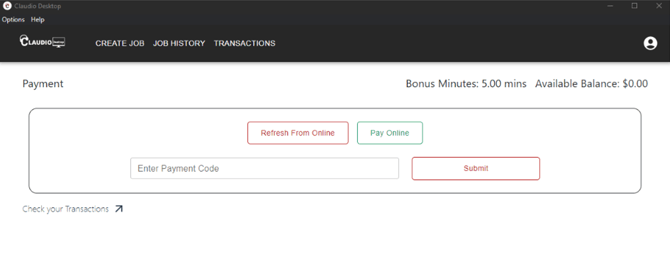
a. Open the Desktop - Hermit app, go to Settings > Payments, and click Pay Online.
b. Log in to your Loom Analytics Online account and follow the same steps as above to complete the payment.
2. Add Funds to Loom Analytics Desktop - Hermit Application
Option 2.1: Sync with Online Account
a. Click Refresh from Online in the Desktop - Hermit app to sync funds from your online account.
b. Ensure an active internet connection for syncing.
-png.png?width=616&height=343&name=image%20(8)-png.png)
Option 2.2: Using a Payment Code
a. In the Desktop - Hermit app, go to Settings > Payments, and enter the Payment Code received via email.
b. Click Submit to update your credits.
Tip: Your available balance is always visible in the top-right corner of the app.
Getting Started
Once activated and funded, Loom Analytics Desktop - Hermit is ready for use. You can:
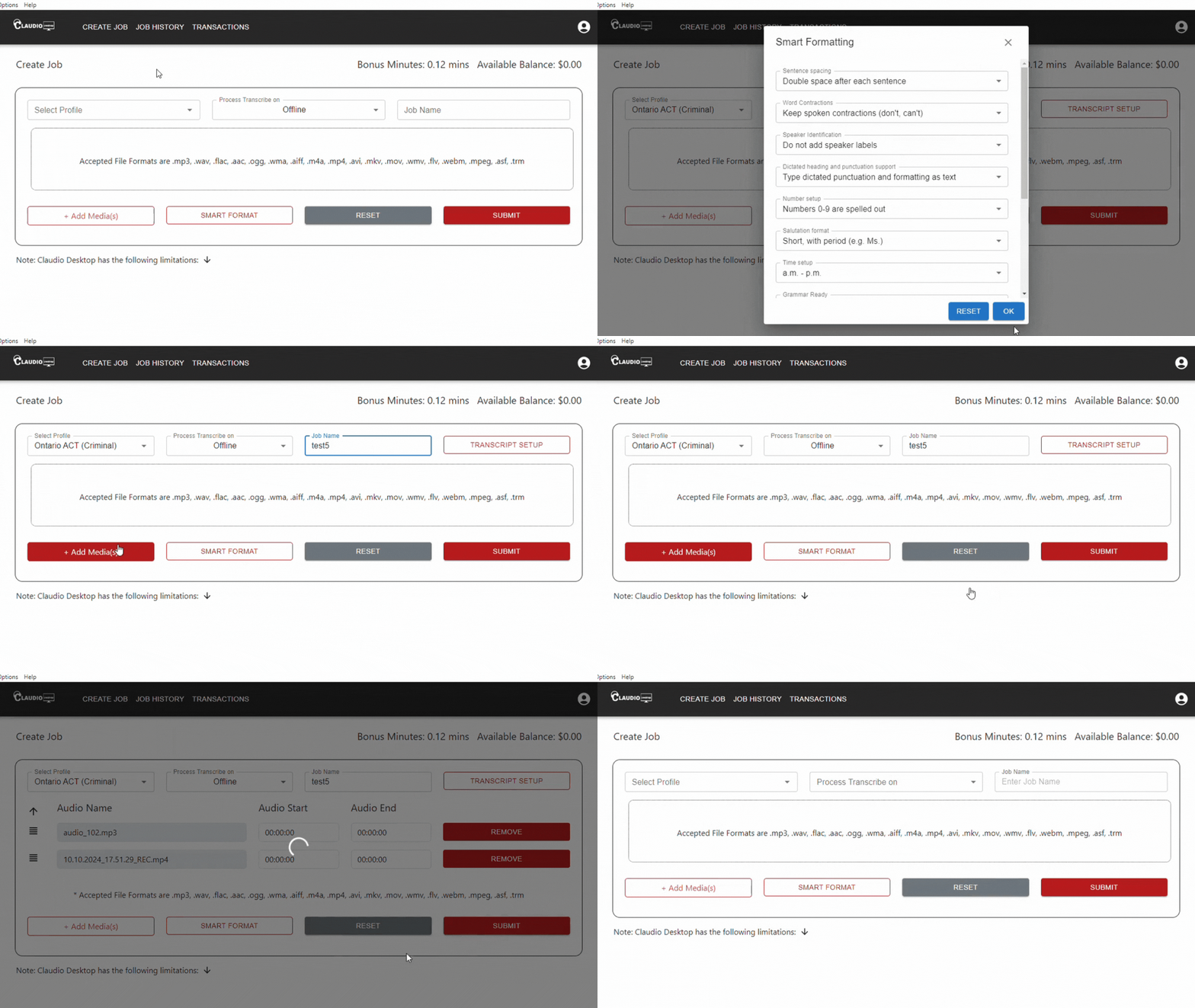
- Upload audio or video files.
- Select from various transcription profiles.
- Generate transcripts directly on your device without an internet connection.
Why Choose Loom Analytics Desktop - Hermit?
Loom Analytics Desktop - Hermit operates entirely offline after activation, ensuring your data remains secure and private.
Learn More
- Want to learn more about Loom Analytics Desktop - Hermit's features? Click here to explore its capabilities in detail.
- Download the complete Loom Analytics Desktop - Hermit User Manual.