Overview
The Loom Editor is an MS Word-based editor built into Loom Analytics Web. It lets you edit transcripts for your assigned files directly within your browser, using the same tools and shortcuts you already know from MS Word.
This article explains how to find your assignments, open a file within the Loom Editor, and close or complete your work.
Finding Your Assignments
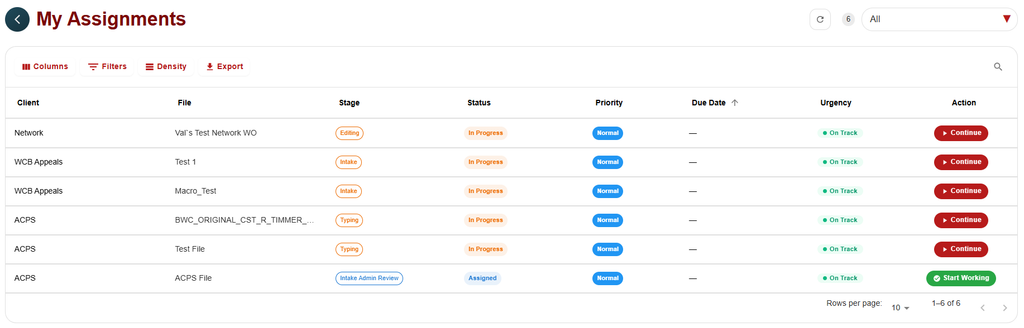
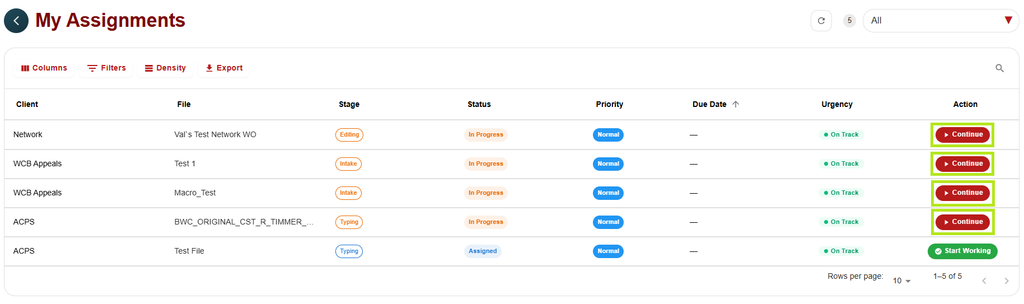
When a file is assigned to you, it appears in the My Assignments tab. Each row shows the client, file name, stage, status, priority, due date, and urgency, with an action button on the right:
- Start Working (green) appears on files you have not started yet. Their status shows as Assigned.
- Continue (red) appears on files you have already started. Their status shows as In Progress.
Starting a New Assignment
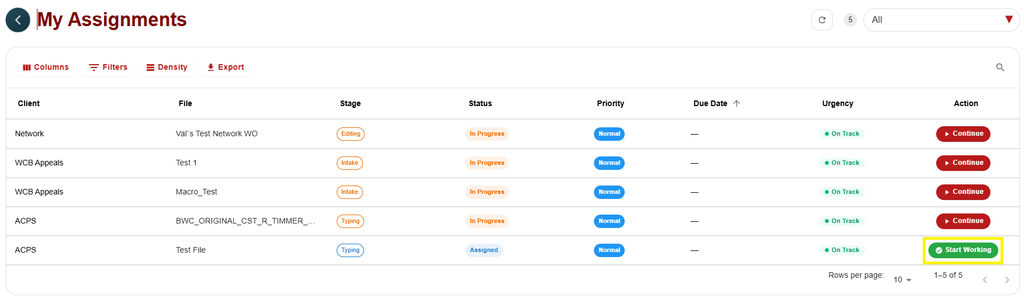
- In the My Assignments tab, find the file and click Start Working.
- On the file’s page, click Start Working beside “Ready to start?” The file’s status changes to In Progress.
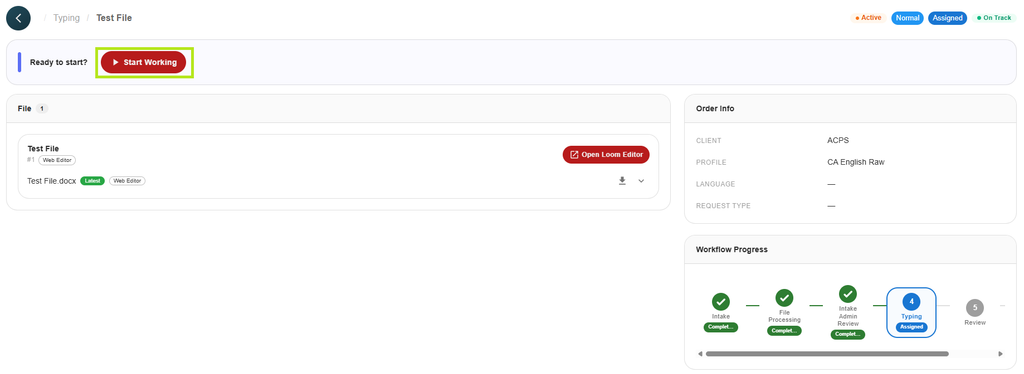
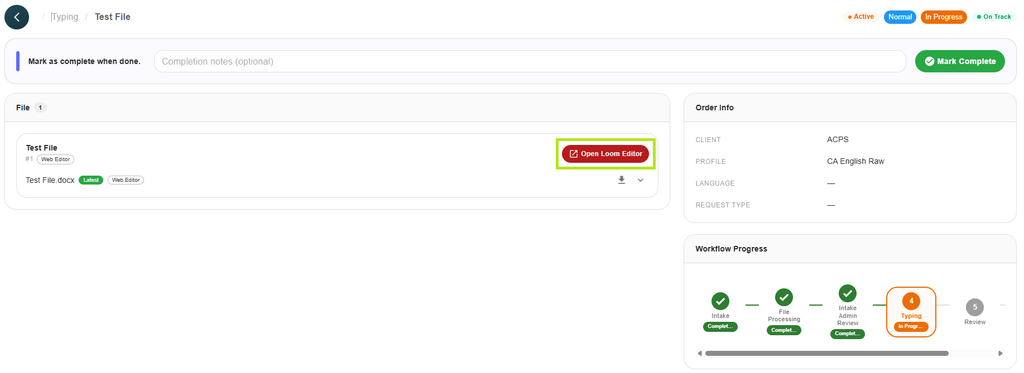
- In the File panel, click Open Loom Editor. The transcript opens on the Playback & Edit page.
- Begin editing the transcript just as you would in MS Word.
Continuing an Assignment
- In the My Assignments tab, find the file and click Continue.
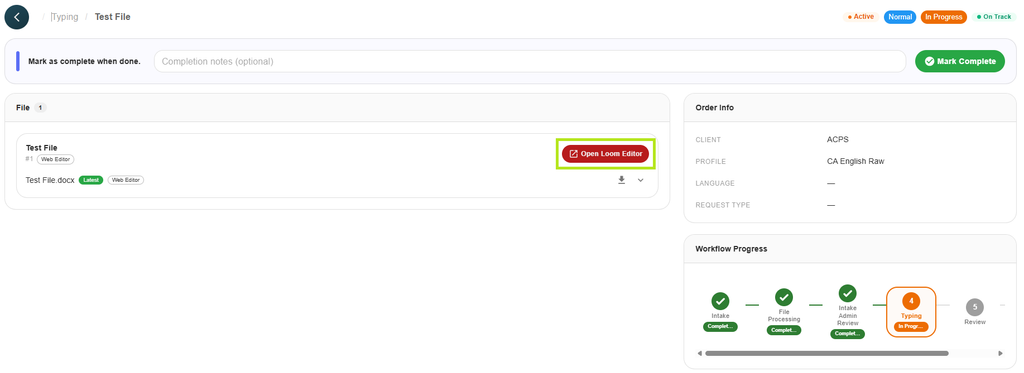
- On the file’s page, click Open Loom Editor in the File panel.
- Continue editing the transcript just as you would in MS Word.
Saving, Closing, & Completing an Assignment
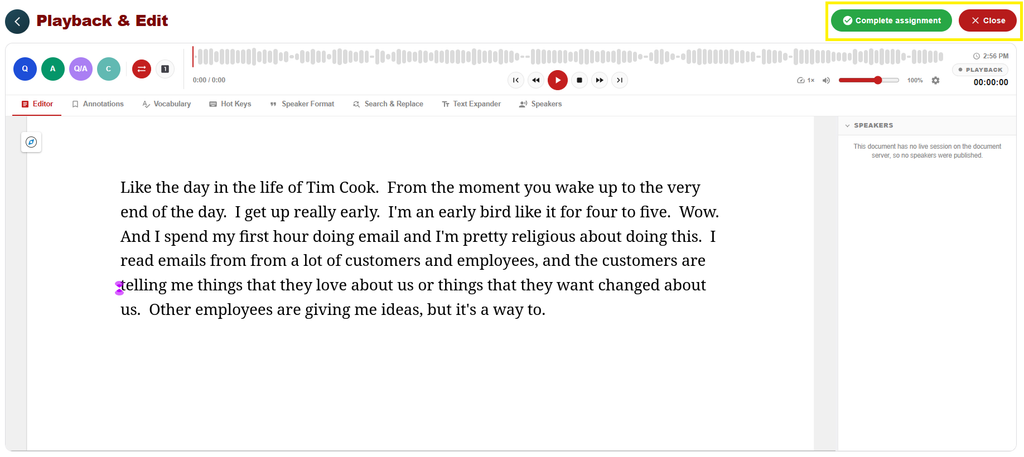
Your work in the Loom Editor is always saved automatically, so there is no need to save manually. When you are ready to leave the editor, use the buttons in the top-right corner of the Playback & Edit page:
- Close: Click this if you have not finished the file. Your changes are kept, and you can pick up where you left off by clicking Continue in the My Assignments tab.
- Complete assignment: click this once you have finished the file.