![Loom_Analytics_Logo_Transparent.png]](https://support.loomanalytics.com/hs-fs/hubfs/Loom_Analytics_Logo_Transparent.png?height=40&name=Loom_Analytics_Logo_Transparent.png)
Table of Contents
1.What are Styles?

2.Creating a New Style in MS Word

3.Editing the Style Formatting

4.Applying the New Style
"Styles" are a very useful tool within MS Word that can help you format your document in just a couple of clicks instead of choosing and picking the format settings for each portion of the document.
If you have used MS Word, you may have noticed that, in the "Ribbon", MS Word provides some default styles for you to use when formatting a document.
NOTE: These are some of the default styles that MS Word comes installed with. These can be changed or serve as a basis for a custom style that you can create on your own.
So, What Are Styles?
Styles are a way to apply your custom formatting settings to a particular piece of your document. Let's, for example, say that we want to create a paragraph style that aligns all items to the left and is double-spaced.
Let's look at how we can do that in the guide below:
To create a new style, click on the bottom-right corner arrow of the "Styles" pane and select "New Style"
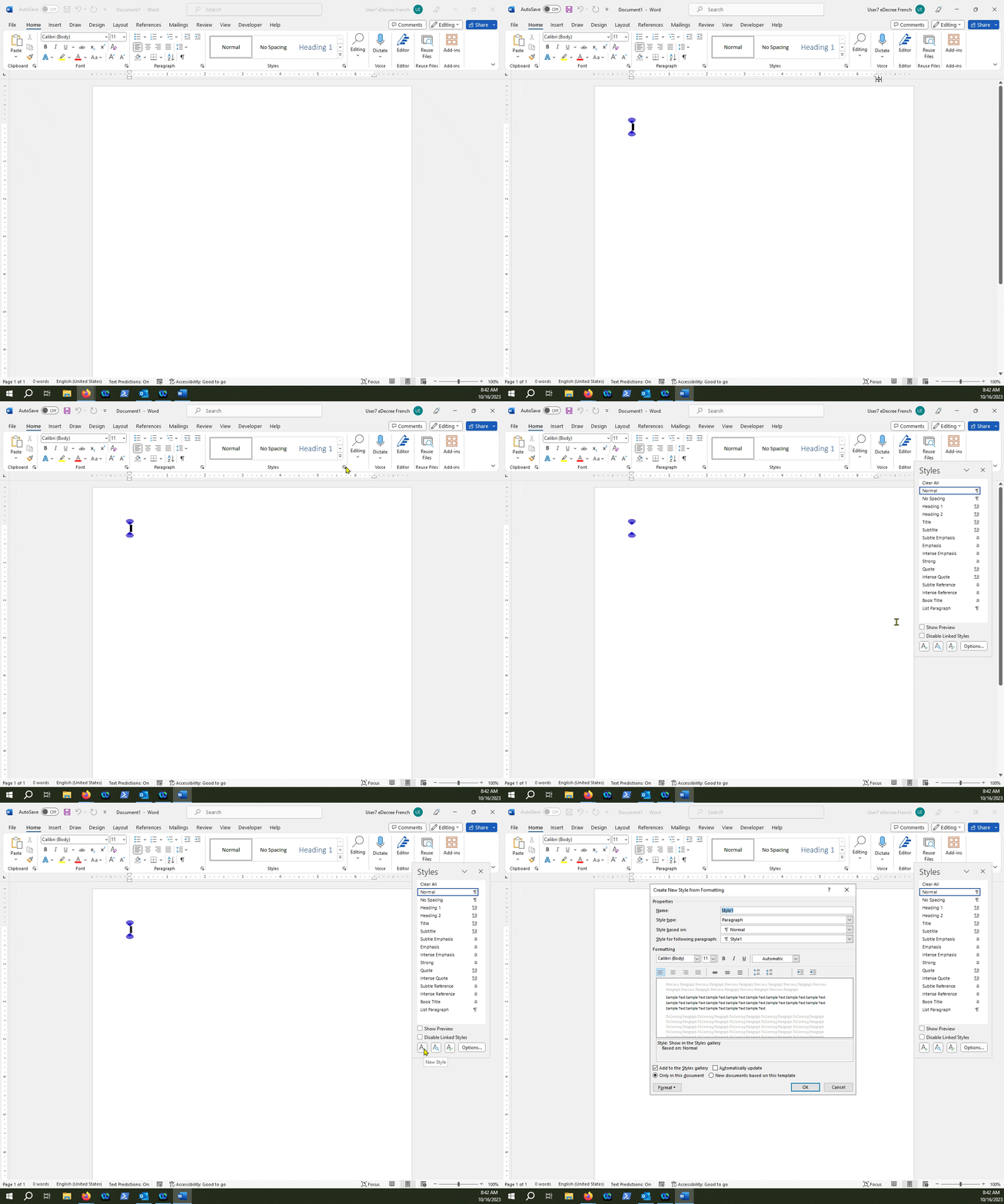
Let's create a new style that will apply double-spacing and align text to the right
Let's call our new style "dblspaceRightAlign"
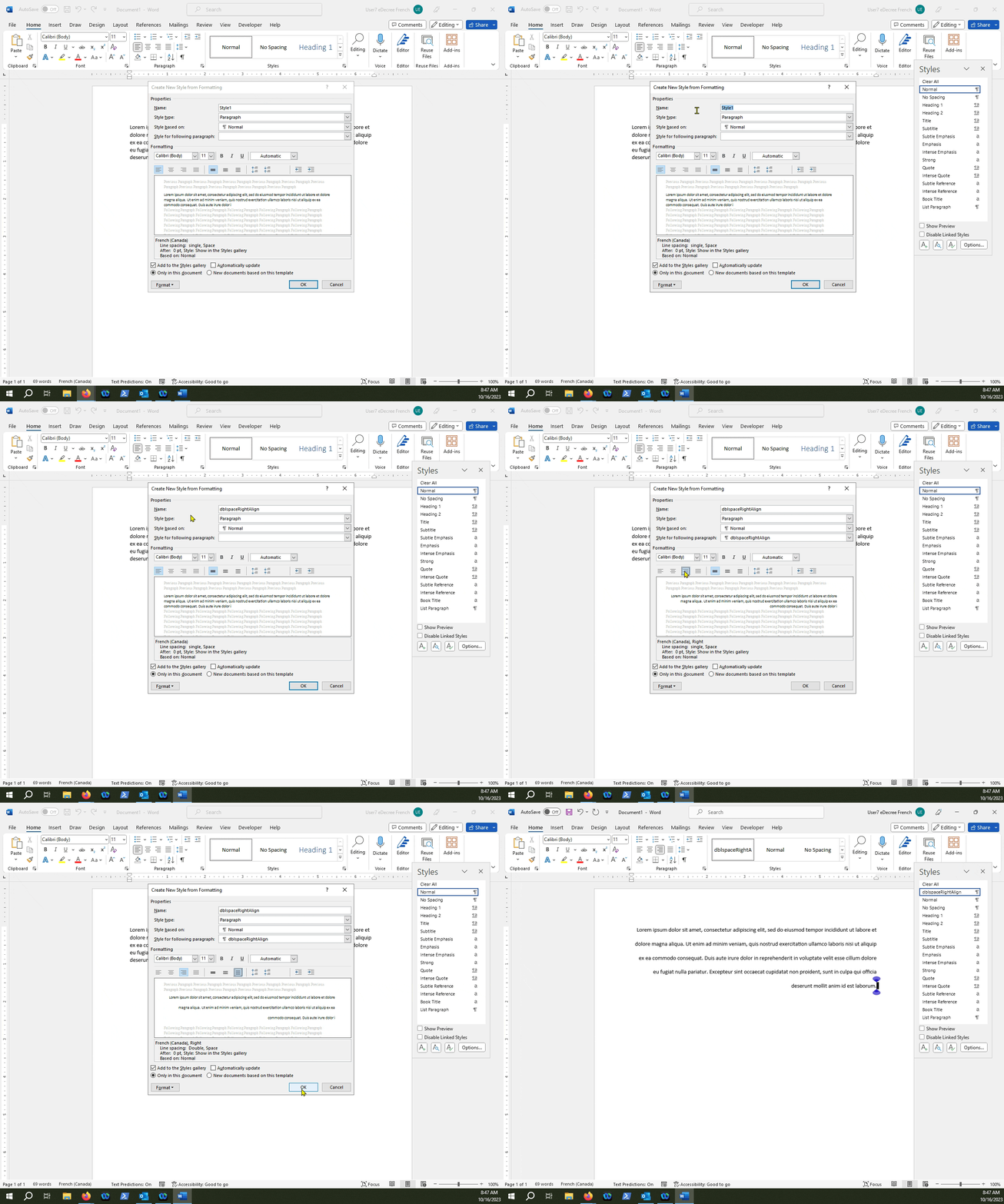
NOTE: Notice that, when you create a new style, it will automatically apply to the document. You can also highlight a section of your document, create a new style, and the changes will apply to that highlighted section.
Your new custom style will now show up in the "Styles" pane
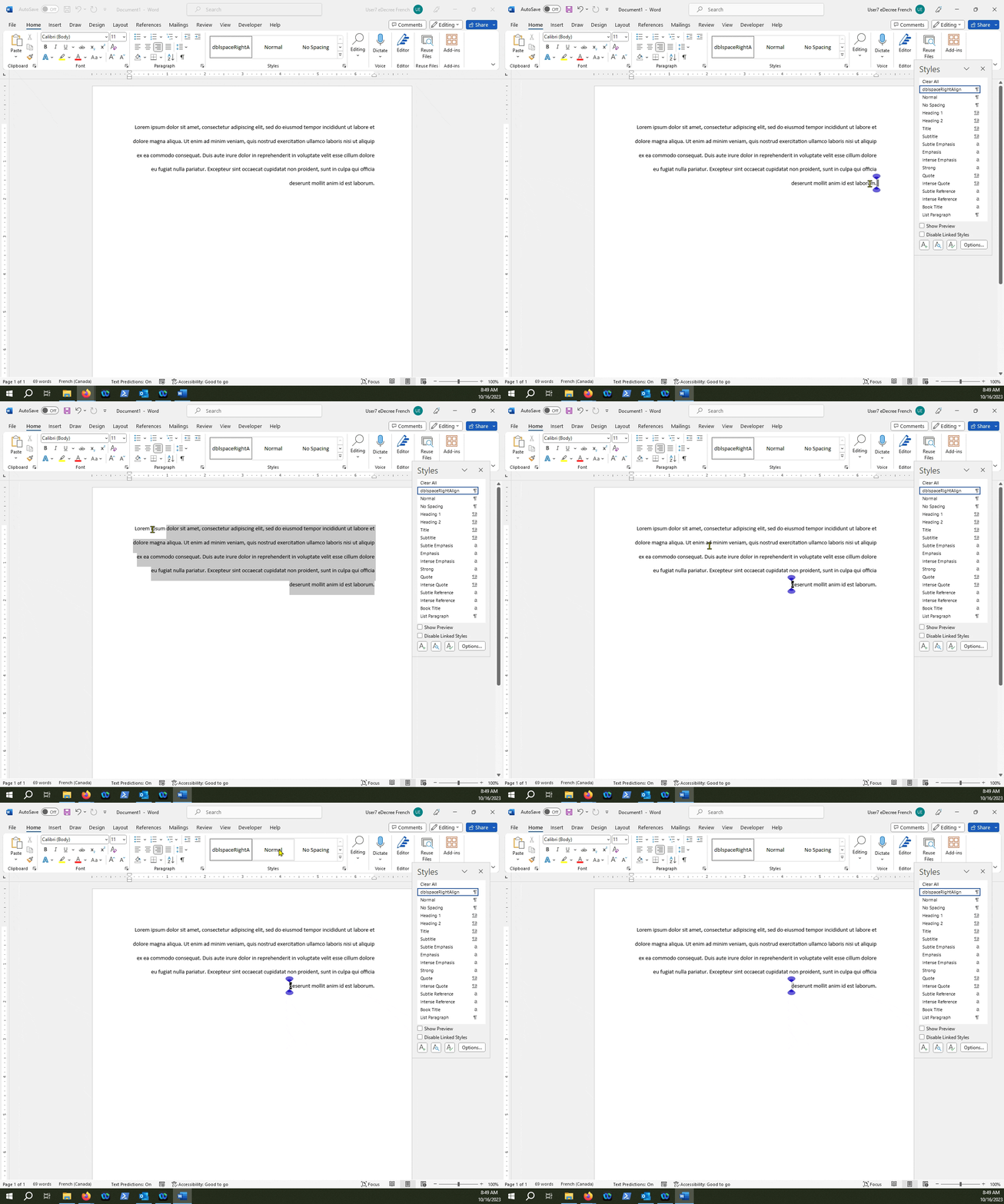
You can always de-apply the new style with something else by selecting the text, and then selecting a different style in the "Styles" pane
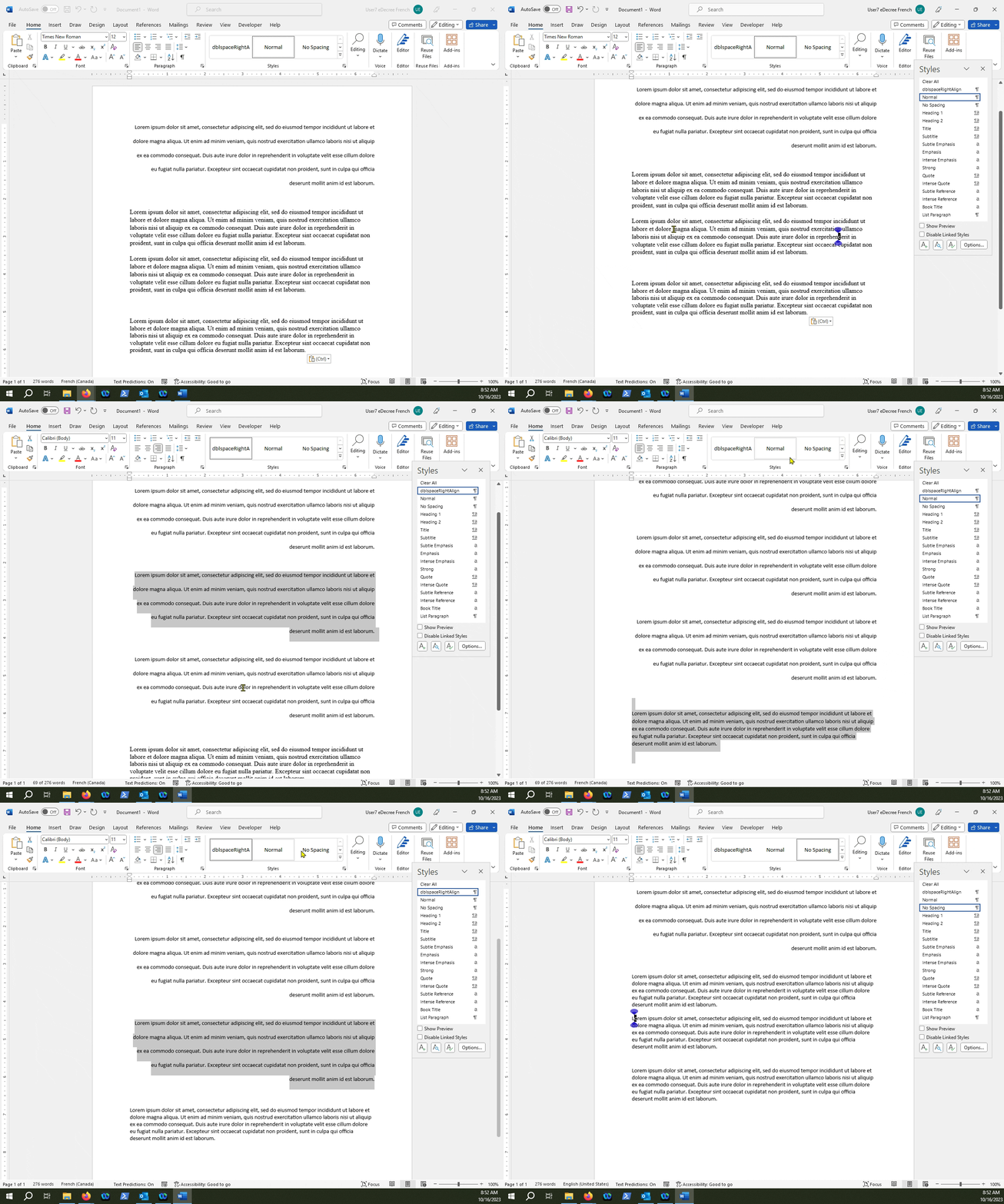
CAUTION: Before applying a new style to a separate paragraph or section of a document, play around with the spacing, as sometimes a new style could be applied to an unintended element of the document if they are spaced too closely together.