![Loom_Analytics_Logo_Transparent.png]](https://support.loomanalytics.com/hs-fs/hubfs/Loom_Analytics_Logo_Transparent.png?height=40&name=Loom_Analytics_Logo_Transparent.png)
We recommend that you test your API calls with the Loom Analytics Postman collection before integrating them into your application. The following steps will help you get started:
Creating a Postman Account - Go to postman.com to create a Postman account
Installing Postman - The steps to install Postman are detailed on the following site: https://learning.postman.com/docs/getting-started/installation-and-updates/
Setting up Postman - After downloading Postman, go to Loom's Postman documentation page: https://developer.loomanalytics.com/
- Click the "Run in Postman" button on the top-right corner of the documentation page
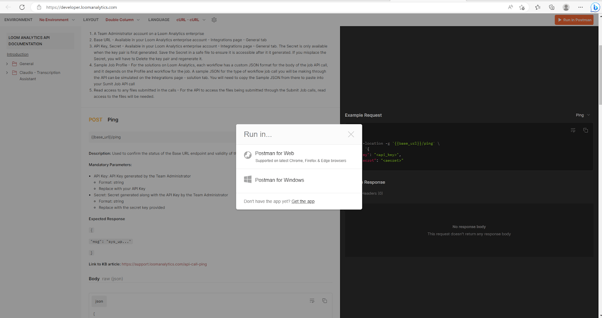
- Select the option for "Postman for Windows" [or "Postman for Linux," if you're using Linux]
- You'll see a pop-up asking you to allow the page to open the Postman app
- Click "Open"...
- The Postman app installed will launch and ask you for a location to import the Loom Analytics API collection
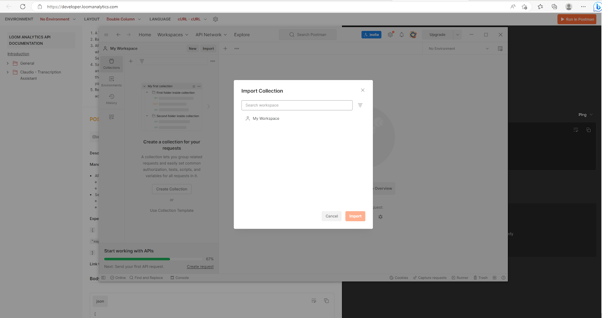
- Choose "My Workspace" and click on "Import"...
- Loom Analytics API's will be imported into your workspace
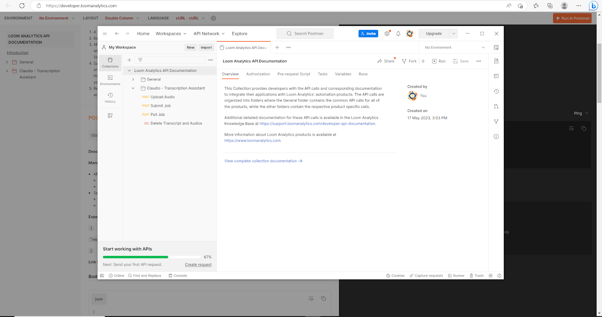
Setting Environment Variables:
- Select the Environments button to the right of the "No Environment" dropdown in the top-right corner

- Click on "Add," and you'll be taken to the page below
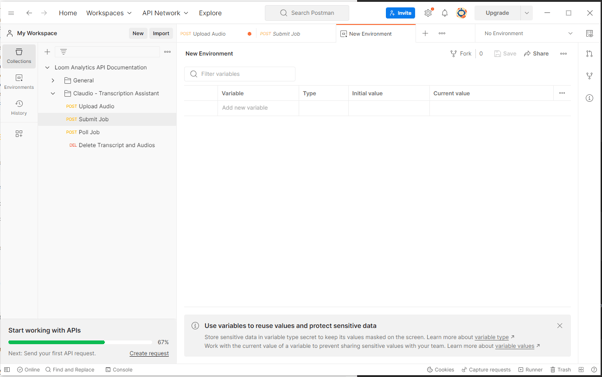
- You can give a name to this new environment (e.g., Loom Analytics). You'll be adding the environment variable for "base_url" on this page.
- Under "Variable," enter "base_url," and under "Current Value," enter the base URL you extract from your Loom Analytics account, as per the steps outlined in the Base URL article. The finished page looks like this:

- Click on "Save"...
- Change the environment to the one you just created
Calling API's:
- Click and expand the General folder on the left panel under the Loom Analytics API Documentation collection
- Double-click on "Ping" to open the API request on a new tab

- Click on "Body" under the API request section and click on "Raw"...
- Referring to the API documentation on https://developer.loomanalytics.com/, enter the JSON body for "key" and "secret"
- Change values for "<api_key>" and "<secret>" to your API Key and Secret values. Make sure that there are no spaces for the "key" or the "secret" parameters.
- Click on "Send." You'll see the following response:

- You can now continue exploring the other API's