![Loom_Analytics_Logo_Transparent.png]](https://support.loomanalytics.com/hs-fs/hubfs/Loom_Analytics_Logo_Transparent.png?height=40&name=Loom_Analytics_Logo_Transparent.png)
How Track Numbers Work in Unified Flow
Loom Analytics Web (Beta) automatically reads track numbers from your audio file metadata, making it easy to organize multi-part recordings and create a single, seamless transcript from multiple files.
How to Access Unified Flow:
-
Log in to your Loom Analytics account.
-
Click on Loom Analytics Web (Beta) on the navigation bar.
-
Select your profile.
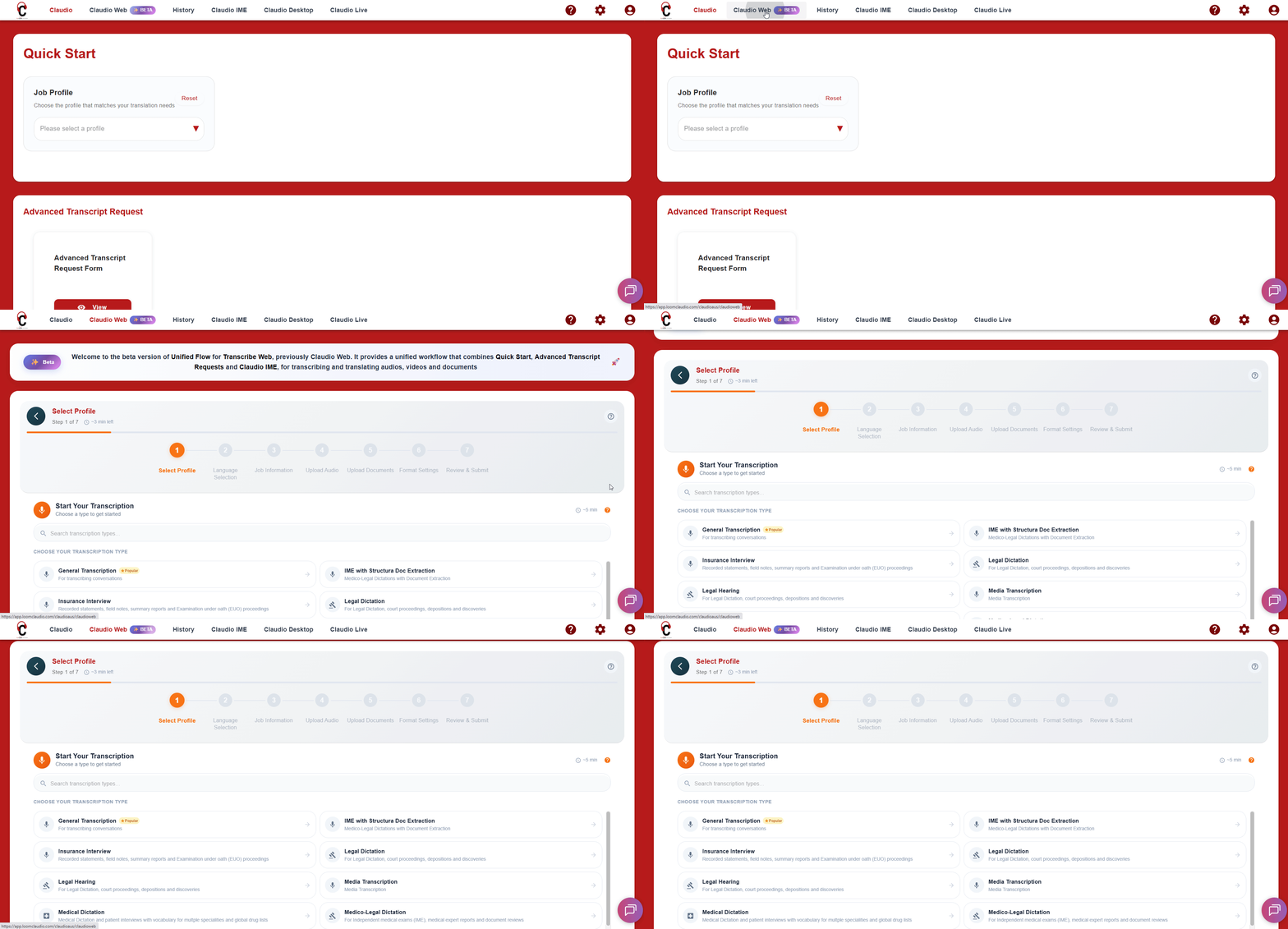
Uploading Files with Track Numbers
When you upload multiple audio files that contain track number metadata:
- Navigate to Loom Analytics Web and select your transcription profile.
- On the Upload Audio step, upload all the files from your multi-part recording.
- The system will automatically detect track numbers.
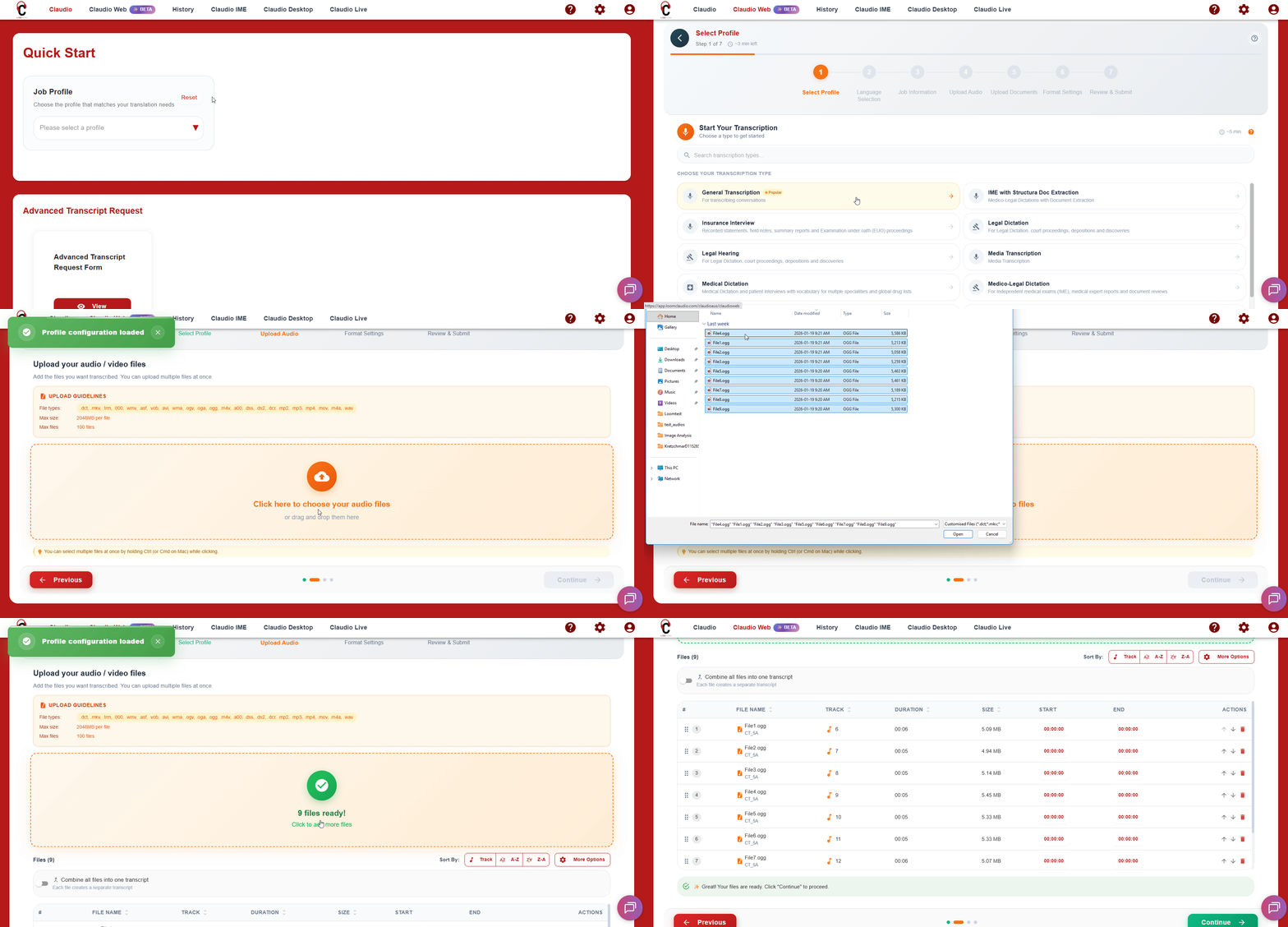
Sorting Files by Track Number
To ensure your files are processed in the correct chronological order:
- After uploading your files, look for the column named Track.
- Click on the Up and Down arrow to enable sorting the dropdown menu.
- Select either:
- A to Z - Sorts files in ascending order (Track 1, 2, 3, etc...)
- Z to A - Sorts files in descending order (Track 10, 9, 8, etc...)
Tip: For most transcription purposes, you'll want to use A to Z sorting to ensure the transcript flows chronologically from the beginning of the hearing to the end.
Note: Track numbers can be random numbers and might not match with the files name, but these track numbers should be in a sequential order.
-gif.gif?width=670&height=322&name=1-26-2026%20(16-27-57)-gif.gif)
Creating a Merged Transcript
This is the ability to combine multiple audio files into a single, continuous transcript:
- After uploading and sorting your files, look for the Combine all files into one transcript button/slider.
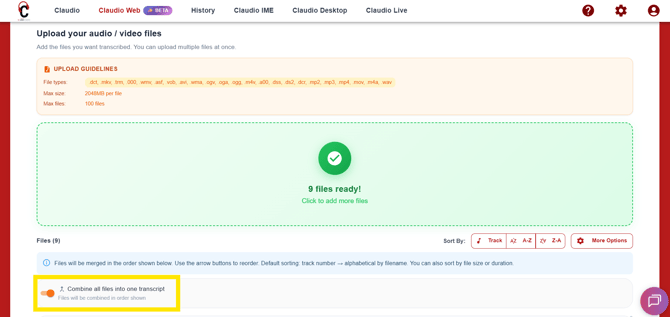
- Enabling the option will give you a single merged transcript.
- Continue through the workflow to Format Settings and Review & Submit.
-gif-1.gif?width=670&height=322&name=1-26-2026%20(16-35-40)-gif-1.gif)
When you enable this option, you'll receive one complete transcript that covers the entire hearing or proceeding.