![Loom_Analytics_Logo_Transparent.png]](https://support.loomanalytics.com/hs-fs/hubfs/Loom_Analytics_Logo_Transparent.png?height=40&name=Loom_Analytics_Logo_Transparent.png)
Step 1: Open the Setup Screen
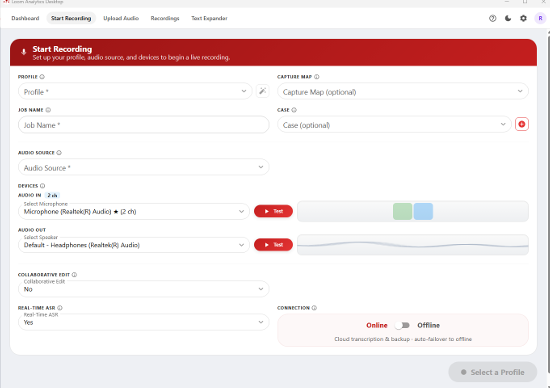
From the Dashboard, click Start Realtime Recording, or click Start Recording in the top menu.
Step 2: Fill in the Setup Form
- Profile: Choose the profile for this job. It controls the template, formatting, and speaker separation.
- Capture Map (optional): Choose a saved setup to fill in the whole form at once.
- Job Name: Enter a name you'll recognize later (e.g., Morning Hearing – Smith v. Jones).
- Case (optional): Link the recording to a case. Click + to create a new case on the spot.
- Audio Source: Choose In Person if everyone is in the room. Choose Hybrid (In Person + System Audio) if some participants are joining remotely. Hybrid records your microphone and your computer's sound.
- Collaborative Edit: Choose No to use the editor on this computer only.
- Real-Time ASR: Choose Yes to see the transcript live. Choose No to record audio only and transcribe it later.
- Connection: Choose Online for cloud transcription and backup, or Offline to keep everything on this computer. If the internet drops, the application switches to Offline automatically.
Tip: To change number, date, or speaker-label formatting for this job only, click Smart Formatting. Your profile's settings stay the same.
Step 3: Test Your Devices
- Select your microphone and click Test. Speak normally. Moving level bars and the word Working mean the microphone is ready.
- If your microphone has several channels, type a name for each one, such as Judge, Witness, or Counsel.
- Select your speaker and click Test. You should hear a short tone.
The Start Recording button becomes available once both tests pass.
Note: In Hybrid mode, your microphone and system audio must be different devices.
Step 4: Record and Save
- Click Start Recording. The first words appear within a few seconds.
- Use Pause and Resume as needed. You can type corrections while recording continues, and your edits won't be overwritten.
- Click Stop and confirm when you're finished.
- A Recording Saved message appears. Click Open Folder to go straight to your files.