![Loom_Analytics_Logo_Transparent.png]](https://support.loomanalytics.com/hs-fs/hubfs/Loom_Analytics_Logo_Transparent.png?height=40&name=Loom_Analytics_Logo_Transparent.png)
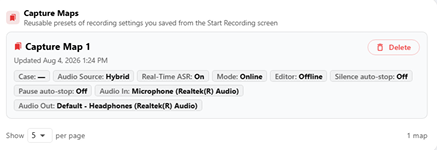
A Capture Map saves everything on the Start Recording screen, including the profile, audio source, devices, editor, and connection choices. Use one for every room you record in regularly.
To Save a Capture Map
- Fill in the Start Recording screen as usual.
- Tick Save these settings as a Capture Map.
- Click Start Recording, enter a name (e.g., Courtroom 4 – Full Bench), and click Save Capture Map. Recording begins right away.
To Use a Capture Map
- On the Start Recording screen, choose it from the Capture Map list. Every field fills in automatically.
- If you change anything, you'll be offered Update (overwrite the map) or Save as new (keep the original) when you start.
To review or delete Capture Maps, go to Settings ▸ Capture.