![Loom_Analytics_Logo_Transparent.png]](https://support.loomanalytics.com/hs-fs/hubfs/Loom_Analytics_Logo_Transparent.png?height=40&name=Loom_Analytics_Logo_Transparent.png)
A Case groups every hearing, session, or interview in the same matter. It also stores a shared speaker list, notes, and annotations.
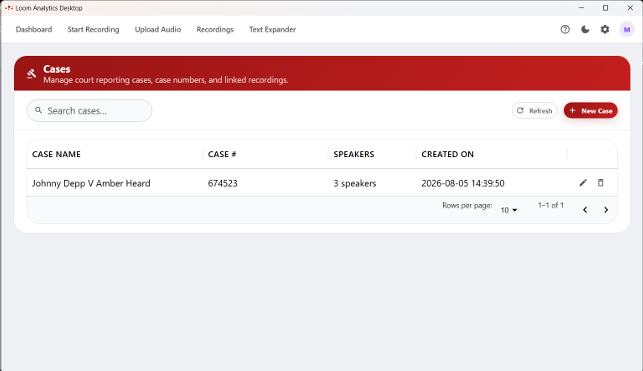
- Click Cases on the Dashboard.
- Click New Case. Enter a Case Name (required) and a Case Number, and then add speaker names one at a time.
- Use Search cases… to find a case as you type.
- Click a case to view or edit it, including its speaker list.
- Link a recording to a case on the Start Recording screen, or later from the job's details page using Link Case.
Tip: A case's speaker list appears as suggestions when you name microphone channels and speakers, which keeps names consistent across every recording in the matter.