![Loom_Analytics_Logo_Transparent.png]](https://support.loomanalytics.com/hs-fs/hubfs/Loom_Analytics_Logo_Transparent.png?height=40&name=Loom_Analytics_Logo_Transparent.png)
1. Access Loom Analytics Login Page
Navigate to the Loom Analytics login page.
2. Enter Your Administrator Credentials
Provide your username and password associated with your administrator account.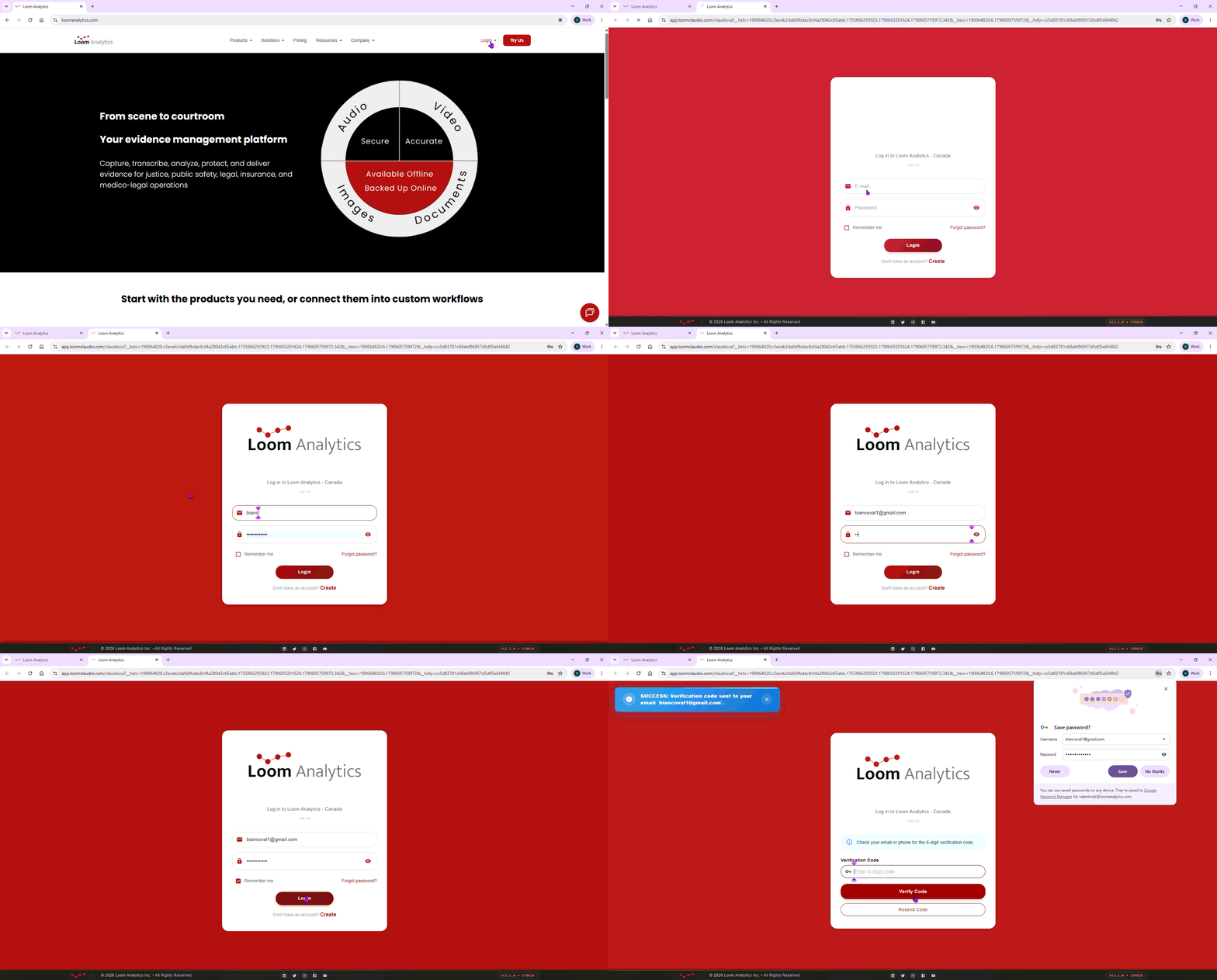
3. Verify Your Identity
Check your registered email or phone for a six-character verification code.
Enter the code in the Authorization Code field on the login page and click "Verify."
If you do not receive the code promptly, click "Resend Authorization Code."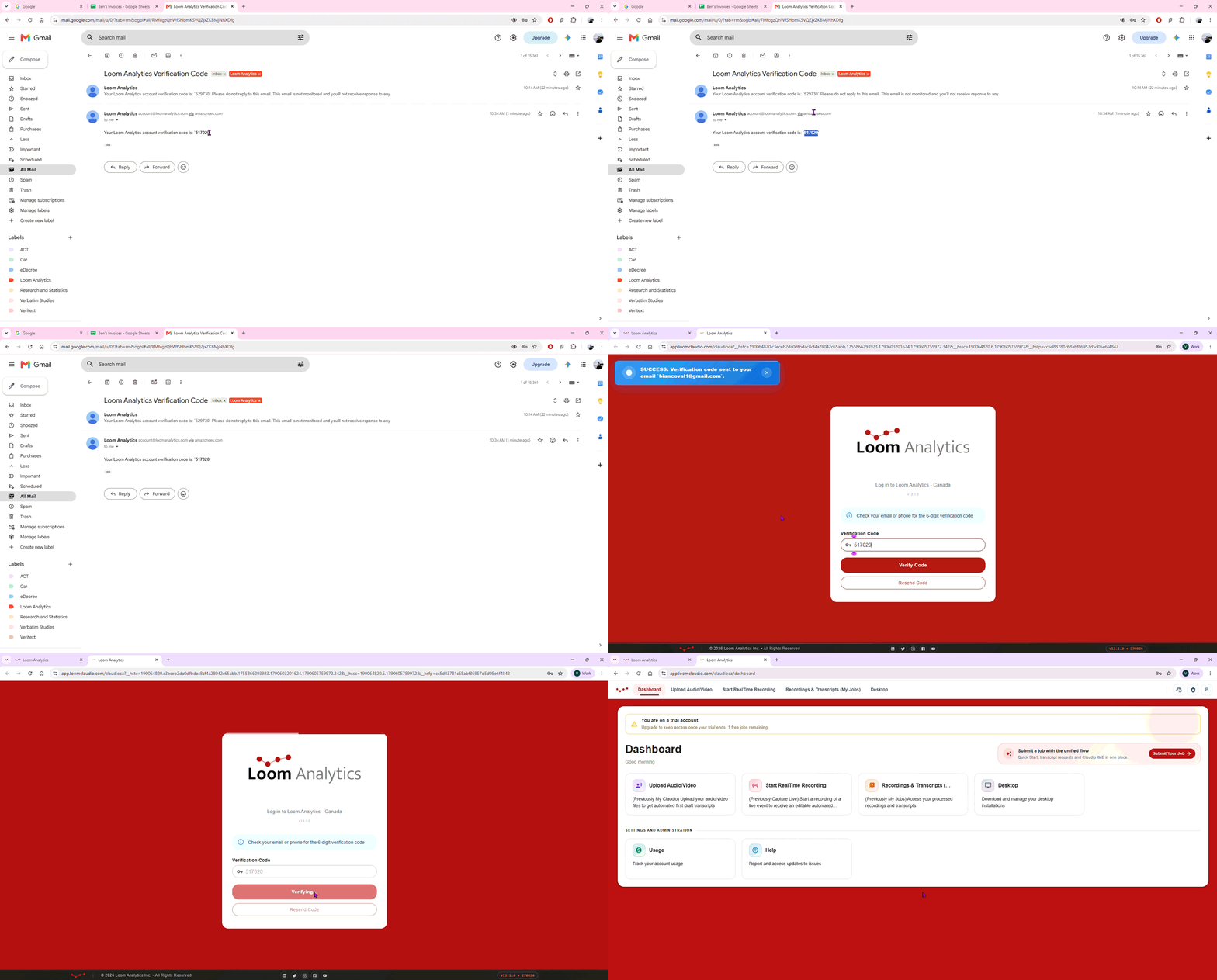
4. Access the Loom Analytics Dashboard
Upon successful login, you will be directed to the Loom Analytics dashboard.
This dashboard provides all necessary features and tools for managing your team or enterprise.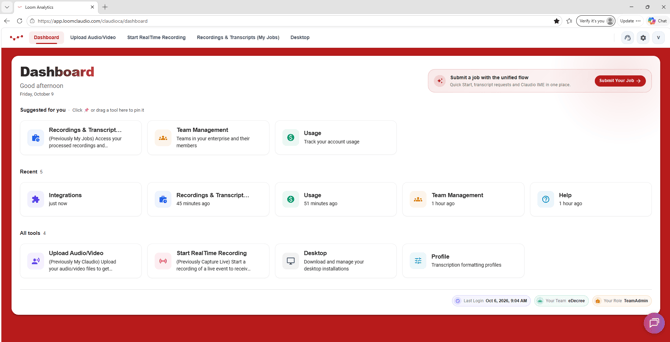
5. Navigate to Admin Features
Locate the gear icon at the top-right corner of the screen and click on it.
Click on "Users" to manage users within your team:
- Add new users to your team.
- View a comprehensive list of all team users.
- Click on any username or email address to access detailed user information.
- As an administrator, you can also lock user accounts if required.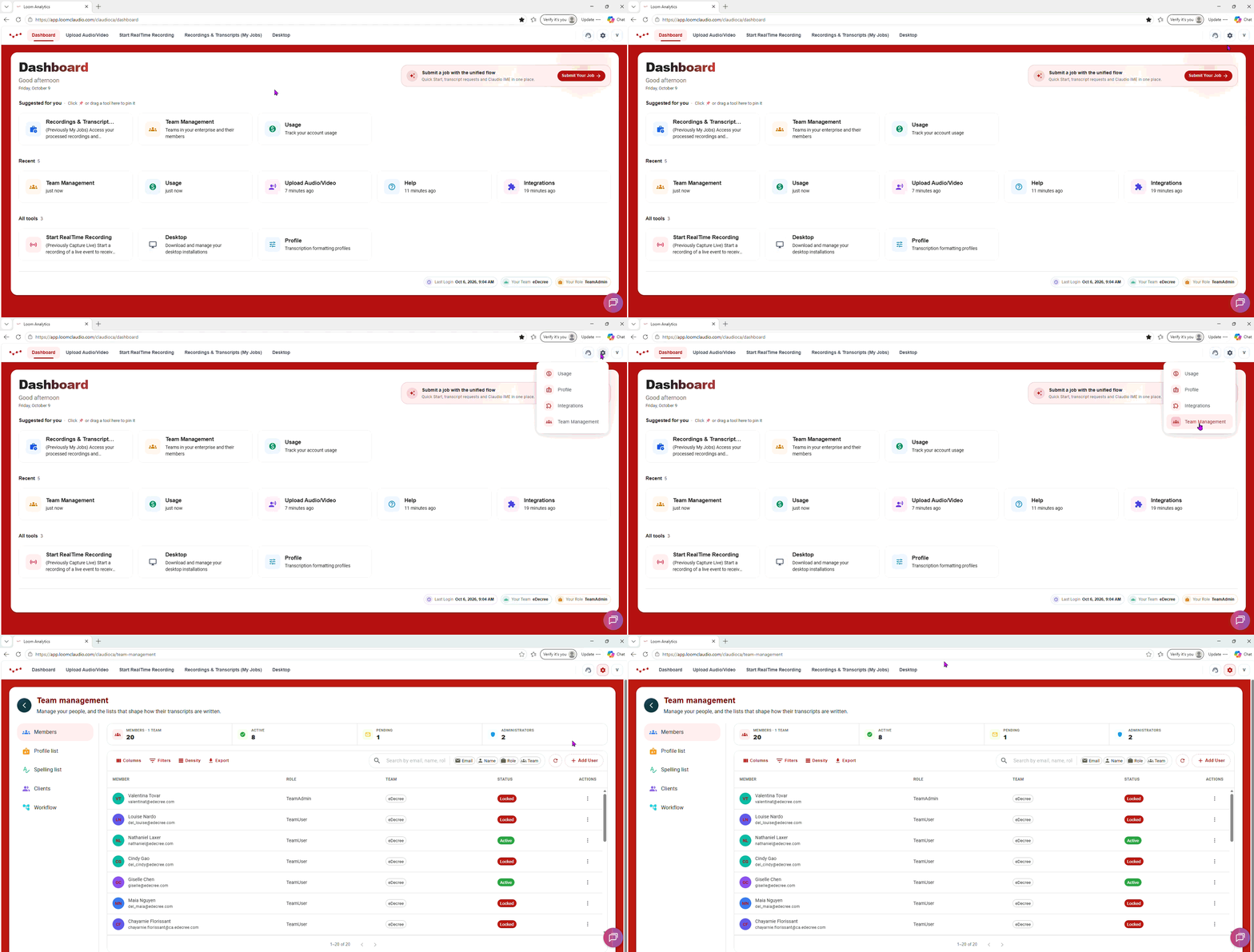
6. Locking a User Account
Click on the ellipsis menu (three dots) next to the user's name.
Select the "Lock" option from the menu.
This action will prevent the user from logging in to Loom Analytics.
Confirm the user's "Locked" status displays as "Yes."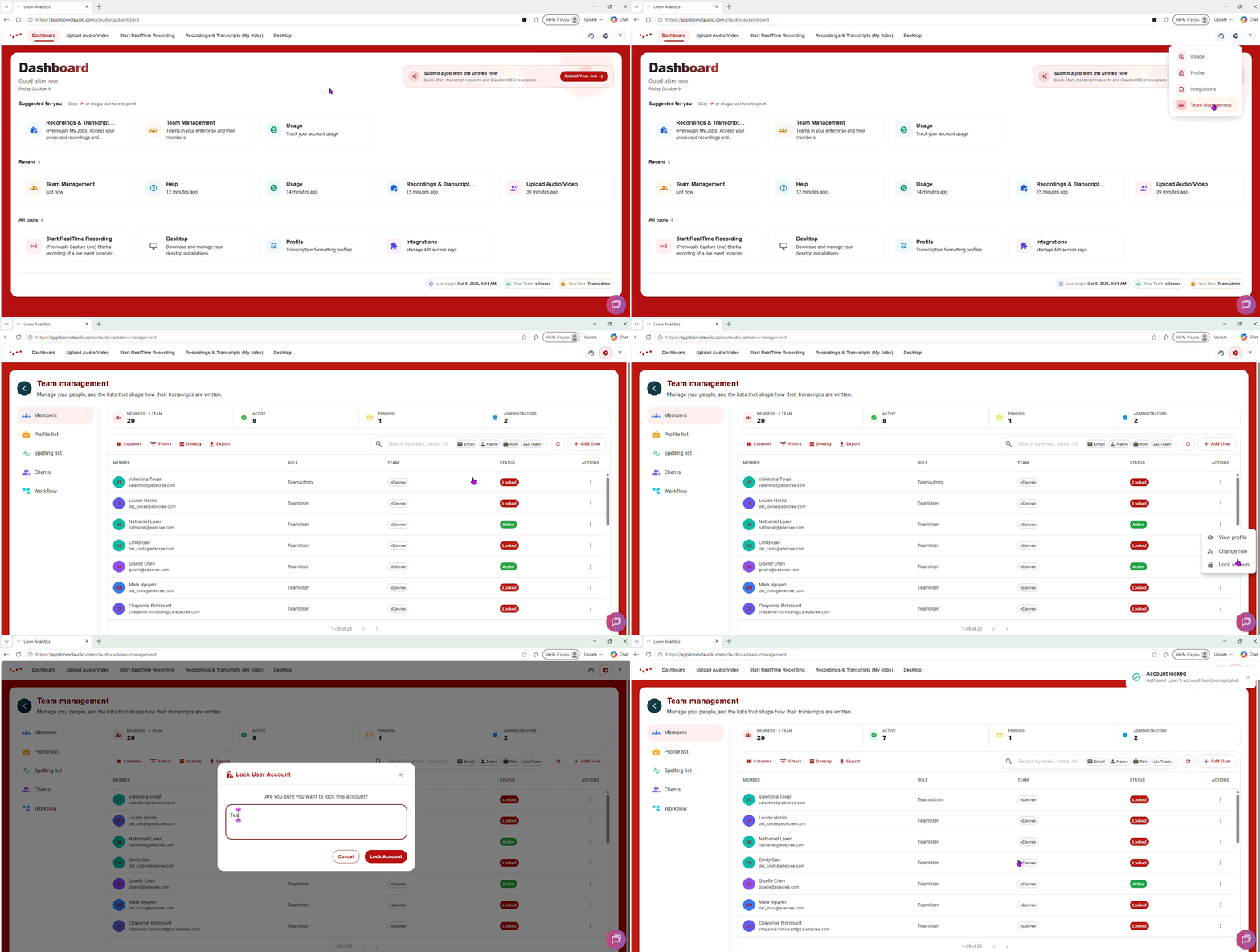
7. Unlocking a User Account
Click on the ellipsis menu (three dots) next to the locked user's name.
Select the "Unlock" option from the menu.
This will restore the user's ability to log in to Loom Analytics.
Confirm the user's "Locked" status displays as "No."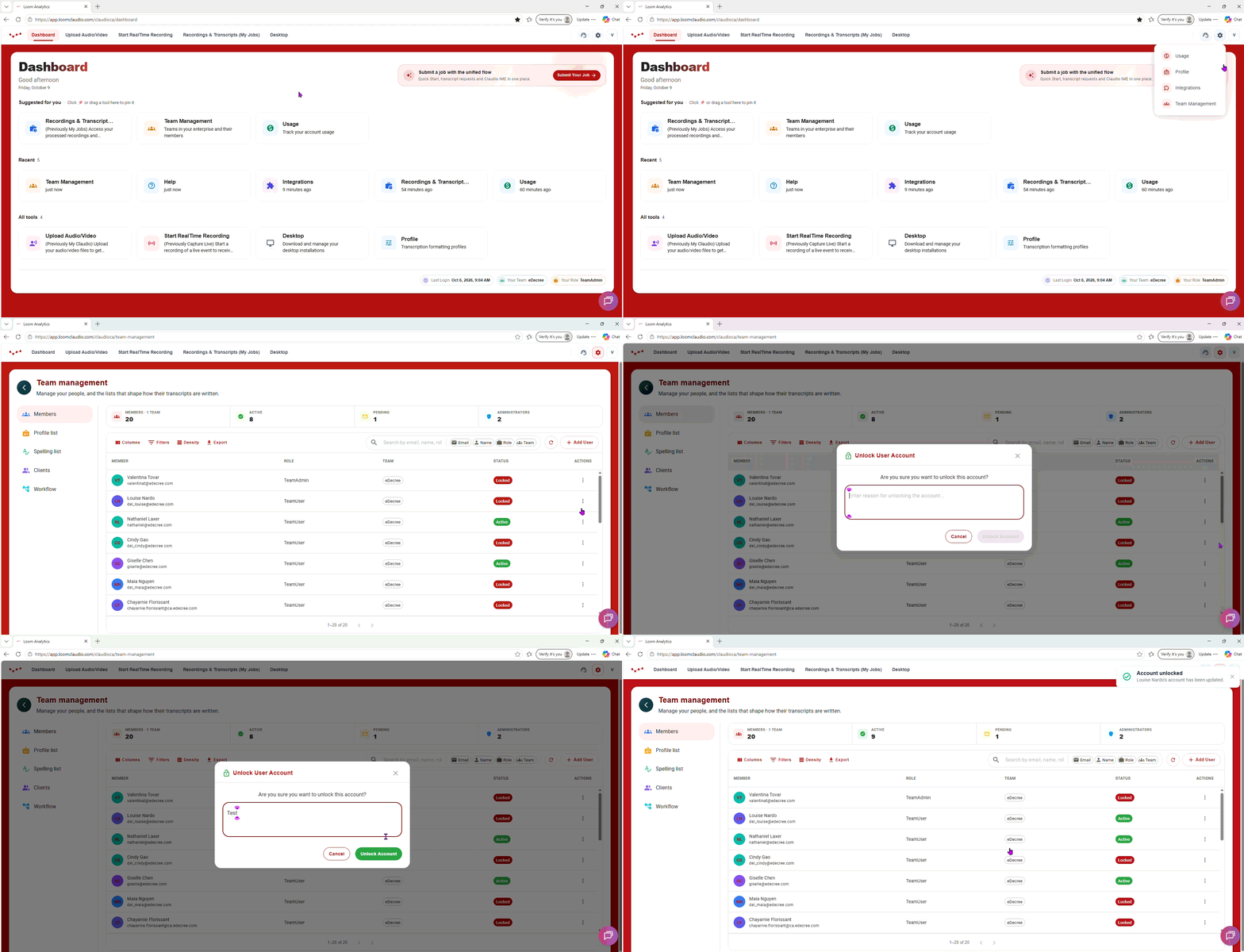
NOTE: As an administrator, exercise caution when locking or unlocking user accounts to ensure security and access management within your team or organization.