![Loom_Analytics_Logo_Transparent.png]](https://support.loomanalytics.com/hs-fs/hubfs/Loom_Analytics_Logo_Transparent.png?height=40&name=Loom_Analytics_Logo_Transparent.png)
Loom Analytics Desktop separates the transcript by voice and first labels speakers as S1, S2, S3, and so on. Once you name a speaker, the application recognizes that person automatically in future recordings.
Naming a Speaker
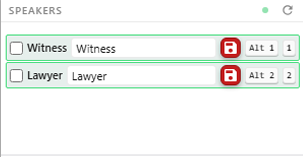
- Open the Speakers panel in the editor's right-hand column.
- Find the row for the voice you want to name.
- Type the person's name in the input field.
- Click the Save icon. New text from that voice is now labelled with the name.
Assigning Speakers Quickly
Press Alt+1 to Alt+9 to assign a speaker to the paragraph your cursor is in. Press Ctrl+Shift+Z to undo the last speaker change.
Note: If the Speakers panel says speaker identification is off, turn on speaker separation in your profile on Loom Analytics Web. Then click Settings ▸ Profiles ▸ Refresh from online in the Desktop app.
Tip: If you link recordings to a Case, the case's speaker list appears as suggestions. This keeps names consistent across every hearing in the matter.