![Loom_Analytics_Logo_Transparent.png]](https://support.loomanalytics.com/hs-fs/hubfs/Loom_Analytics_Logo_Transparent.png?height=40&name=Loom_Analytics_Logo_Transparent.png)
Finding a Job
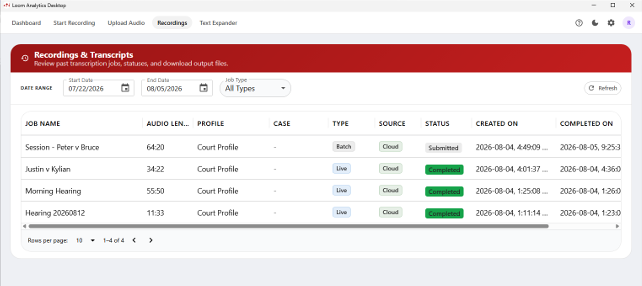
- Click Recordings in the top menu.
- Use the Start Date and End Date pickers to narrow the list.
- Use Job Type to show All Types, Live recordings, or Batch (Uploaded) jobs.
- Click a job to open its details, and then click Open in Editor to view the transcript.
Exporting
Click the Download button, choose an option, and select a destination folder.
|
Option |
Result |
|---|---|
|
Transcript only (.docm) |
The document with your template's macros and shortcuts intact |
|
Transcript only (.docx - no macros) |
A widely compatible Word document |
|
Audio only |
The recording |
|
Audio (optimized - strip silent channels) |
A smaller file with unused microphone channels removed |
|
Transcript and audio |
Both together, in your chosen format |
Job Statuses
|
Status |
Meaning |
|---|---|
|
Pending/Queued |
Waiting to start |
|
In Progress |
Being transcribed now |
|
Completed |
The transcript is ready |
|
Failed |
Something went wrong; open the job for details |
|
Paused |
Temporarily halted |