![Loom_Analytics_Logo_Transparent.png]](https://support.loomanalytics.com/hs-fs/hubfs/Loom_Analytics_Logo_Transparent.png?height=40&name=Loom_Analytics_Logo_Transparent.png)
Description: Webhooks allow for you to receive job status updates in Webhook Logs by sending POST requests to your server endpoint. Once configured, your Webhook endpoint will receive HTTP POST requests whenever a job you submit changes status. All Webhook activity is logged in the Webhook Logs section for monitoring and troubleshooting.
How It Works:
When you configure a Webhook in the Loom Analytics platform, you provide your server's Webhook URL and receive a unique Webhook secret. After configuration, any job submitted through your account will trigger Webhook POST requests to your endpoint with job status updates. All Webhook attempts and their responses are recorded in Webhook Logs for your review.
Configuring Your Webhook (Requires Team Admin Access)
Step 1: Navigate to Webhook Settings:
- Log in to your Loom Analytics account
- Click on the gear icon on the top-right side
- Go to Integrations in the left navigation menu
- Select Webhooks
-gif.gif?width=593&height=314&name=1-23-2026%20(13-13-59)-gif.gif)
Step 2: Enter Webhook URL:
In the Webhook URL field, enter your server's endpoint that will receive logs for your jobs.
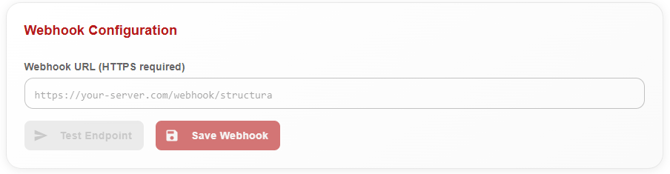
Important: Ensure your Webhook endpoint:
- Is publicly accessible via HTTPS
- Can accept POST requests
- Returns HTTP 200 status for successful receipt
- Implements proper authentication using the Webhook secret
Step 3: Webhook Secret:
A Webhook Secret will be automatically generated when you configure your Webhook. This secret is used to verify that notifications are genuinely from Loom Analytics.
The secret appears as a masked string in the interface. You can:
- Copy the secret using the copy icon
- View the secret using the eye icon
- Regenerate a new secret if needed (Note: This will invalidate the previous secret)
Step 4: Test Your Webhook:
Before saving, it's crucial to test your Webhook configuration:
- Click the Test Webhook button
- The system will send a test notification to your endpoint
Expected Test Responses:
Successful Test: A green notification will appear at the top-left of the screen:
-gif.gif?width=565&height=135&name=1-23-2026%20(13-22-52)-gif.gif)
Failed Test: An error message will be displayed indicating the issue:
-gif.gif?width=564&height=126&name=1-23-2026%20(13-24-19)-gif.gif)
Common Error Codes:
- HTTP 405: Method Not Allowed - Your endpoint doesn't accept POST requests
- HTTP 404: Not Found - The Webhook URL is incorrect or endpoint doesn't exist
- HTTP 401/403: Unauthorized/Forbidden - Authentication issues
- HTTP 500: Internal Server Error - Issue with your Webhook handler
- Timeout: Your endpoint is unreachable or taking too long to respond
Step 5: Save Configuration:
Once the test is successful, click Save Webhook to enable the logs for your jobs in the Webhook Logs section.
Monitoring Webhook Activity:
After configuring your Webhook, all Webhook events are logged and can be viewed in the Webhook Logs section under Integrations.
Managing Your Webhook
Delete Webhook: To remove Webhook configuration, click the Delete Webhook button.
This will:
- Deactivate Webhook notifications
- Remove the Webhook URL from your account
- Invalidate the current Webhook secret
After deletion, you will need to reconfigure the Webhook to receive notifications again.
Learn more about Webhook Logs here.