![Loom_Analytics_Logo_Transparent.png]](https://support.loomanalytics.com/hs-fs/hubfs/Loom_Analytics_Logo_Transparent.png?height=40&name=Loom_Analytics_Logo_Transparent.png)
My Loom Analytics Tab
Step 1: Select a Job Profile best catred to your transcription project.
- Combine Documents
- General Transcription English
- General Transcription Bilingual English-French
- General Transcription French
- IME with Structura Doc Extraction
- Insurance Interview
- Legal Discovery/Hearing
- Legal Reports
- Medical Dictation
- Medico-Legal Dictation
- Multilingual Transcription & Translation
- Ontario ACT (Civil)
- Ontario ACT (Criminal)
Step 2: Upload the media files you wish to have transcribed and click Continue. You can upload multiple files at once.
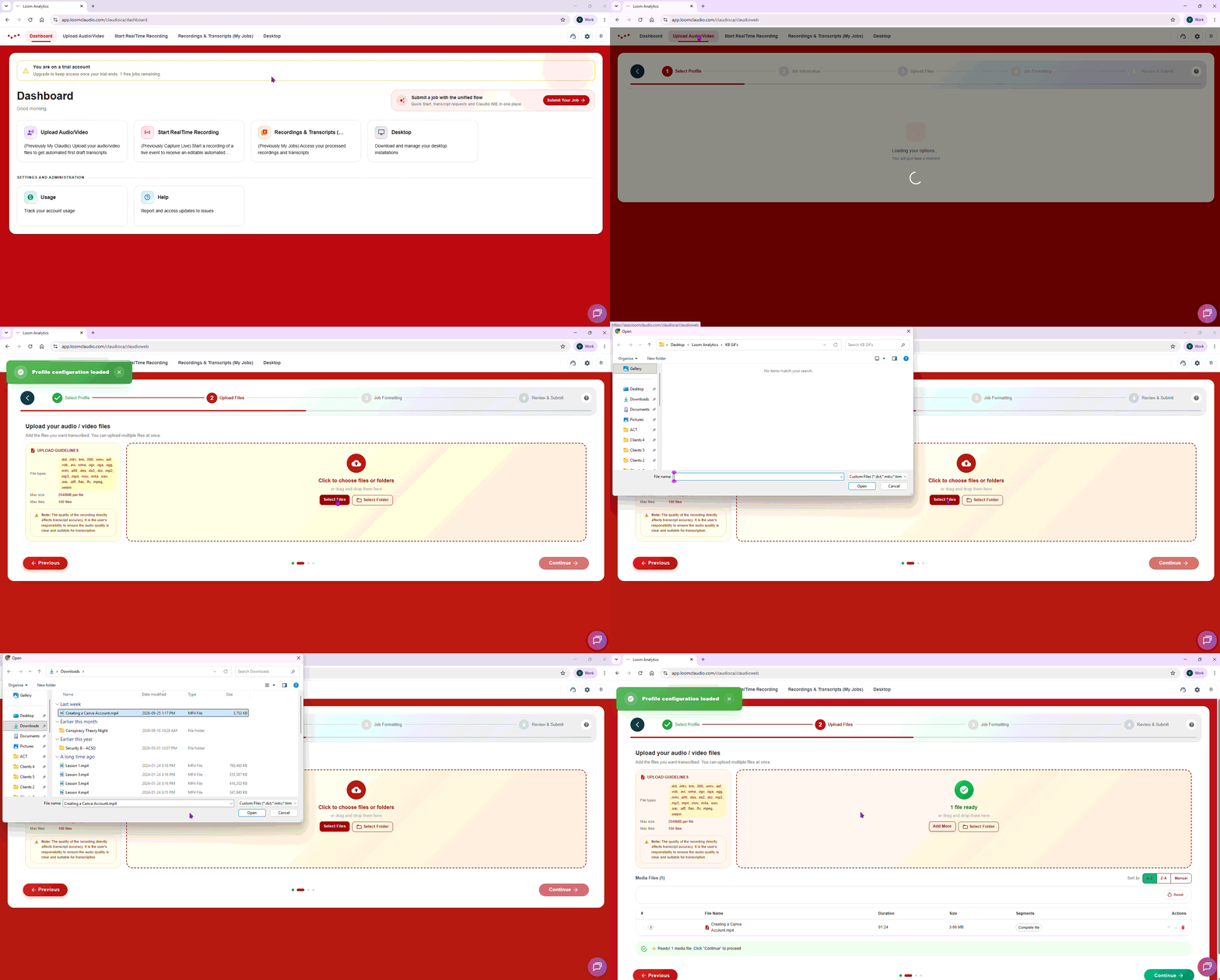
Note: The quality of the recording directly affects transcript accuracy. Ensure audio quality is clear and suitable for transcription.
Step 3: Customize your transcript by selecting your preferred Smart Formatting options and click Continue.
- Who's Speaking?
- Speaker Identification: Add or remove speaker labels
- How It Looks:
- Sentence Spacing: Number of spaces after each sentence
- Number Setup: Determine which numbers are spelled out
- Salutation Format: Format how salutations are displayed
- Time Setup: Formats time setup
- Date Format: Preferred date format
- Language & Grammar:
- Word Contractions: Expands spoken contractions
- Grammar Ready: Correct grammatical and spelling errors in the transcript
- Speaker Pauses: Remove fillers in speech
- Output Options:
- Dictated Heading & Punctuation Support: Apply dictations such as "new line" and "full stop"
- Custom Settings:
- Custom Vocabulary: Enter words to boost recognition accuracy
Step 4: Name your transcript (optional). Review selected audios and smart formatting. Click Submit Job.
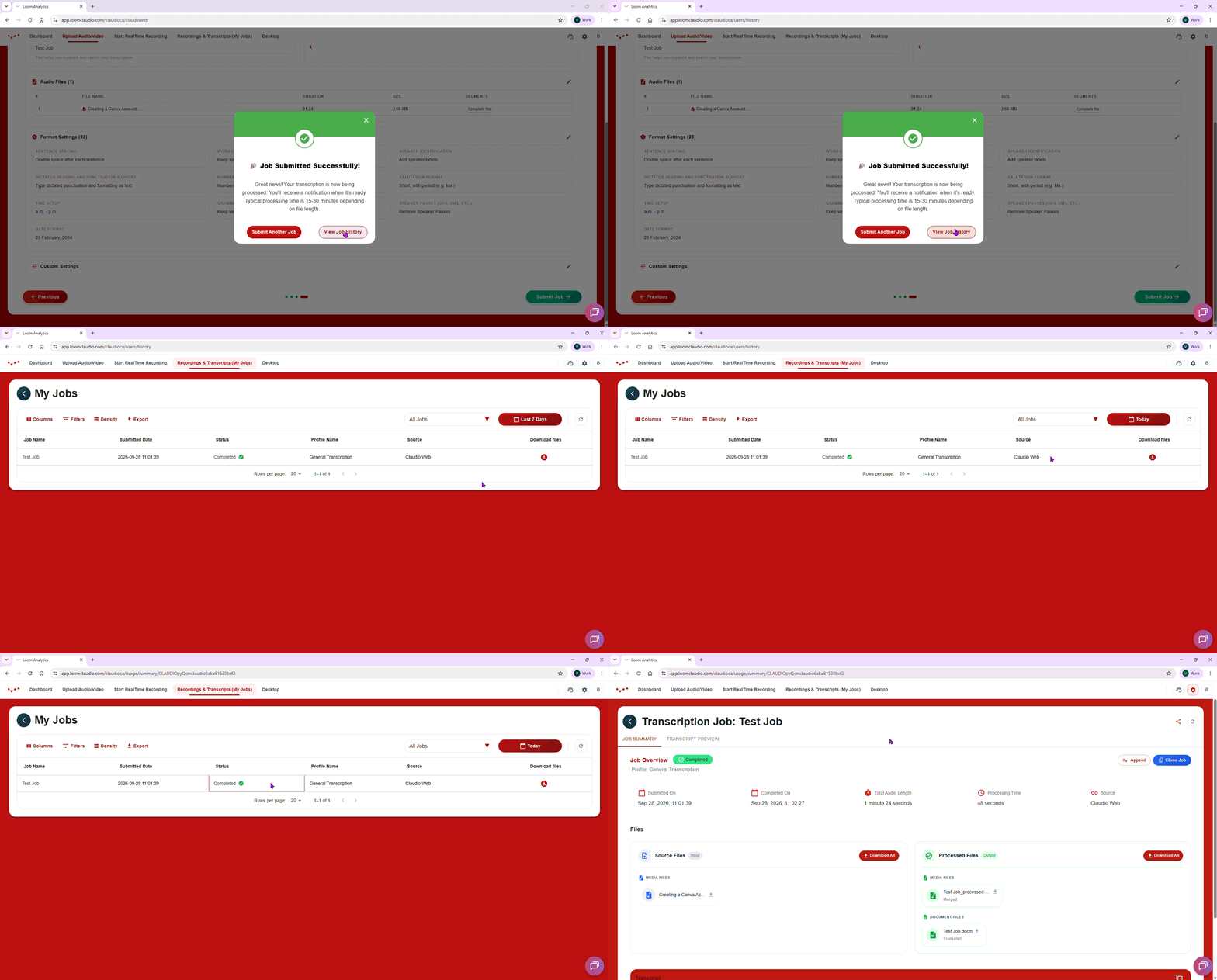
Your job is now being processed and an email will be sent to you.
Step 5: Navigate to the My Jobs tab to access your transcript. Download your transcript and begin editing.