![Loom_Analytics_Logo_Transparent.png]](https://support.loomanalytics.com/hs-fs/hubfs/Loom_Analytics_Logo_Transparent.png?height=40&name=Loom_Analytics_Logo_Transparent.png)
TIP: Before going through the steps of this article, ensure that you have created and activated your Loom Analytics account. If you have created a trial account with us, ensure that you have enough time left over in your trial.
Click here to learn how to register your Loom Analytics account.
Click here to learn how to activate your Loom Analytics account.
Table of Contents
1.Log In to Loom Analytics

2.Find the ACT Request Form

3.Name Your Job and Select a Profile

4.Fill In the Information From Your Ontario Court Proceeding Form

5.Upload File(s)

6.Modify the Start and End Time of Your Transcript (optional)

7.Submit Your File
As an Ordering Party, if you have requested and received a completed Order for Court Transcript of an Ontario Court Proceeding Form, you can use the information on that form to get a transcript of the court proceeding through Loom Analytics.
To request an ACT Transcript through Loom Analytics, follow the steps below:
NOTE: Creating a request for an ACT Transcript is only available in the Canadian Region.
Log In to Loom Analytics
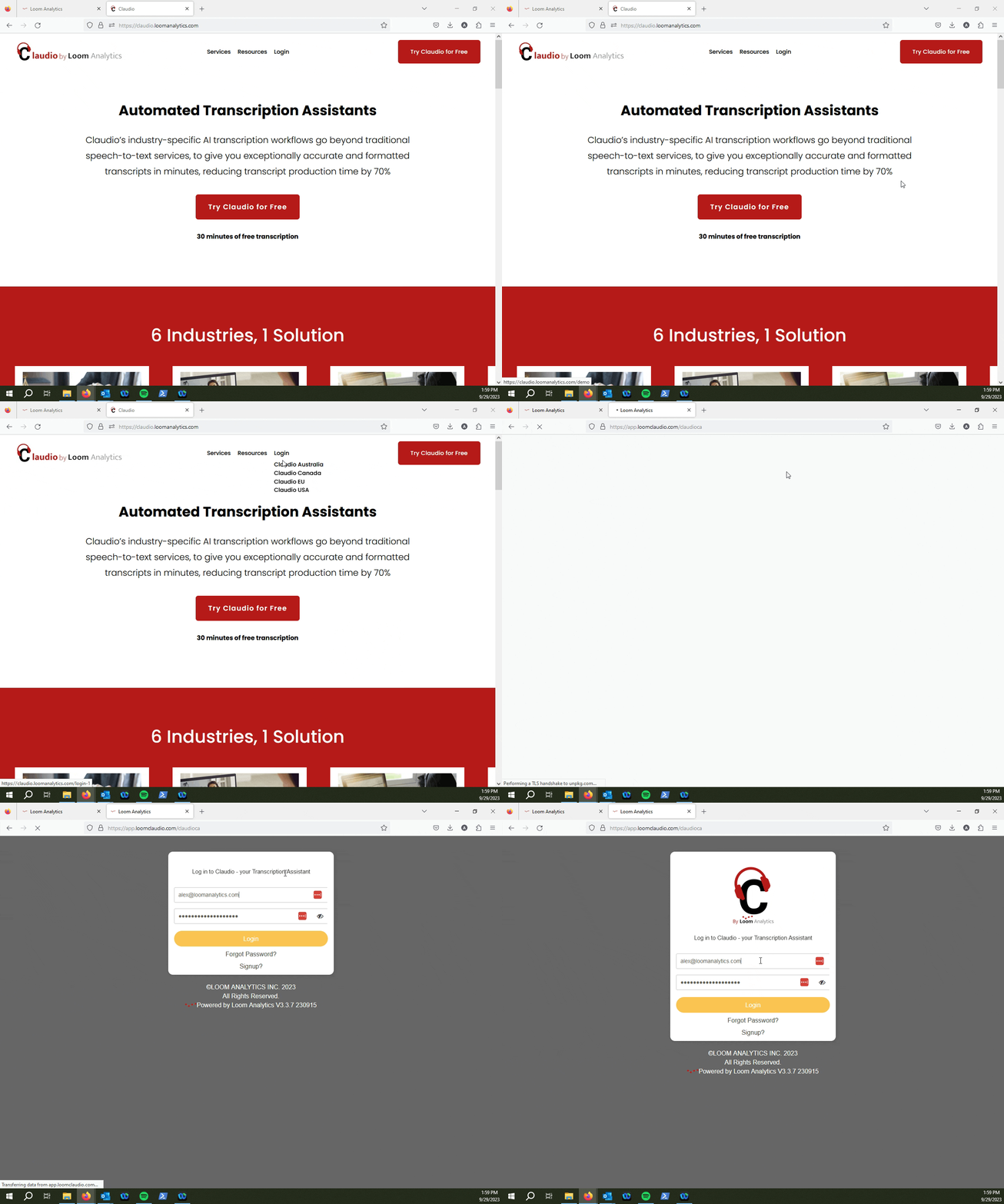
TIP: Click here to learn how to log in to your Loom Analytics account.
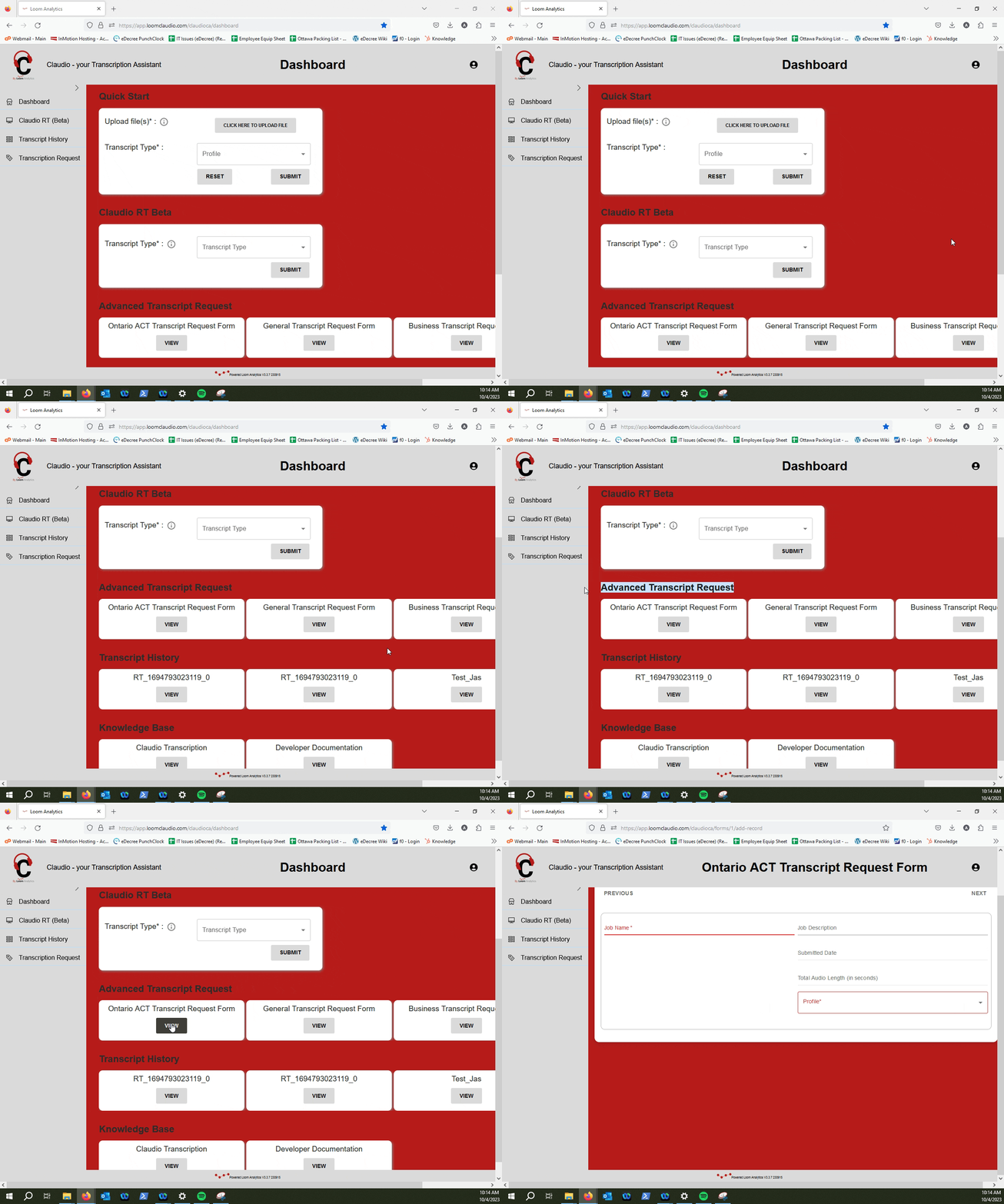
Find the "Ontario ACT Transcript Request Form" under the Advanced Transcript Request field on your Dashboard
Click "View"
Fill out the "Job Name" field and select a profile that suits your needs
If you want to provide a description, you can do so over on the "Job Description" field
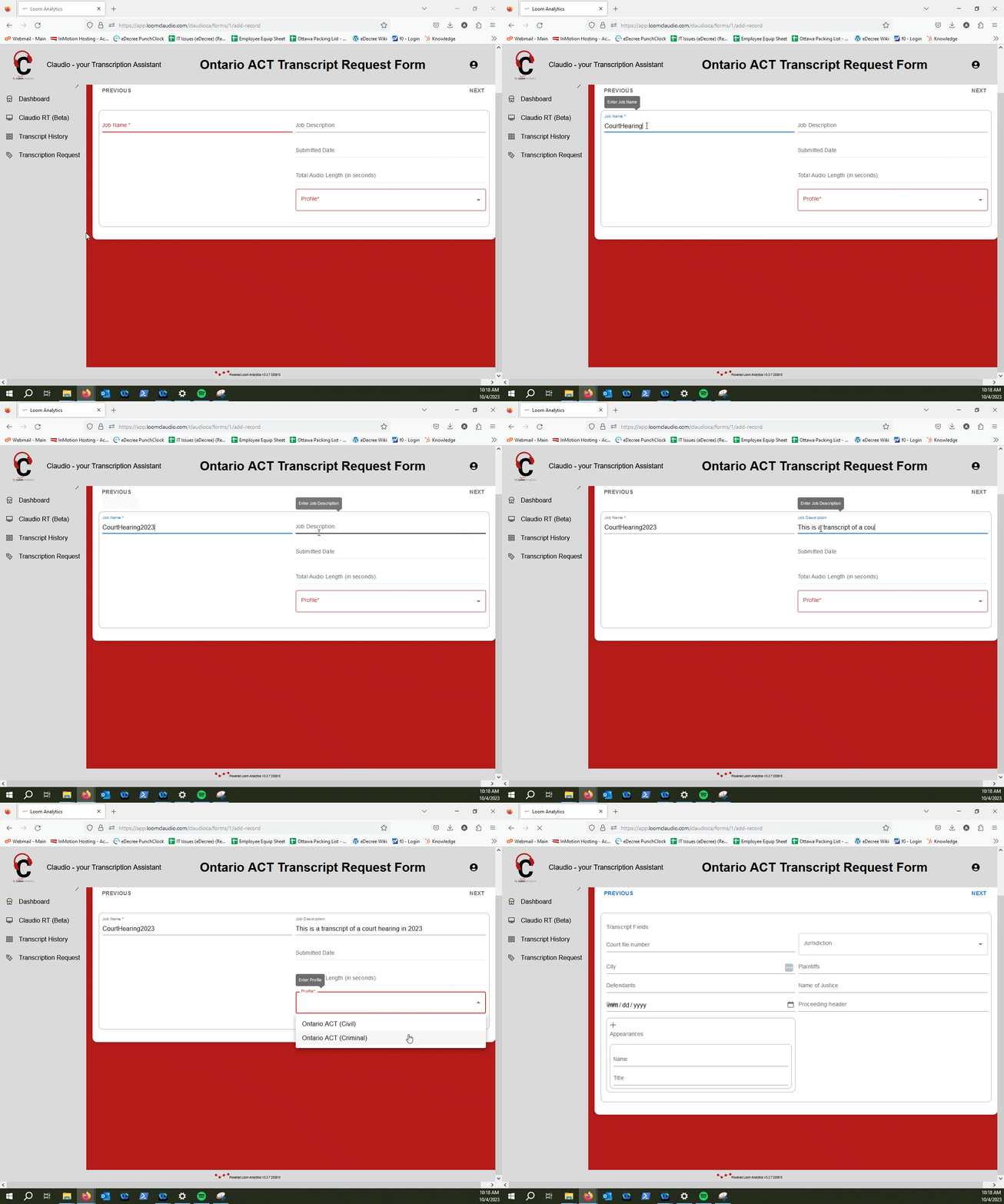
NOTE: You can learn more about which profiles Loom Analytics supports here.
The next form will need to be filled out according to the information that is on your Order for Court Transcript of an Ontario Court Proceeding Form
Fill this section out accordingly, and then press "Next"
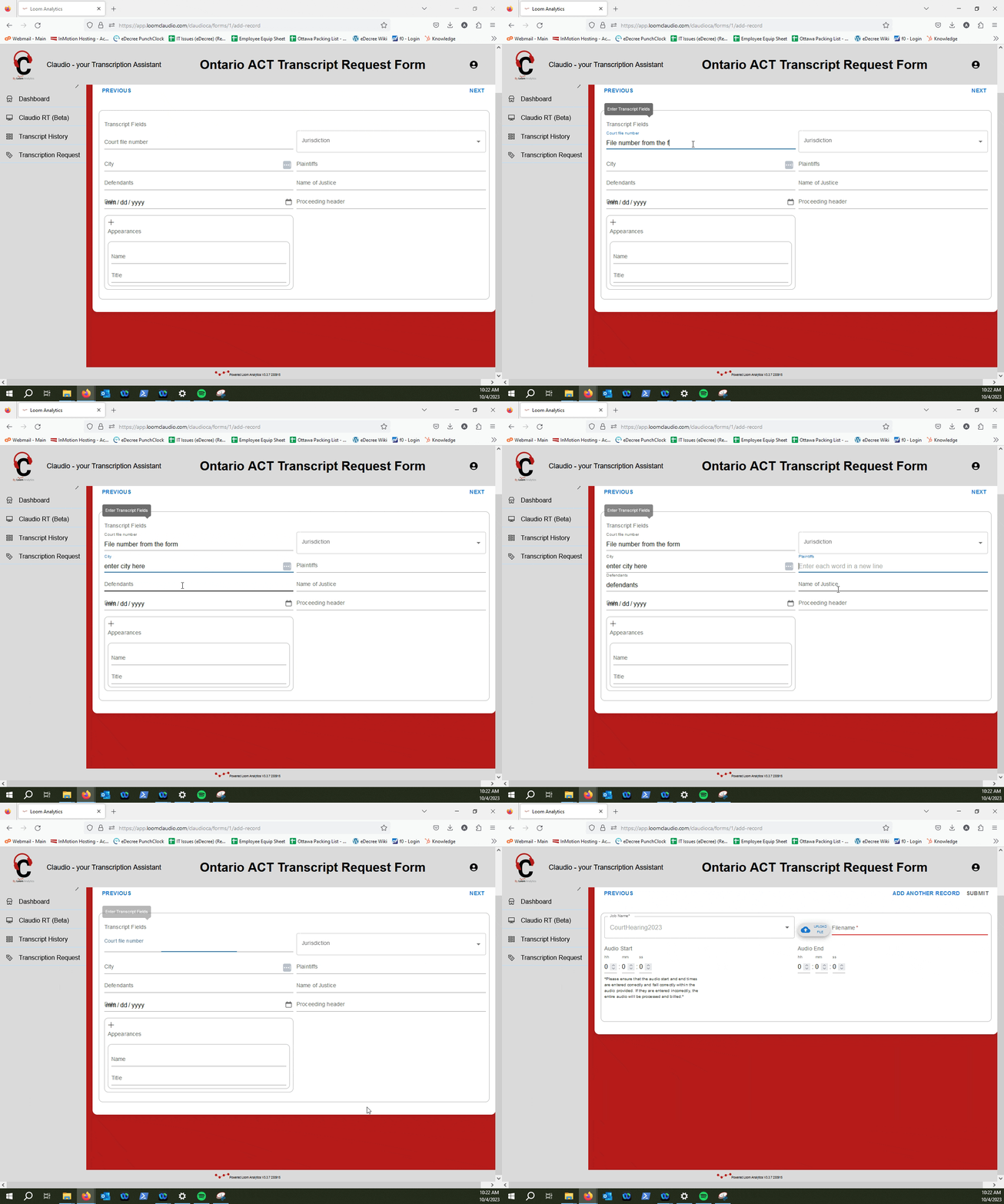
CAUTION: This section can only be filled out if you have a completed Ontario Court Proceeding Form. Please refer to the form for the details.
Select your recording of the court proceeding, and then click "Upload File"
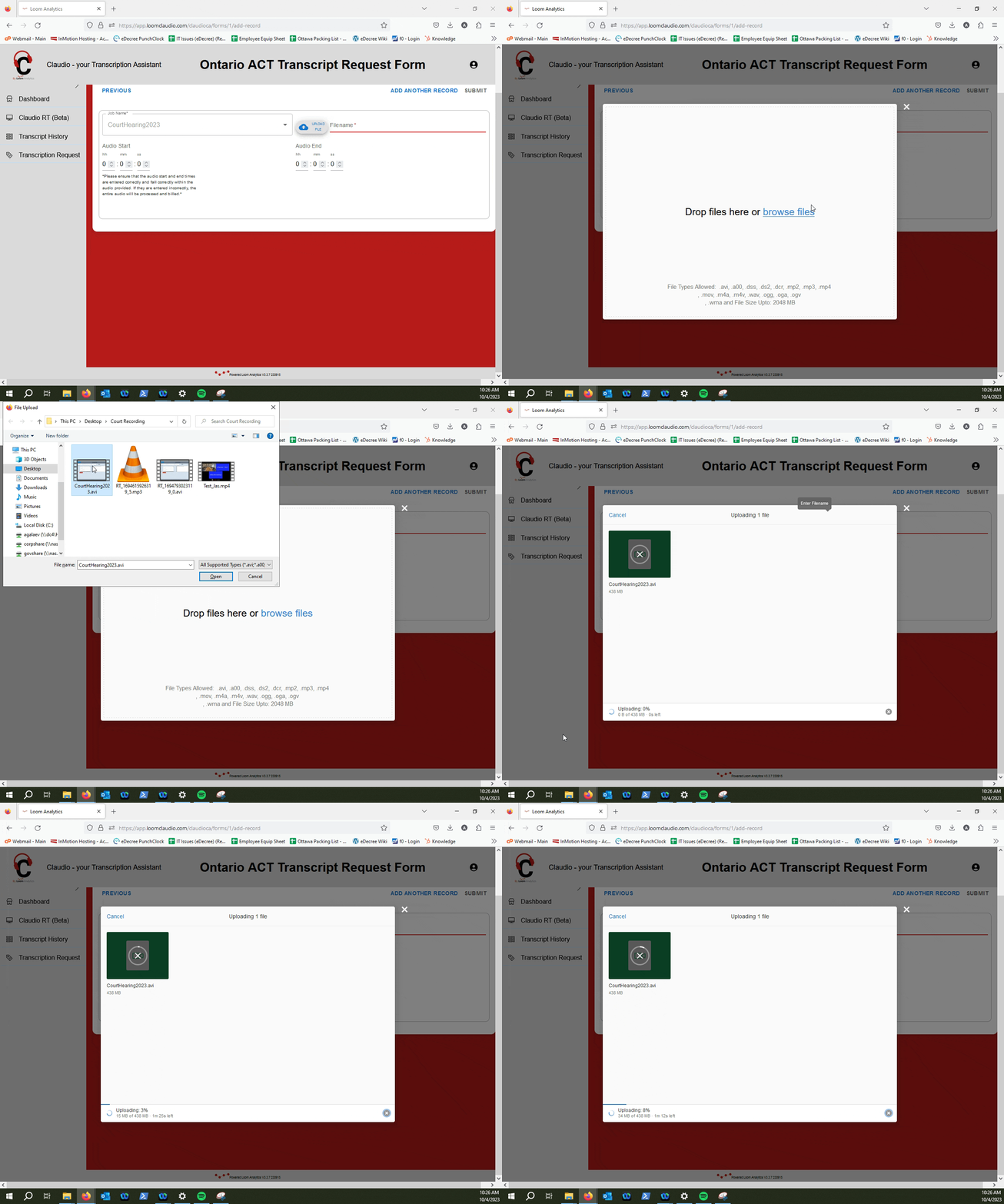
NOTE: If you need to upload multiple files to a single job, you can learn how to do that here.
If you need information on which file types Loom Analytics supports, click here.
You can also modify where the transcript should start and where it should end by changing the "Audio Start" and "Audio End" values
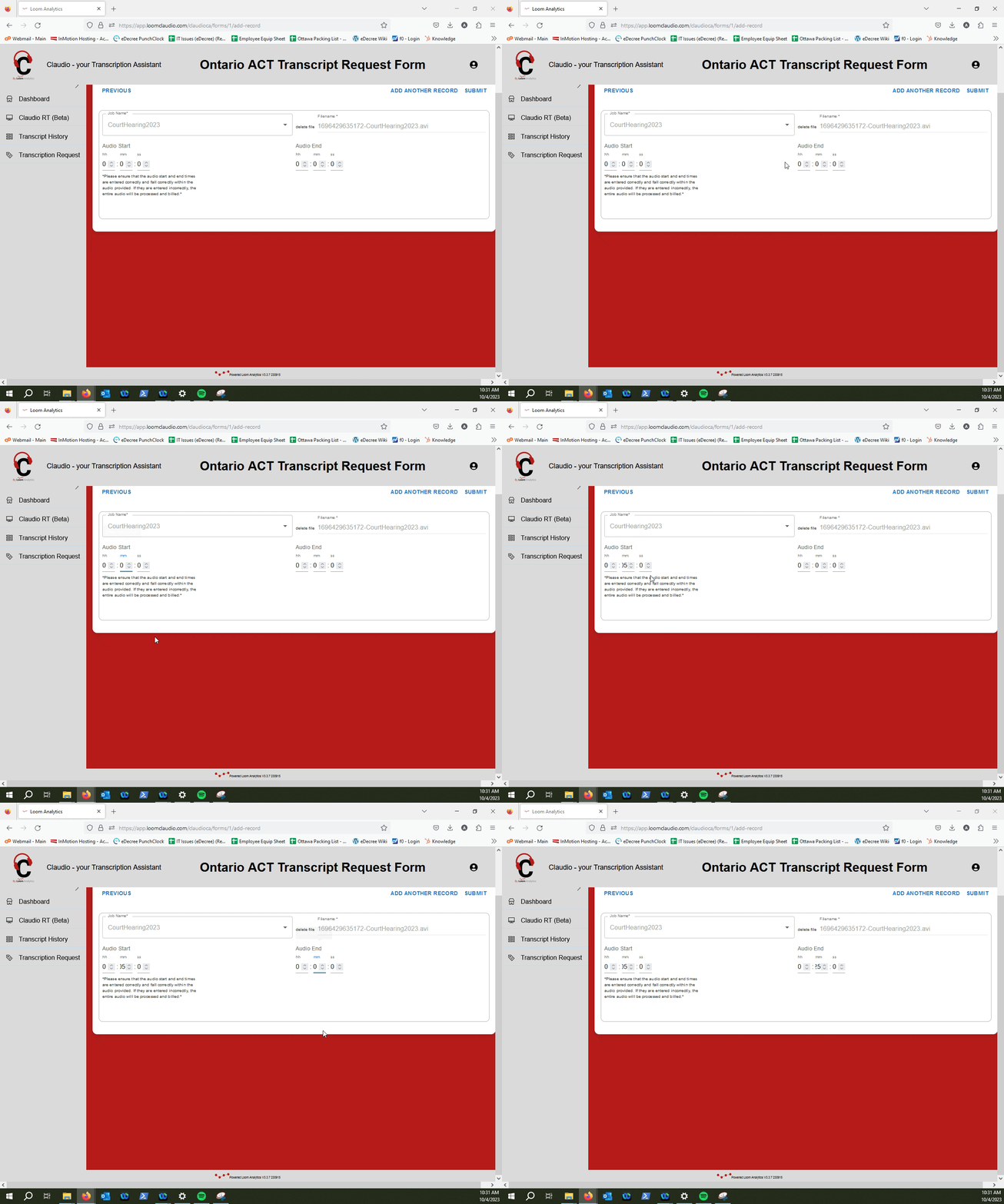
TIP: You can learn more on modifying transcript start and end times here.
Once you have set everything to your specific needs, click on the "Submit" button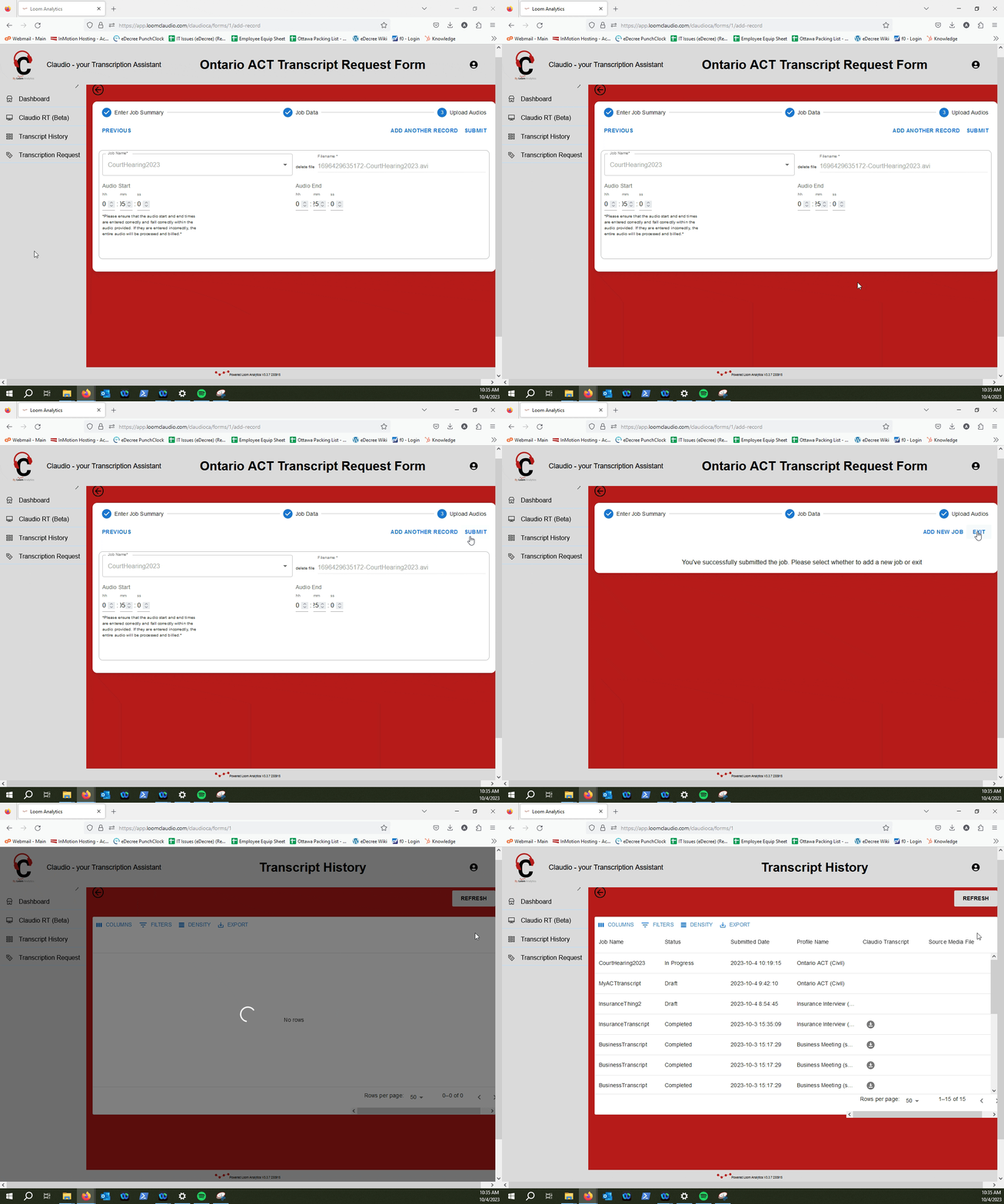
NOTE: To learn how to track the progress of your transcription jobs, and to retrieve your finished transcripts, click here.