![Loom_Analytics_Logo_Transparent.png]](https://support.loomanalytics.com/hs-fs/hubfs/Loom_Analytics_Logo_Transparent.png?height=40&name=Loom_Analytics_Logo_Transparent.png)
NOTE: You will need a Loom Analytics account to be able to follow along with this guide. If you haven't created a Loom Analytics account, click here to learn how.
This article provides a simple guide on how to submit a new Medical Media Recording file to Loom Analytics for transcription. Follow the steps below to get your medical media recordings transcribed.
Go to "Upload Audio/Video" and choose "Medical Dictation"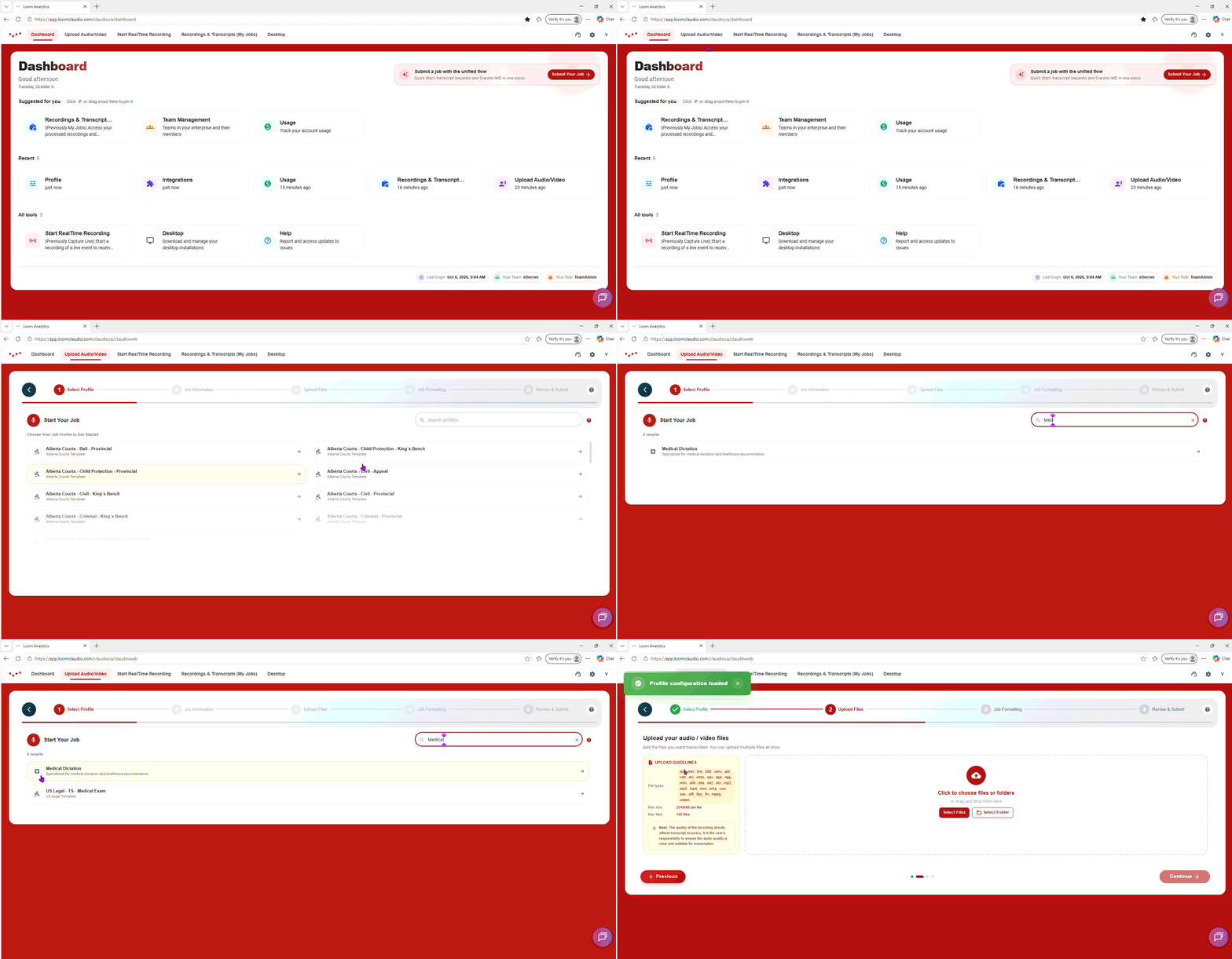 Select your recording of the dictation, and then click "Continue"
You can also modify where the transcript should start and where it should end by changing the "Start Time" and "End Time" values
Click "Continue"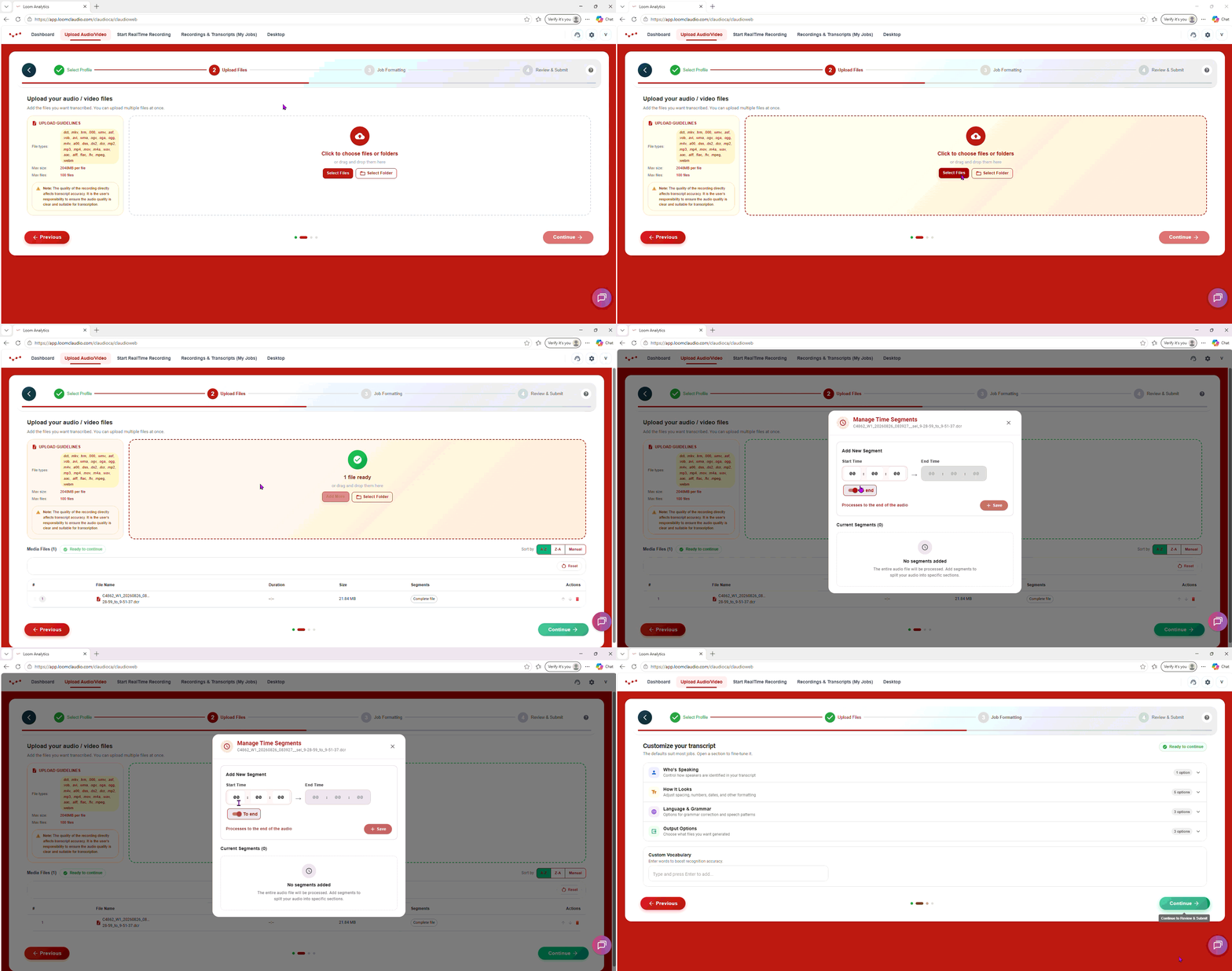
NOTE: Learn what kind of profiles are available in Loom Analytics here.
Customize your transcript by selecting your preferred Smart Formatting options
Name your file, and then click "Submit Job" Navigate to the My Jobs tab to access your transcript
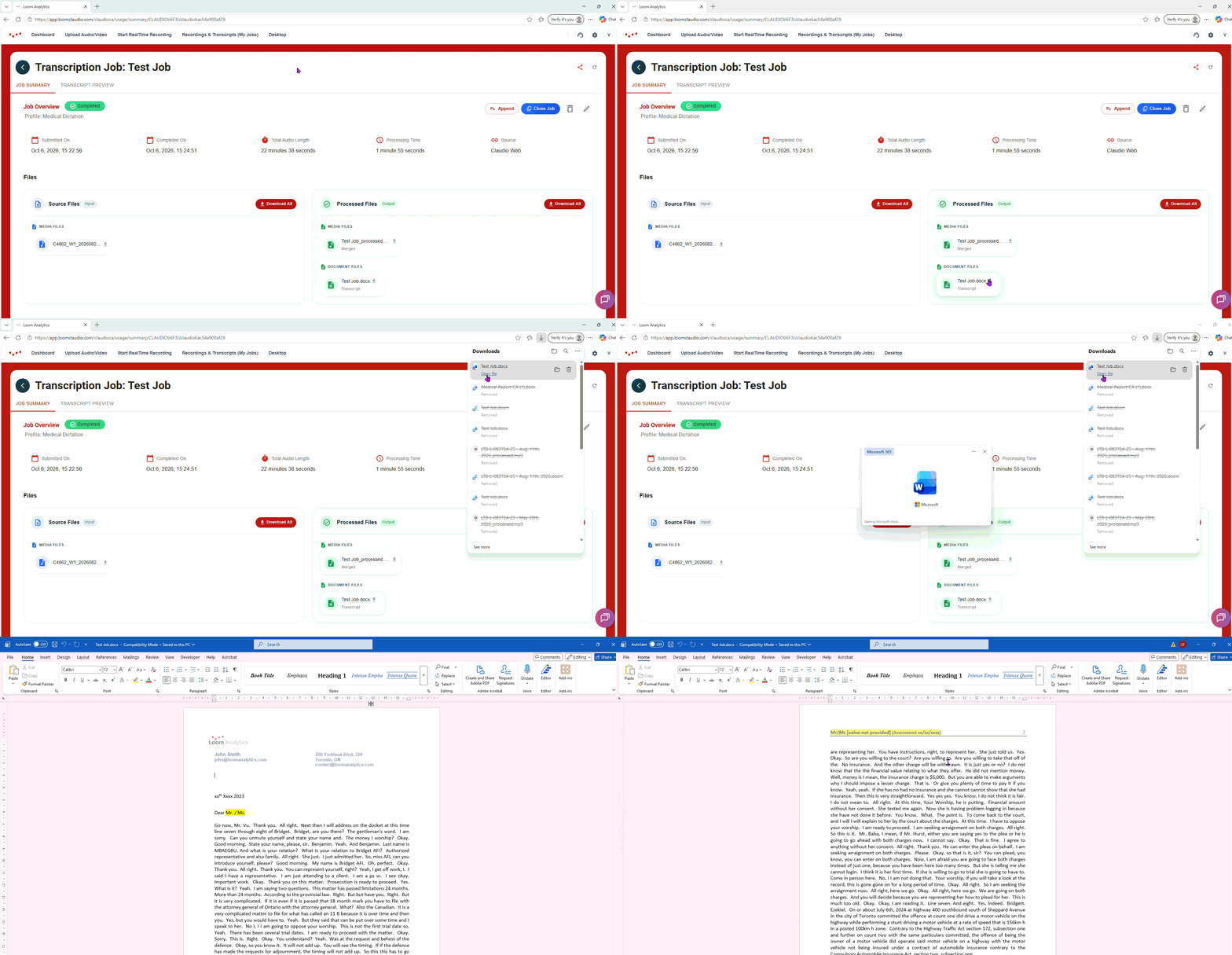
Download your transcript and begin editing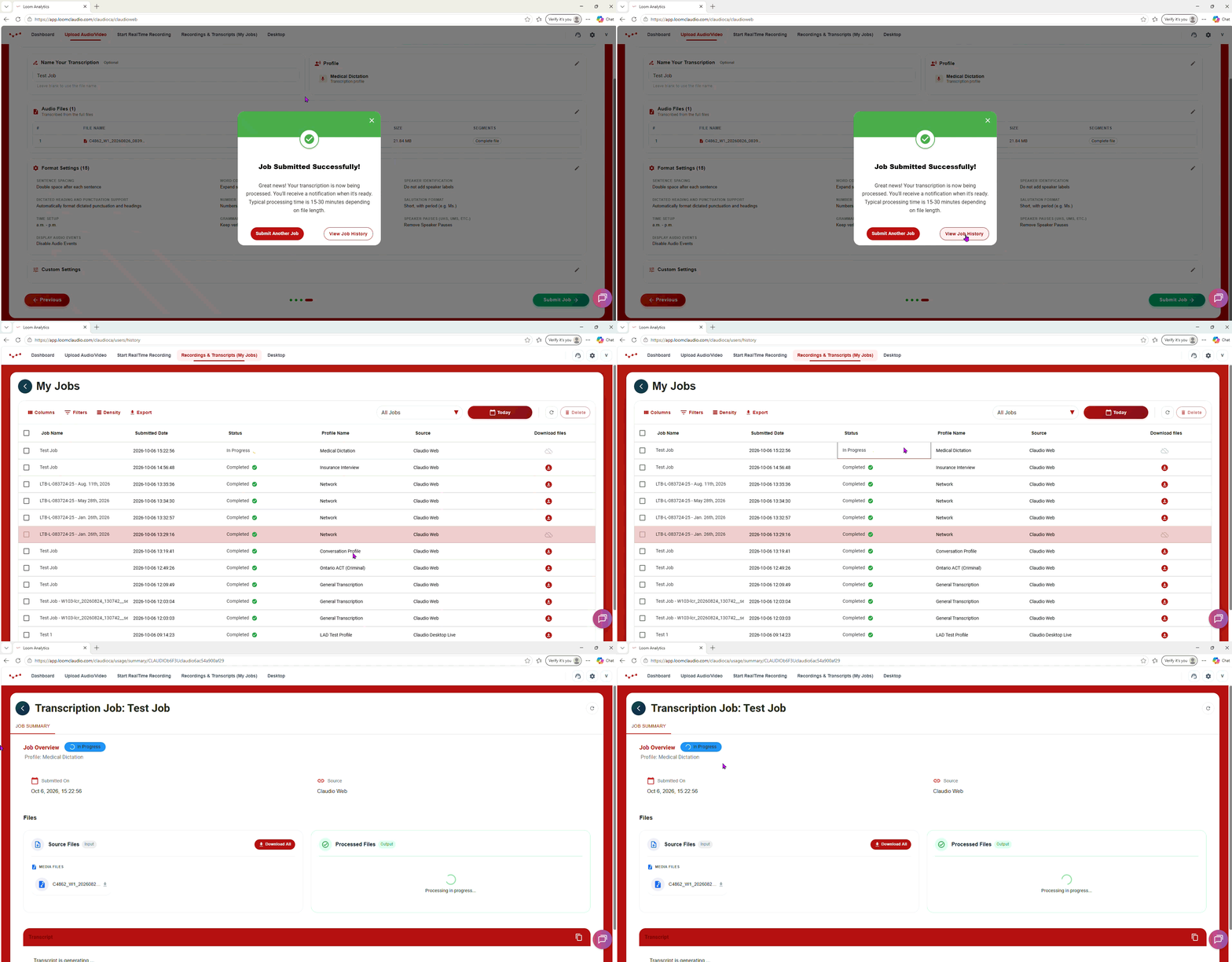
NOTE: If you want to learn how to upload multiple files for the same job, click here.
To learn which file types Loom Analytics supports, click here.
TIP: To track your transcription job progress and learn how to retrieve your finished transcripts, click here.