![Loom_Analytics_Logo_Transparent.png]](https://support.loomanalytics.com/hs-fs/hubfs/Loom_Analytics_Logo_Transparent.png?height=40&name=Loom_Analytics_Logo_Transparent.png)
Create Your Template
-
Open any MS Word document (or your preferred template) that you want to use.
-
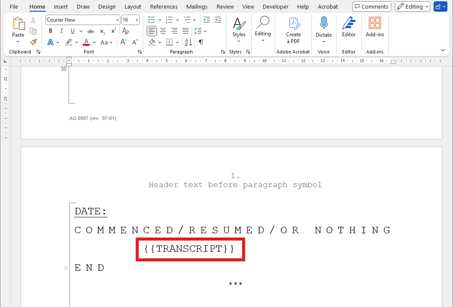
Navigate to the section where the Loom Analytics transcript should appear.
-
Insert the placeholder at that location.
Note:-
The placeholder must use double curly brackets .
-
It must be written in UPPERCASE.
-
-
Save the template file to your computer.
Upload the Template to Your Profile
-
Log in to your Loom Analytics account.
-
Click the gear icon in the top-right corner.
-
Select Profile to view all profiles associated with your account.
-
Open your custom profile.
Note: You must have a custom profile to upload or update a template. If you don’t have one yet, learn how to create a custom profile here. -
In the profile settings, go to the Profile Template tab.
-
Click Replace File (a file selection window will appear).
-
Choose the template file you created, and then click Open.
-
Click Update in the top-right corner to upload and save your template.
-gif-2.gif?width=644&height=320&name=11-07-2025%20(10-19-56)-gif-2.gif)
Using Your Template
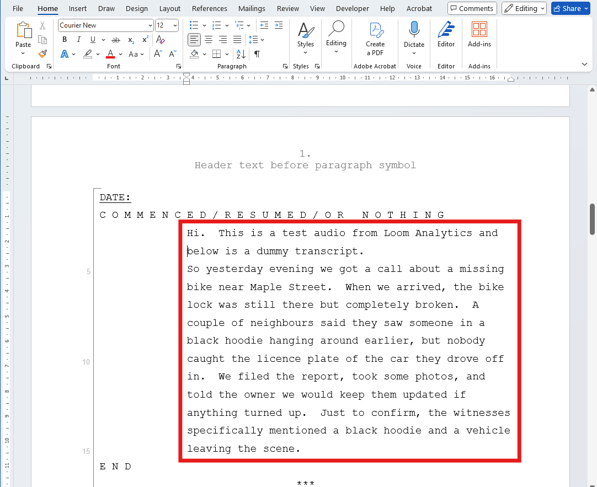
After uploading your template, simply submit a job using your custom profile. The generated transcript will automatically appear in your template where you placed the placeholder.