![Loom_Analytics_Logo_Transparent.png]](https://support.loomanalytics.com/hs-fs/hubfs/Loom_Analytics_Logo_Transparent.png?height=40&name=Loom_Analytics_Logo_Transparent.png)
NOTE: To submit a file for transcription through Claudio, you can also consider the "Quick Start" option to submit single or multiple media files. To learn how to use the Quick Start function in the Claudio web app, click here.
Claudio provides multiple options for submitting your media files for transcription. You can use the Quick Start feature for a fast submission or submit your request through the Advanced Transcript Request Form.
Use this step-by-step guide to submit a media file for transcription in Claudio using the Advanced Transcript Request Form.
Log in to Claudio.
NOTE: To learn how to log-in to Claudio, click here.
Once you are logged in to Claudio, locate the Advanced Transcript Request section and select the form that best suits your needs. When you find the appropriate form, click View to open it.
-gif.gif?width=688&height=357&name=11-20-2025%20(13-43-28)-gif.gif)
Tip: Consider the purpose of the file you want to transcribe. For example, the Legal Transcript Form is designed for recordings of court hearings, while the General Transcript Form is better suited for audio or video from office meetings.
After selecting the transcript request form, provide a name for your job and select your preferred profile.-gif.gif?width=688&height=357&name=11-20-2025%20(13-45-22)-gif.gif)
Based on the selected profile, you need to input the data in second tab.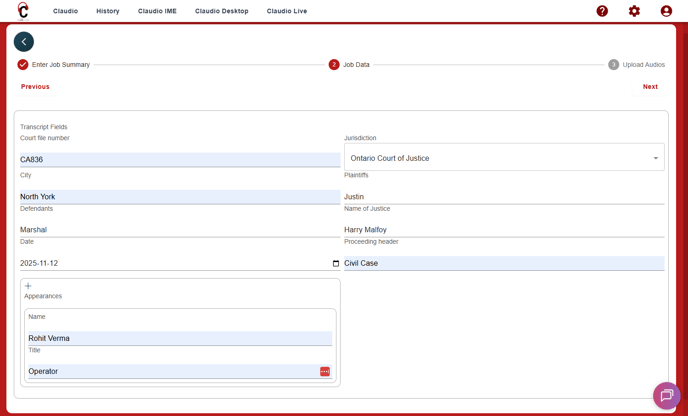
In the final tab, upload your media file by clicking the Upload File button, then navigate to the file’s location on your computer.-gif.gif?width=688&height=416&name=11-20-2025%20(14-59-23)-gif.gif)
NOTE: You can view the different file types accepted by Claudio here.
You can also include additional media files in the same job by clicking the Add Another Record button.-gif.gif?width=688&height=416&name=11-20-2025%20(15-01-09)-gif.gif)
TIP: You can learn more about submitting multiple media files to a single job in this article.
After all files have finished uploading, click the Submit button.-gif.gif?width=1500&height=907&name=11-20-2025%20(15-06-57)-gif.gif)
NOTE: You also have the option to transcribe only a portion of your recording instead of the entire file. To learn how, click here.
You will receive an email about the progress of your transcripts. The first email will confirm the job is being processed and the second email will confirm once the transcript/report is ready for download.
NOTE: You can also use the Quick Start option in Claudio to submit single or multiple media files for transcription. To learn how to use Quick Start in the Claudio web app, click here.