![Loom_Analytics_Logo_Transparent.png]](https://support.loomanalytics.com/hs-fs/hubfs/Loom_Analytics_Logo_Transparent.png?height=40&name=Loom_Analytics_Logo_Transparent.png)
1. Verify Your Role
- Log in to Claudio.
- Click the Account Settings icon (top right).
- Select Account from the dropdown menu.
- Under User Role, check if you have the Team Administrator role.
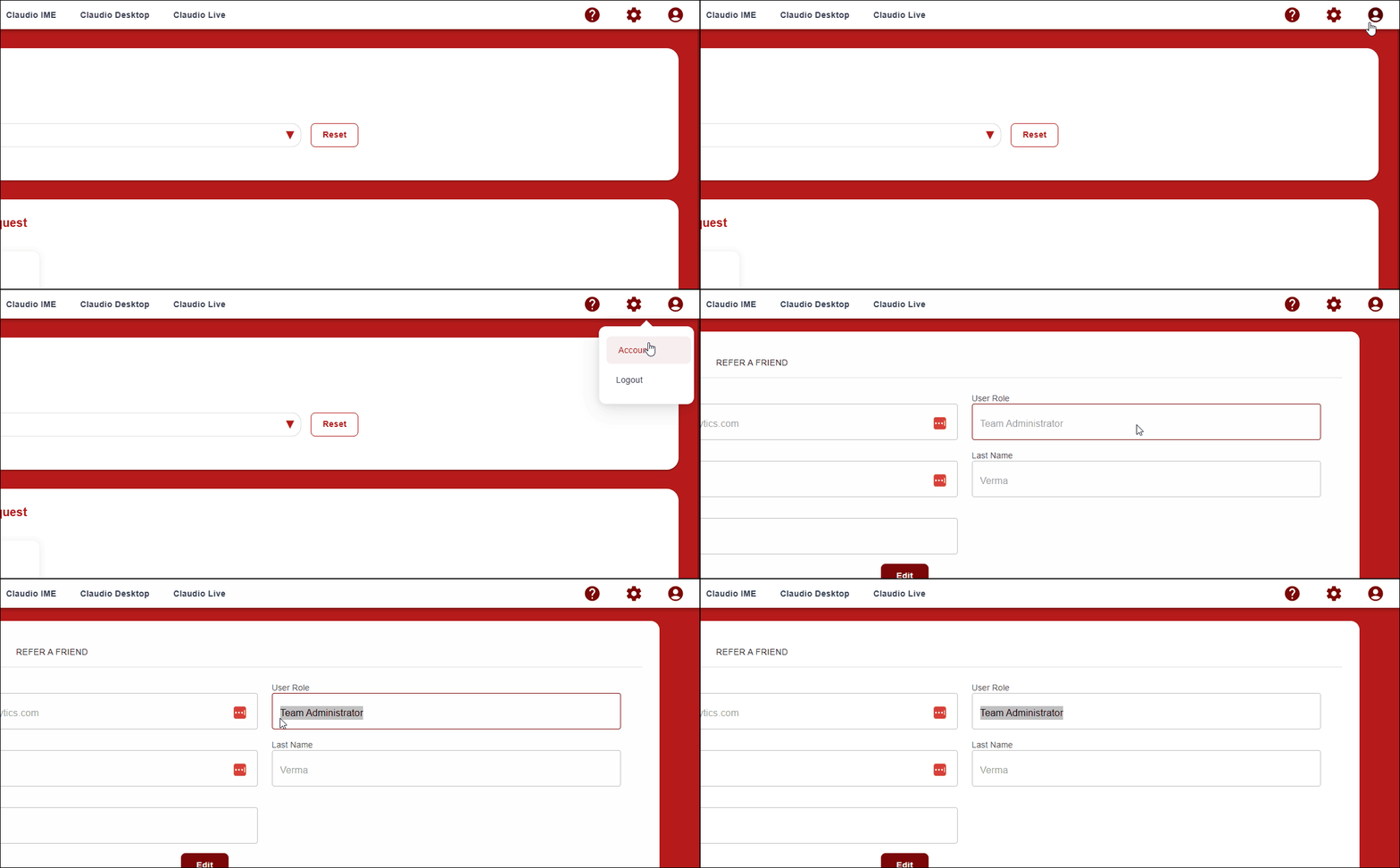
Note: Only Team Administrators can delete job data or perform bulk deletes.
2. Perform a Bulk Delete
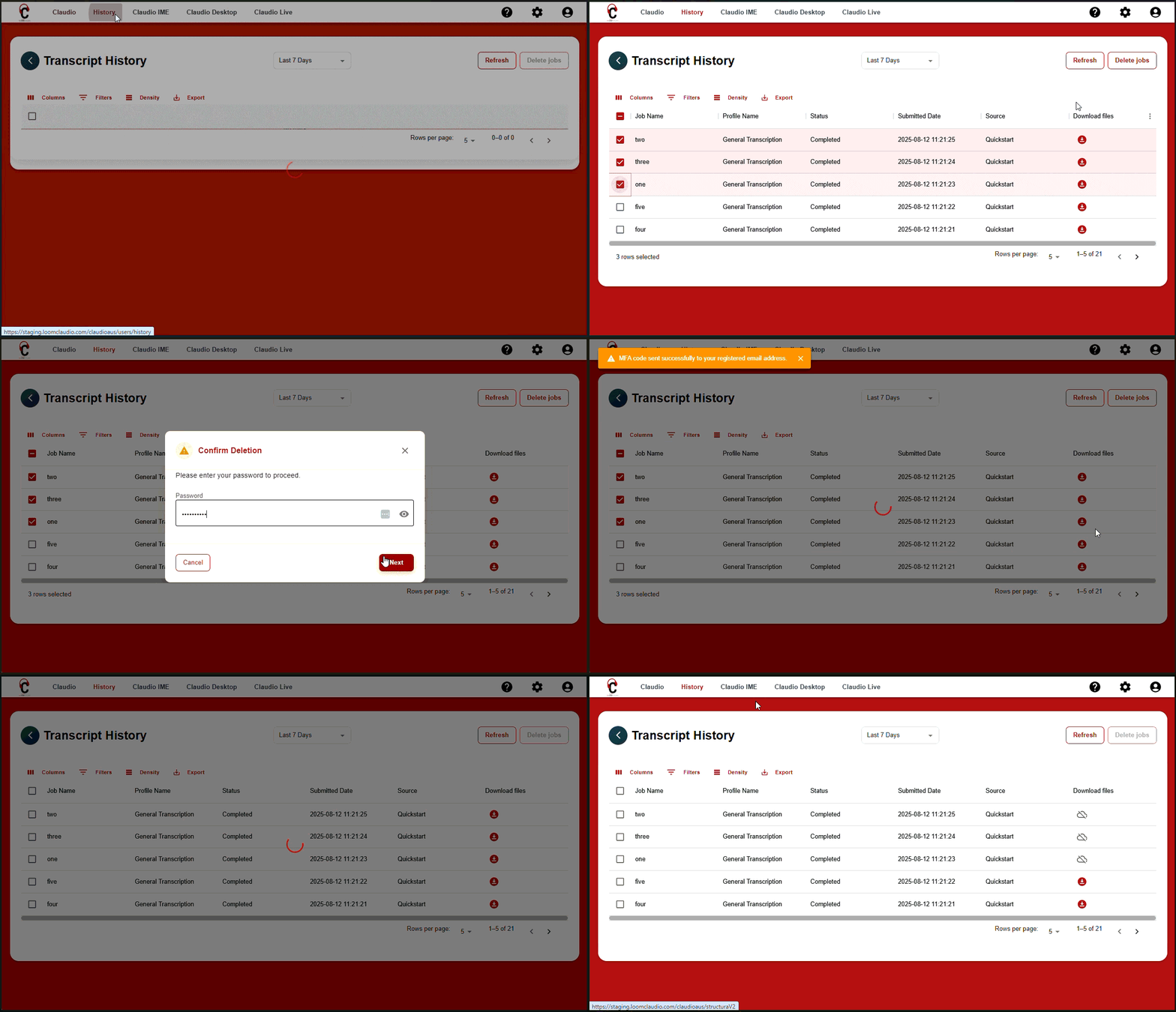
- Go to the History tab.
- Select the jobs you want to delete.
Note: Please be careful while selecting the jobs. Once deleted, job data cannot be recovered from any Loom Analytics system(s).
- Click the Delete Jobs button (top right).
- Enter your Claudio account password, then click Next.
- Enter the authentication code sent to your email or phone, then click Confirm Delete.
- A confirmation pop-up will appear at the top left upon successful deletion.
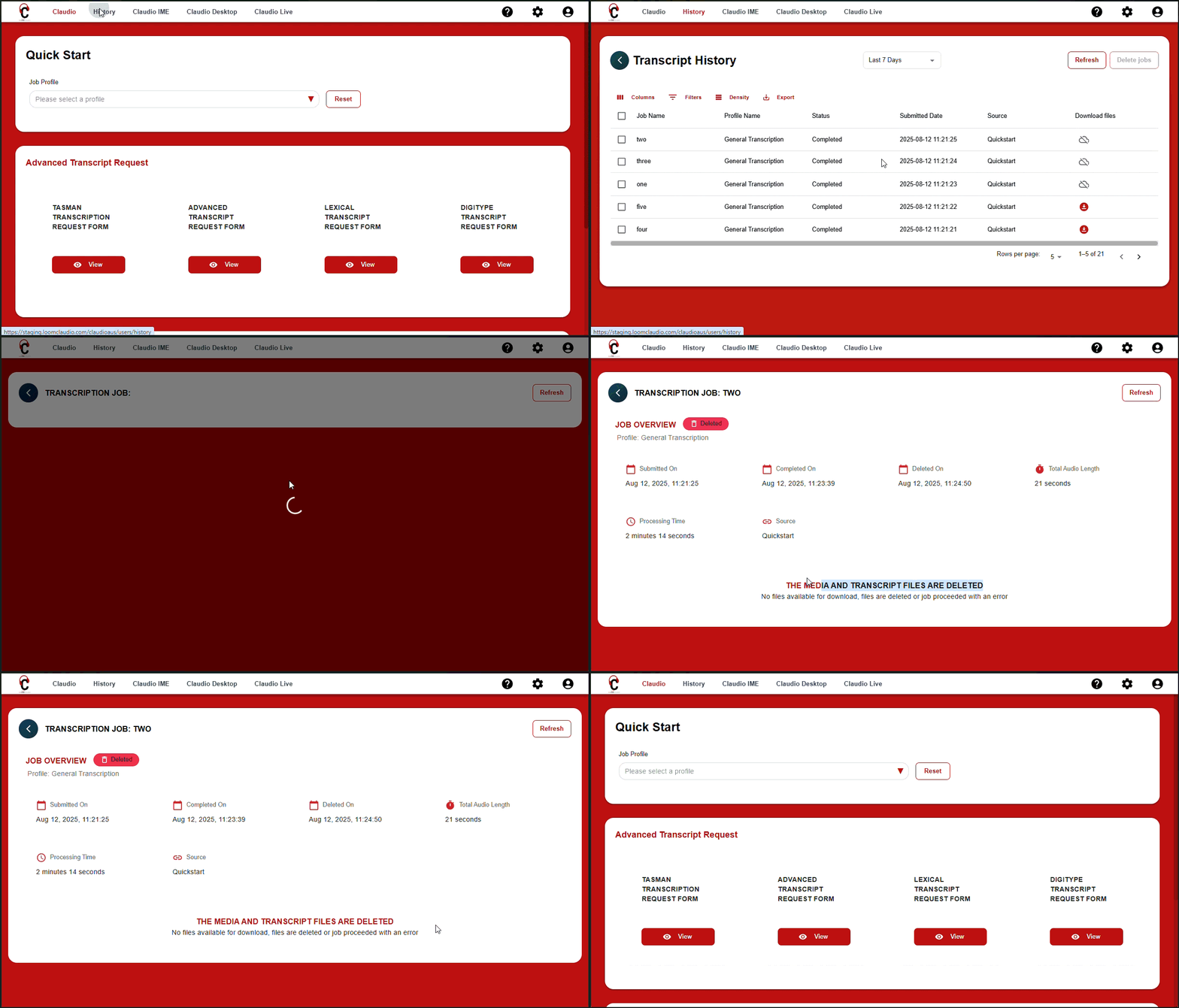
3. After Deletion
- All data (including transcripts, media files, and subtitle files) will be permanently removed from all Loom Analytics environments.
- The job record will still be visible in your account, but without any associated data.