![Loom_Analytics_Logo_Transparent.png]](https://support.loomanalytics.com/hs-fs/hubfs/Loom_Analytics_Logo_Transparent.png?height=40&name=Loom_Analytics_Logo_Transparent.png)
- Log in to Loom Analytics as a Team Admin or Enterprise Admin.
- Go to the top bar of the dashboard.
- Click on the gear icon located at the top right corner of the screen and choose "Users" from the dropdown menu.
- To add a new user, click on the "Add User" button on the top left corner of the screen at the bottom of the Gear icon.
-gif.gif?width=688&height=315&name=7-15-2024%20(15-50-13)-gif.gif)
- A form will appear where you can enter all the necessary details for the new user, such as name, email, and role.
- Select the appropriate Team for the new user if applicable.
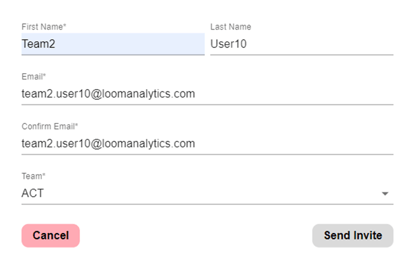
- Once you have filled out the form, click "Send Invite" to send an activation link to the new user’s email address.
-gif.gif?width=688&height=324&name=7-15-2024%20(15-52-24)-gif.gif)