![Loom_Analytics_Logo_Transparent.png]](https://support.loomanalytics.com/hs-fs/hubfs/Loom_Analytics_Logo_Transparent.png?height=40&name=Loom_Analytics_Logo_Transparent.png)
Steps to Assign Global Hotkeys
1. Open the Options Menu
-
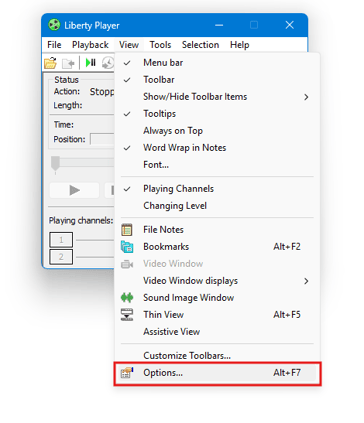
Launch the Liberty Player.
-
Click View in the top menu bar.
-
Select Options from the dropdown menu.
2. Navigate to the Hotkeys Tab
-
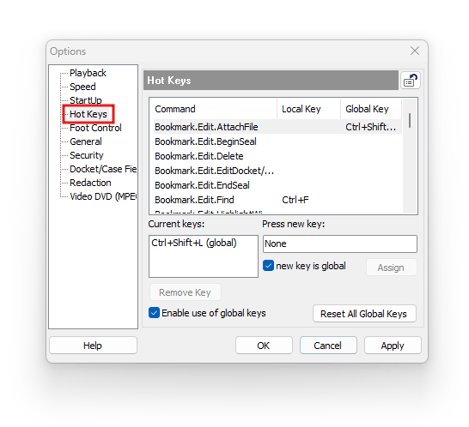
In the Options window, locate the Hotkeys tab in the left pane and select it.
3. Enable Global Keys
-
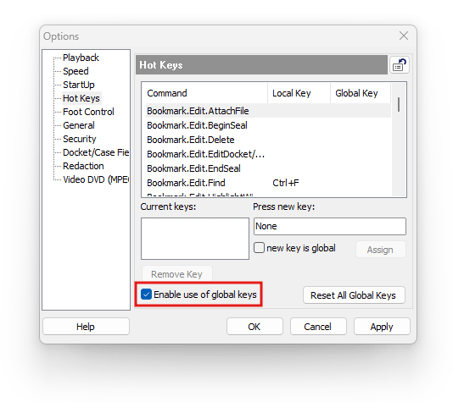
In the Hotkeys section, check the option Enable use of global keys.
4. Assign Global Hotkeys
-
In the list of available actions (e.g., Play, Pause, Stop, Next), select your preferred action you want to configure.
-
Under Press new key, enter your desired key combination.
-
Check new key is global, then click Assign.
-gif.gif?width=475&height=410&name=11-25-2025%20(16-09-35)-gif.gif)
5. Save Your Changes
-
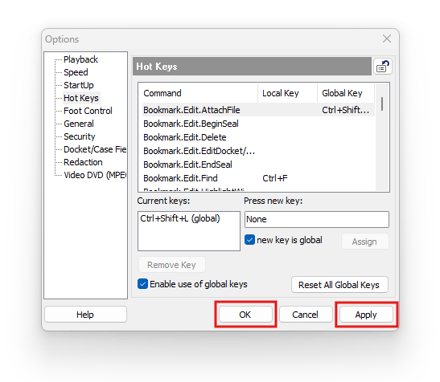
Click Apply to save your new global hotkey settings, then click OK to close the dialog box.