![Loom_Analytics_Logo_Transparent.png]](https://support.loomanalytics.com/hs-fs/hubfs/Loom_Analytics_Logo_Transparent.png?height=40&name=Loom_Analytics_Logo_Transparent.png)
Steps
- Open Liberty Player.
- Open your multichannel DCR file.
- From the title bar, select File → Export.
.gif?width=573&height=464&name=10-15-2025%20(16-29-24).gif)
Configure Export Settings
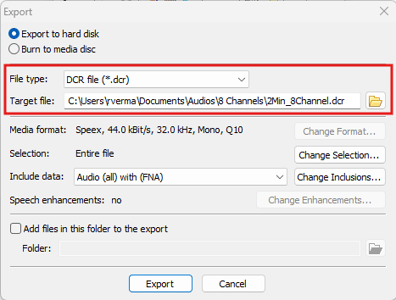
In this section, you will choose the settings needed to create your target file at a specified location.
- File type: Select .dcr
- Target file: Choose the destination path and enter the desired file name.
Select Channels to Include
- Click on Change Inclusions.
- A list of all available channels will appear.
- Select only the channel(s) you want to include in the new DCR file, then click OK.
.gif?width=503&height=386&name=10-15-2025%20(16-36-25).gif)
Export the File
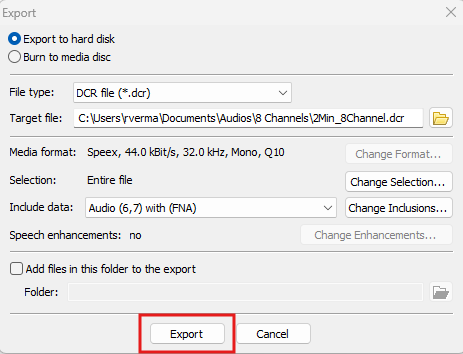
- Click Export.
- After a few seconds, your new DCR file containing only the selected channels will be available at the specified location under the chosen file name.
Verify the Exported File
-
Open Liberty Player.
-
From the toolbar, select File → Open.
-
Locate and open your newly exported DCR file.
-
The file will display and play only the channel(s) you selected during export.
-gif.gif?width=598&height=492&name=10-15-2025%20(16-44-42)-gif.gif)