![Loom_Analytics_Logo_Transparent.png]](https://support.loomanalytics.com/hs-fs/hubfs/Loom_Analytics_Logo_Transparent.png?height=40&name=Loom_Analytics_Logo_Transparent.png)
NOTE: Before following the steps in this guide, you will need to create a trial account.
Table of Contents
1.Log in to Claudio.

2.Upload your .ogg file.

3.Select a profile.

4.Submit the file.

5.Retrieve your text file.
In this guide, we will showcase the steps for you to follow along to convert a .OGG Audio File into text using Claudio.
Log-in to Claudio.
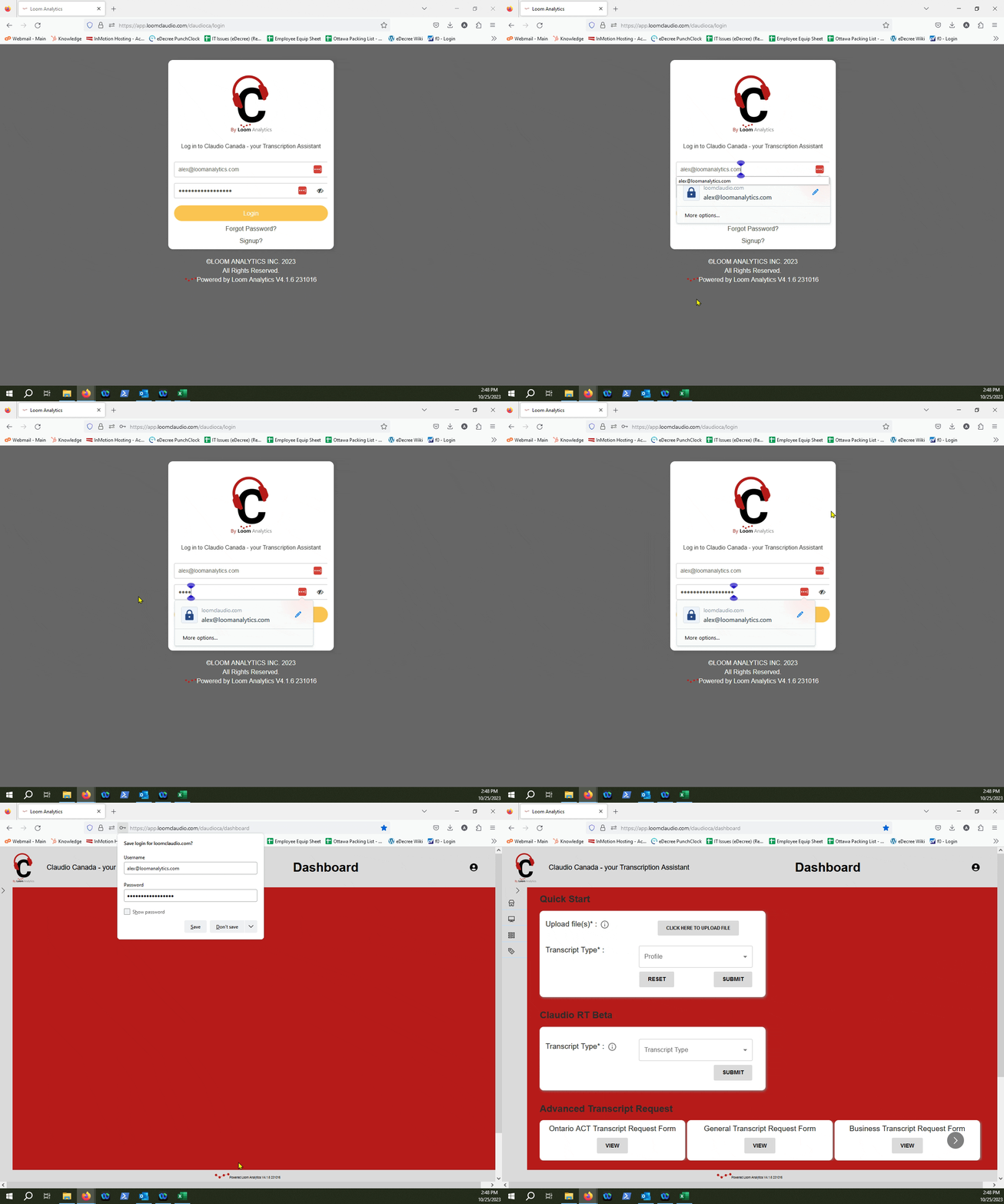
Click on the "Click here to Upload file" button.
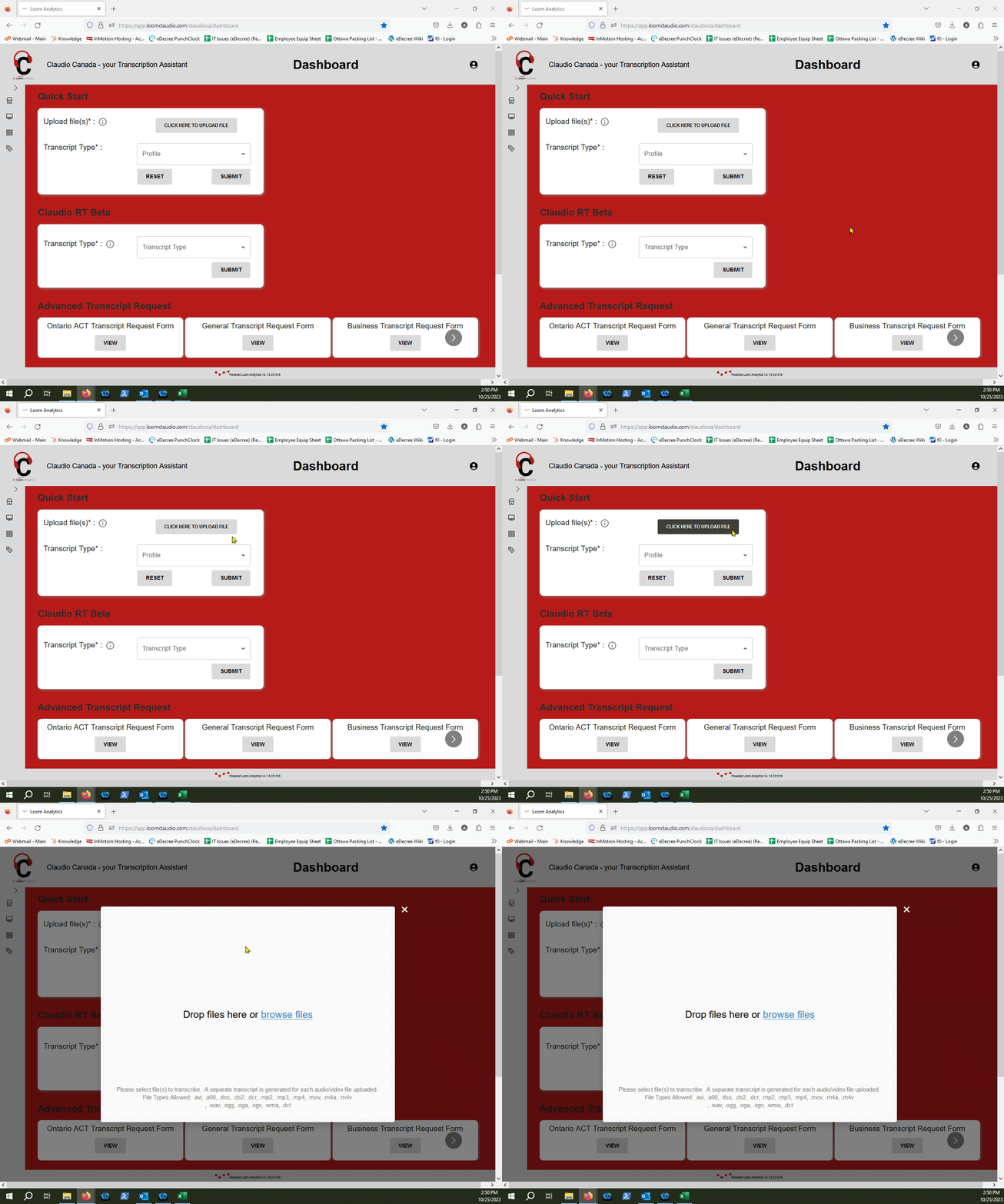
Select your file through the "Browse Files" link, or drag and drop the file into the window.
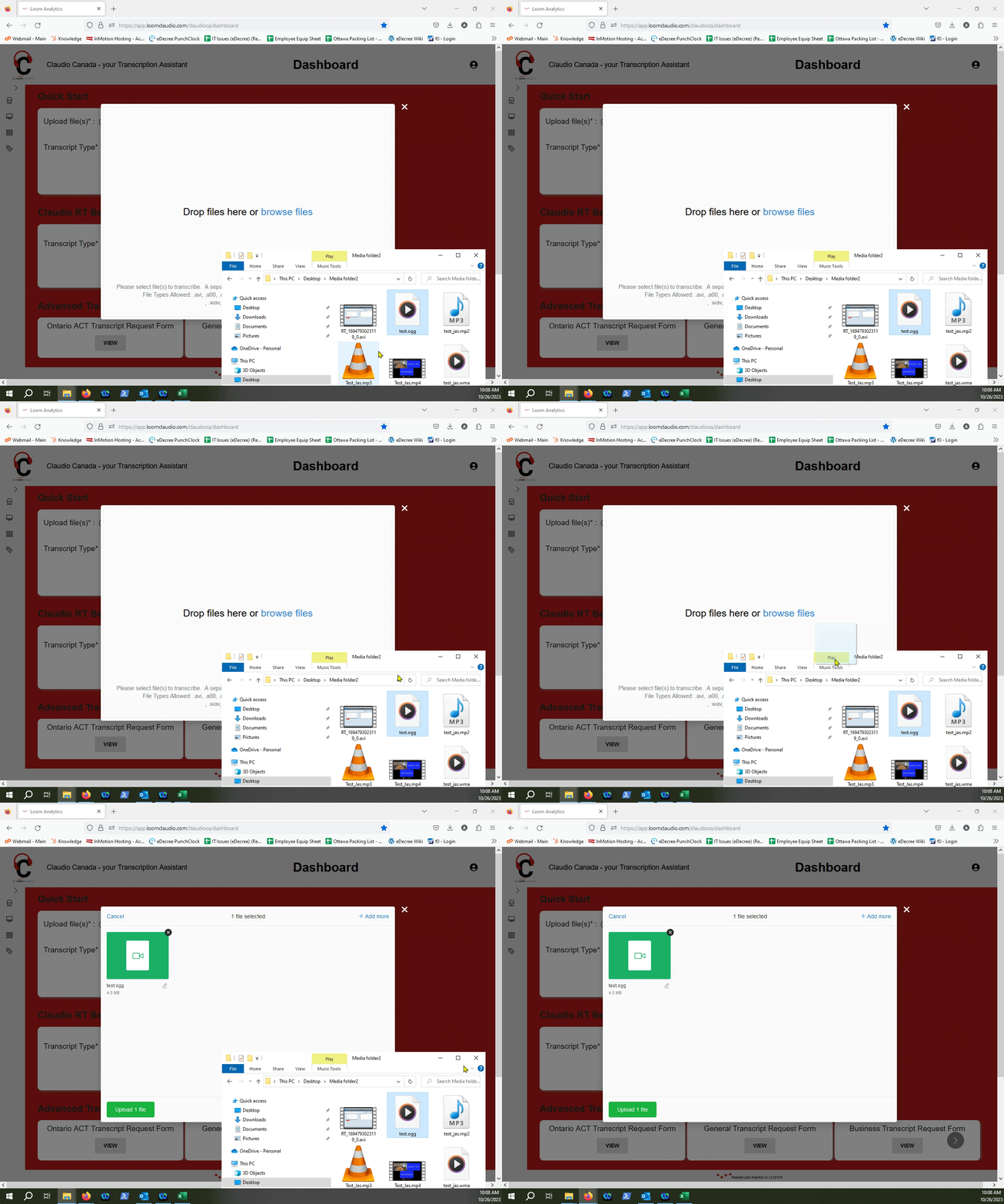
Click Upload File.
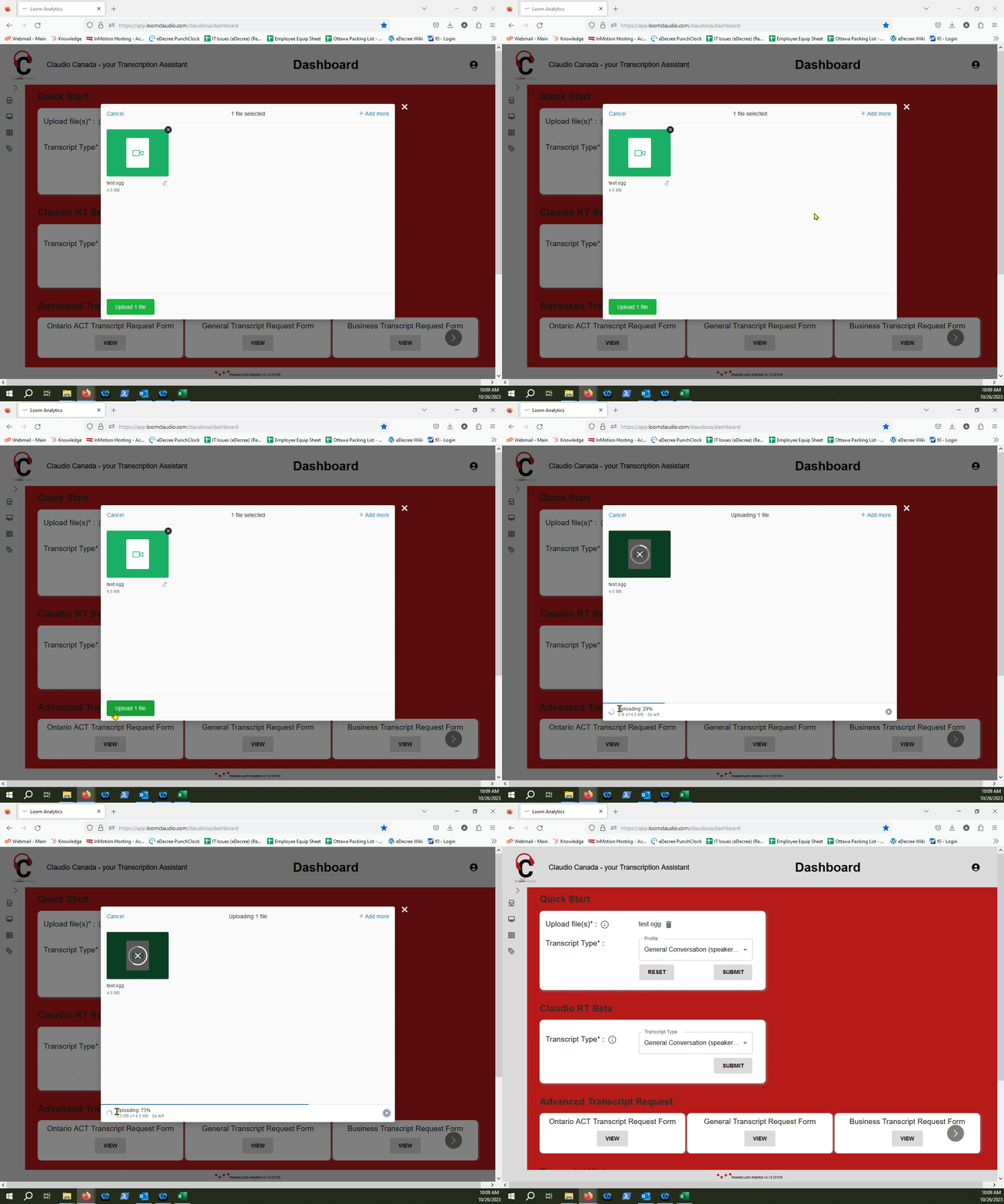
Select a Profile.
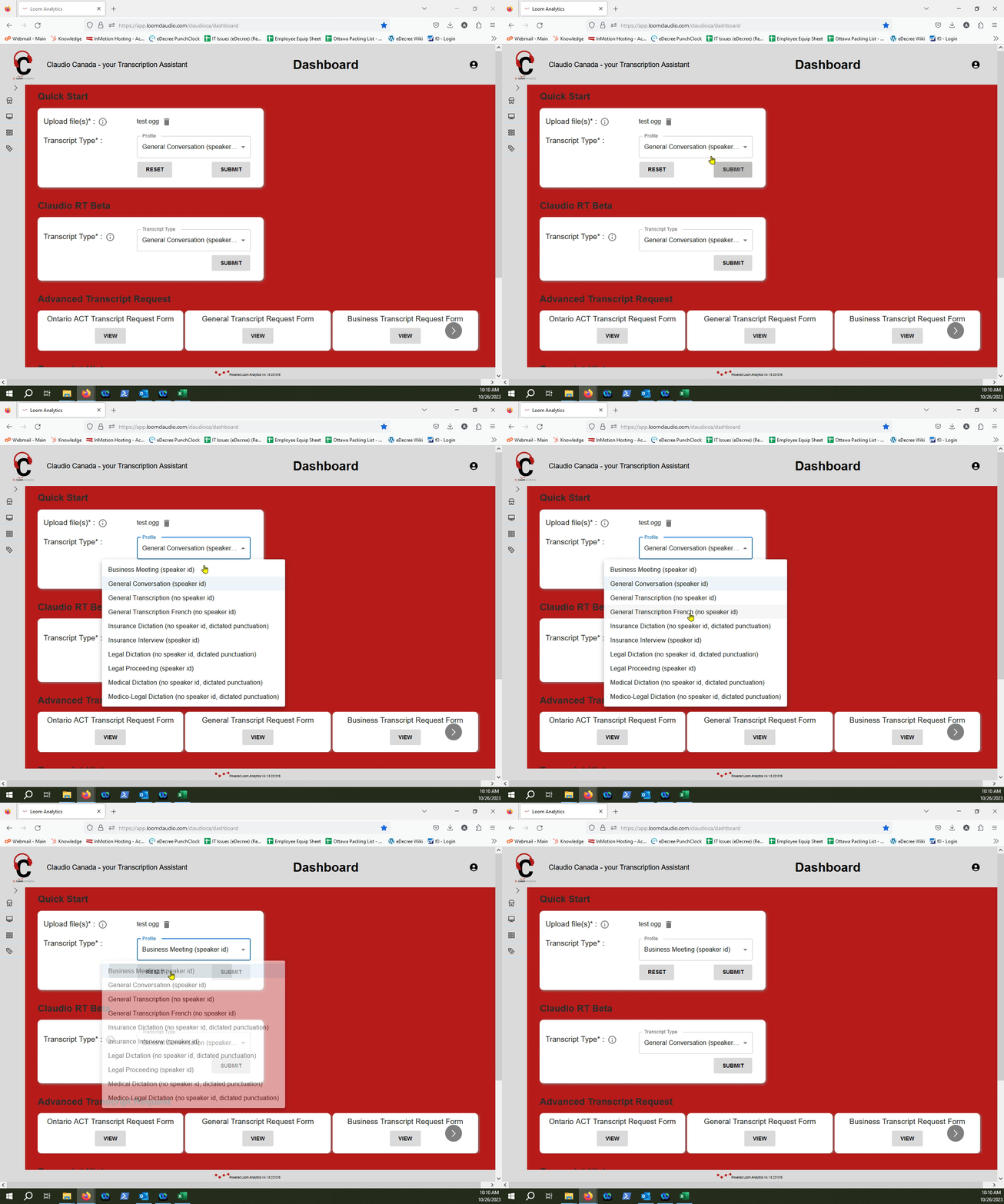
TIP: You can check out which profiles are supported in Claudio in this article.
Click Submit.-gif.gif)
Retrieve your finished text File.
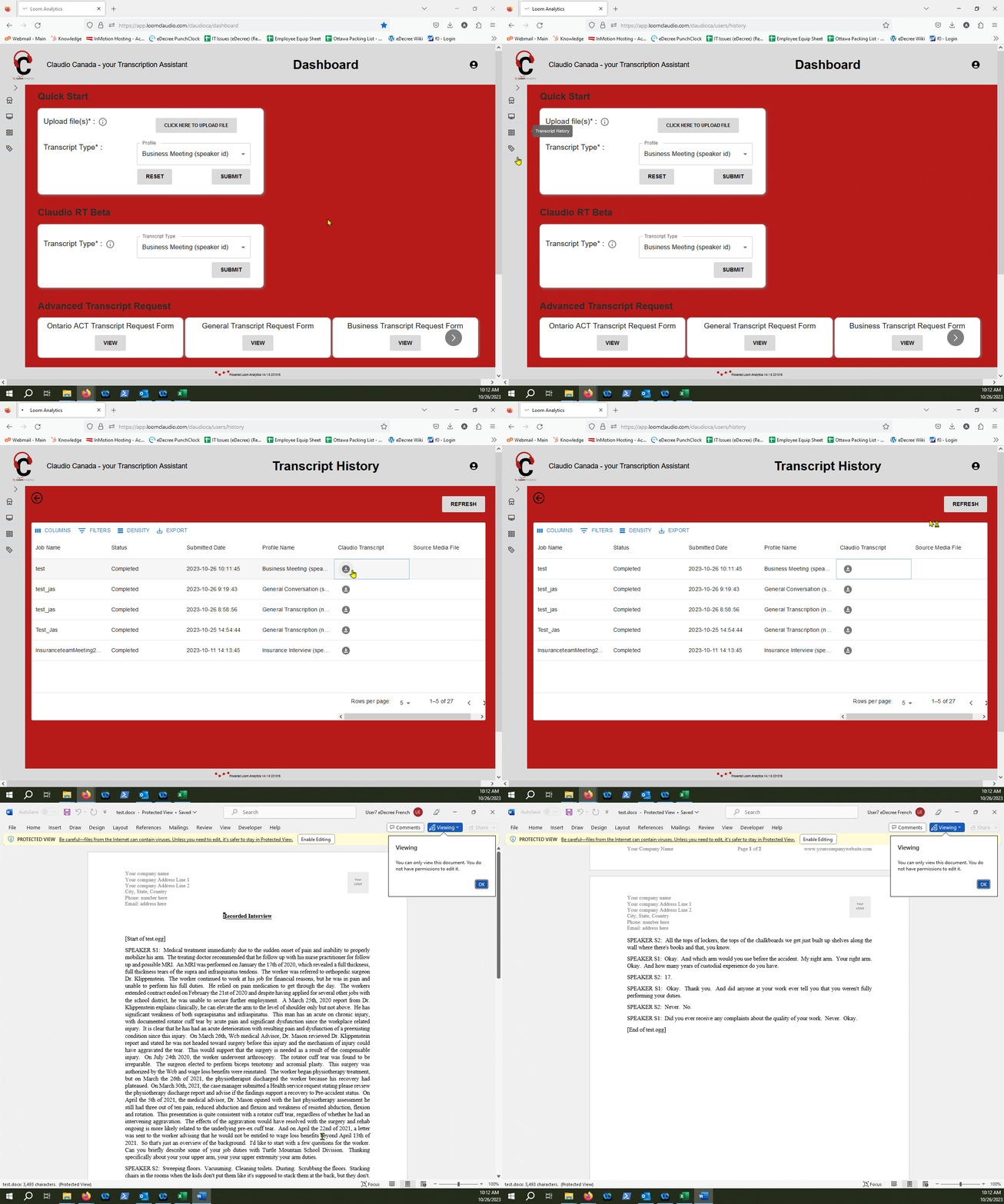
NOTE: To learn more about how you can retrieve your finished text files, check out this article.