![Loom_Analytics_Logo_Transparent.png]](https://support.loomanalytics.com/hs-fs/hubfs/Loom_Analytics_Logo_Transparent.png?height=40&name=Loom_Analytics_Logo_Transparent.png)
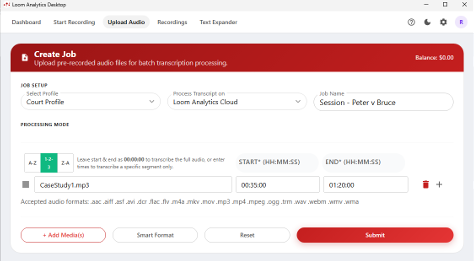
- Click Upload Audio in the top menu, or Upload Pre-recorded Audio on the Dashboard.
- Choose a Profile.
- Under Process Transcript on, choose Offline (on this computer) or Loom Analytics Cloud.
- Enter a Job Name.
- Click + Add Media(s) and select one or more files.
- Optional: To transcribe only part of a file, enter a Start and End time in HH:MM:SS format. Leave both at 00:00:00 to transcribe the whole file. Use + to add more segments.
- Optional: Click Smart Format to adjust sentence spacing, numbers, dates, and similar options.
- Click Submit. When the job finishes, it appears in Recordings & Transcripts.
Supported File Types
- Audio: MP3, WAV, FLAC, AAC, OGG, WMA, AIFF, M4A
- Video: MP4, AVI, MKV, MOV, WMV, FLV, WEBM, MPEG, ASF
- Other: TRM, DCR, and Loom Analytics Desktop's own CRF recordings
Tip: Don't run a batch upload during a live recording, because both compete for the same processing power.